FIFA WC All-time Top Scorers Table
Rank | Player Name | Country | Goal Scored | Matches Played | Participations |
1 |  Kylian Mbappé |  France France | 22 | 22 | 3 |
2 |  Lionel Messi |  Argentina Argentina | 34 | 21 | 6 |
3 |  Miroslav Klose |  Germany Germany | 16 | 24 | 4 |
4 |  Ronaldo (R9) |  Brazil Brazil | 15 | 19 | 4 |
5 |  Gerd Müller | West Germany | 14 | 13 | 2 |
6 |  Harry Kane |  England England | 14 | 18 | 3 |
7 |  Just Fontaine | France | 13 | 6 | 1 |
8 |  Pelé | Brazil | 12 | 14 | 4 |
9 |  Sándor Kocsis |  Hungary Hungary | 11 | 5 | 1 |
10 |  Jürgen Klinsmann | Germany | 11 | 17 | 3 |
11 |  Cristiano Ronaldo |  Portugal Portugal | 11 | 26 | 6 |
12 |  Grzegorz Lato |  Poland Poland | 10 | 20 | 3 |
13 |  Thomas Müller | Germany | 10 | 19 | 4 |
14 |  Gabriel Batistuta | Argentina | 10 | 12 | 3 |
15 |  Gary Lineker | England | 10 | 12 | 2 |
16 |  Teófilo Cubillas |  Peru Peru | 10 | 13 | 3 |
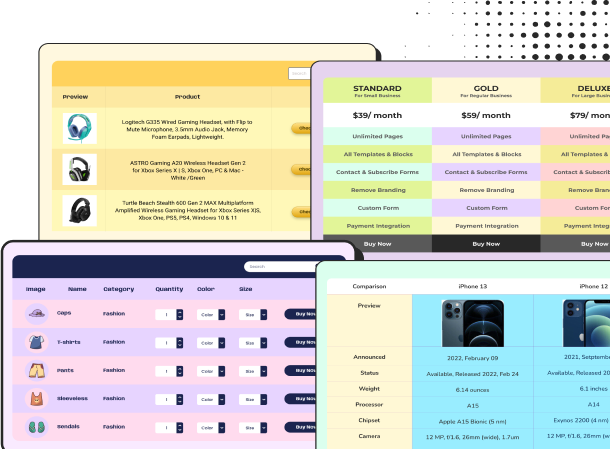
Every World Cup produces its own set of goal-scoring legends, and this table brings the tournament’s greatest names together in one ranked list. From Messi and Mbappé to record breakers like Miroslav Klose and Ronaldo Nazário, it lets visitors see who really rules the World Cup scoresheet, sorted by rank with goals, matches played, and total participations laid out side by side.
This FIFA WC top scorer table template works well for sports blogs, football stats sites, fan pages, sports betting content, or any football history article that needs a quick reference for the game’s biggest names.
This FIFA WC leaderboard is created using Ninja Table’s drag-and-drop builder. Player photos and country flags make each row instantly recognizable, while the alternating pink and yellow rows keep long lists easy to scan without losing your place on a row.
You can customize the colors to match your site’s branding, swap in your own player images, add columns for assists or tournament year, or update the rankings as new records are set. Whether you’re building a football stats archive or adding a quick-reference table to a match preview, this template gives you a colorful, ready-made starting point.
How to use this Player Performance Table Template:
This table is easy to use and customize. Just follow these steps:
- Install and activate Ninja Tables on your WordPress dashboard.
- Go to Ninja Tables → Tables → Import Table.
- Select the JSON file and in the import format section, choose: JSON- Exported From Ninja Tables Drag and Drop.
- Click on the Import button and wait for the confirmation message.
- Replace the table IDs in the Custom CSS/JS tabs for the codes to work.
After getting the success message, you can edit your table as you wish. Add or remove columns, rows, and features. Change the colors, fonts, and styles.
When you are done, save your table and copy the shortcode to your clipboard. You can paste it on any page or post where you want to display the table. Enjoy!
***This table may include some Pro features. Get Ninja Tables Pro for all-access fun!
You May Also Like
-
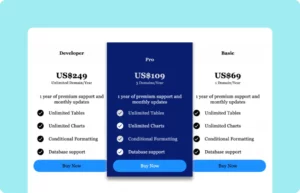
wpDataTables Pricing Table
Customize this pricing table to get a table like wpDataTables
-
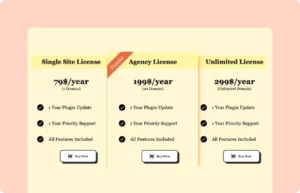
Ninja Tables Pricing Plan
Use this pricing table to customize one of your own.
-
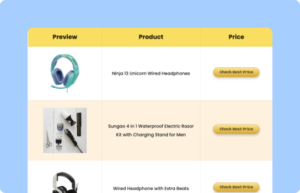
Amazon Product Table
Showcase products in a customized table for your business.
Craft Responsive Data Tables Fast!
Ninja Tables is the best table plugin to show data in an organized table format.