Volunteer Directory Table
Rank | Image | Name | Role | Department | Contact | Availability |
01 |  | William S. Manning | Event Coordinator | Events | Weekends | |
02 |  | Mark Hall | Fundraising Volunteer | Fundraising | Evenings | |
03 |  | Angela Beyers | Registration Assistant | Events | Flexible | |
04 |  | Antonio M. Vegas | Community Outreach | Outreach | Weekdays | |
05 |  | Kristin J. Lee | Social Media Volunteer | Marketing | Mornings | |
06 | | Ava Davis | Food Distribution | Community | Flexible | |
07 | | William Miller | Volunteer Coordinator | Administration | Flexible | |
08 | | Henry Thomas | IT Support Volunteer | Technology | Weekends |
Volunteer Directory Table
Keep your volunteer information organized and easy to access with this Volunteer Directory Table. It provides a clear overview of volunteers, including their names, roles, departments, contact details, social profiles, and availability, making it easier for organizations to connect volunteers with the right teams and opportunities.
This table is ideal for nonprofits, charities, community organizations, schools, universities, churches, event organizations, and volunteer-based programs that need a simple way to showcase their volunteer network. Organizations can use it to help staff and visitors quickly find the right volunteer, identify areas of responsibility, and check availability for upcoming activities or events.
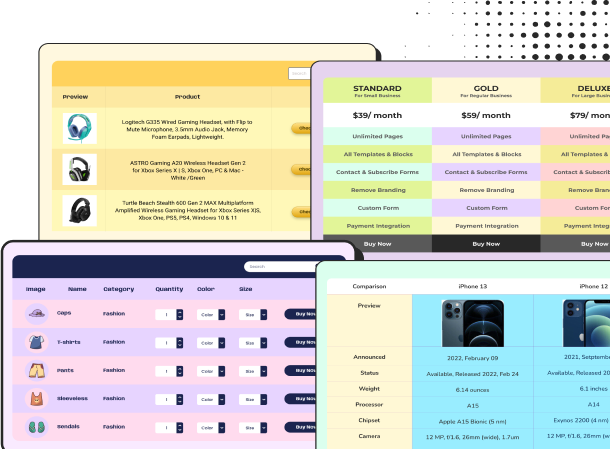
The table combines volunteer profile images, alternating row colors, social media icons, contact information, role and department details, and availability indicators to make the directory both informative and visually engaging. With Ninja Tables, you can easily customize the columns, images, colors, contact details, and other information while keeping the directory responsive and easy to browse on any device.
How to use this table:
This table is easy to use and customize. Just follow these steps:
- Install and activate Ninja Tables on your WordPress dashboard
- Go to Ninja Tables → Tables → Import Table.
- Select the JSON file, and in the import format section, choose: JSON- Exported From Ninja Tables Drag and Drop.
- Click on the Import button and wait for the confirmation message.
After getting the success message, you can edit your table as you wish. Add or remove columns, rows, and features. Change the colors, fonts, and styles.
When you are done, copy the shortcode to your clipboard. You can paste it on any page or post where you want to display the table. Enjoy!
***This table may include some Pro features. Get Ninja Tables Pro for all-access fun!
You May Also Like
-
KPI Reporting Table
A KPI reporting table helps track performance metrics.
-
Annual Income Table
Use this table as a salary statement or anything like that.
-

Travel Package Pricing Comparison Table
Compare travel packages, pricing, and destinations in one clean layout
Craft Responsive Data Tables Fast!
Ninja Tables is the best table plugin to show data in an organized table format.