Smartwatch Comparison Table
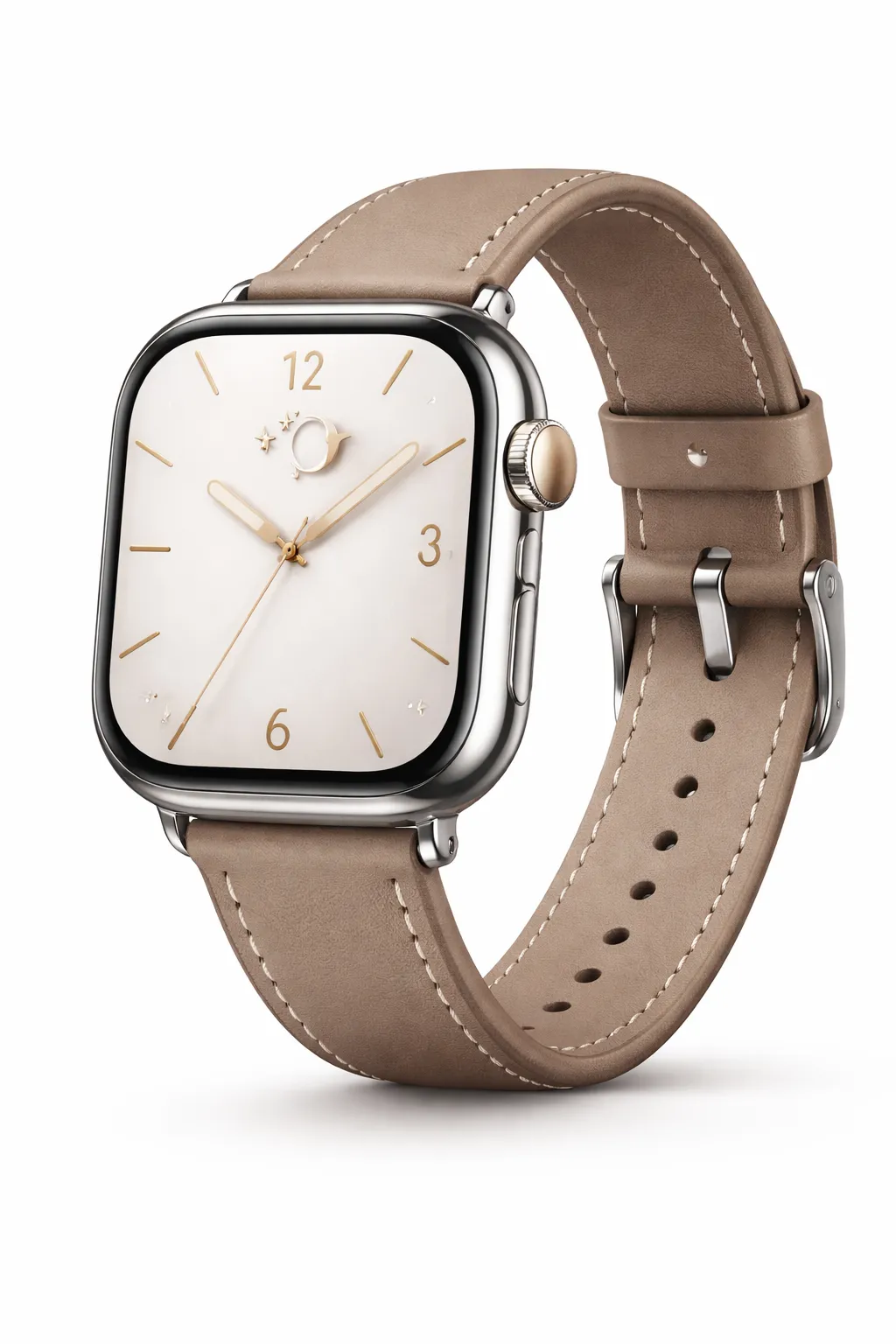 | 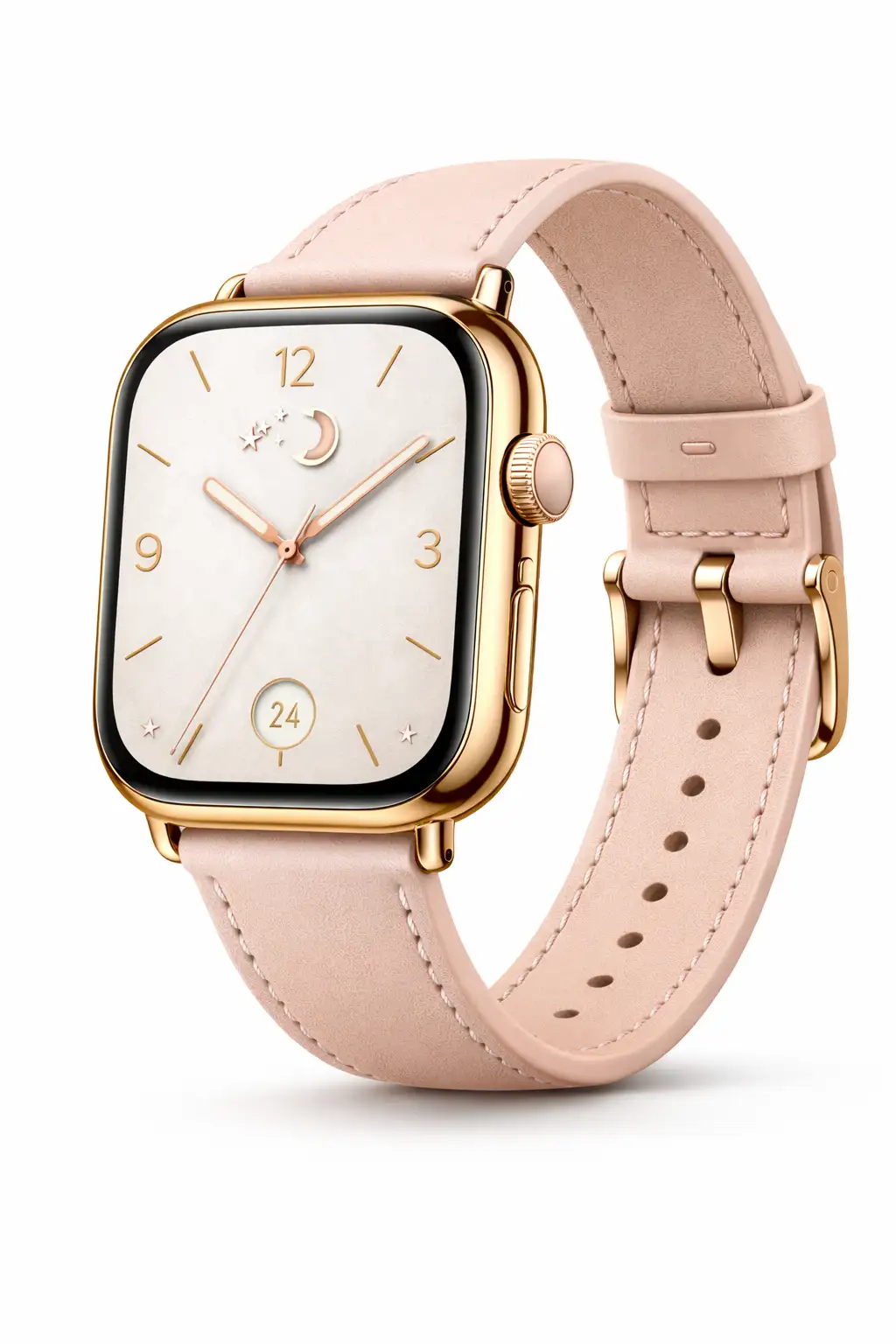 | 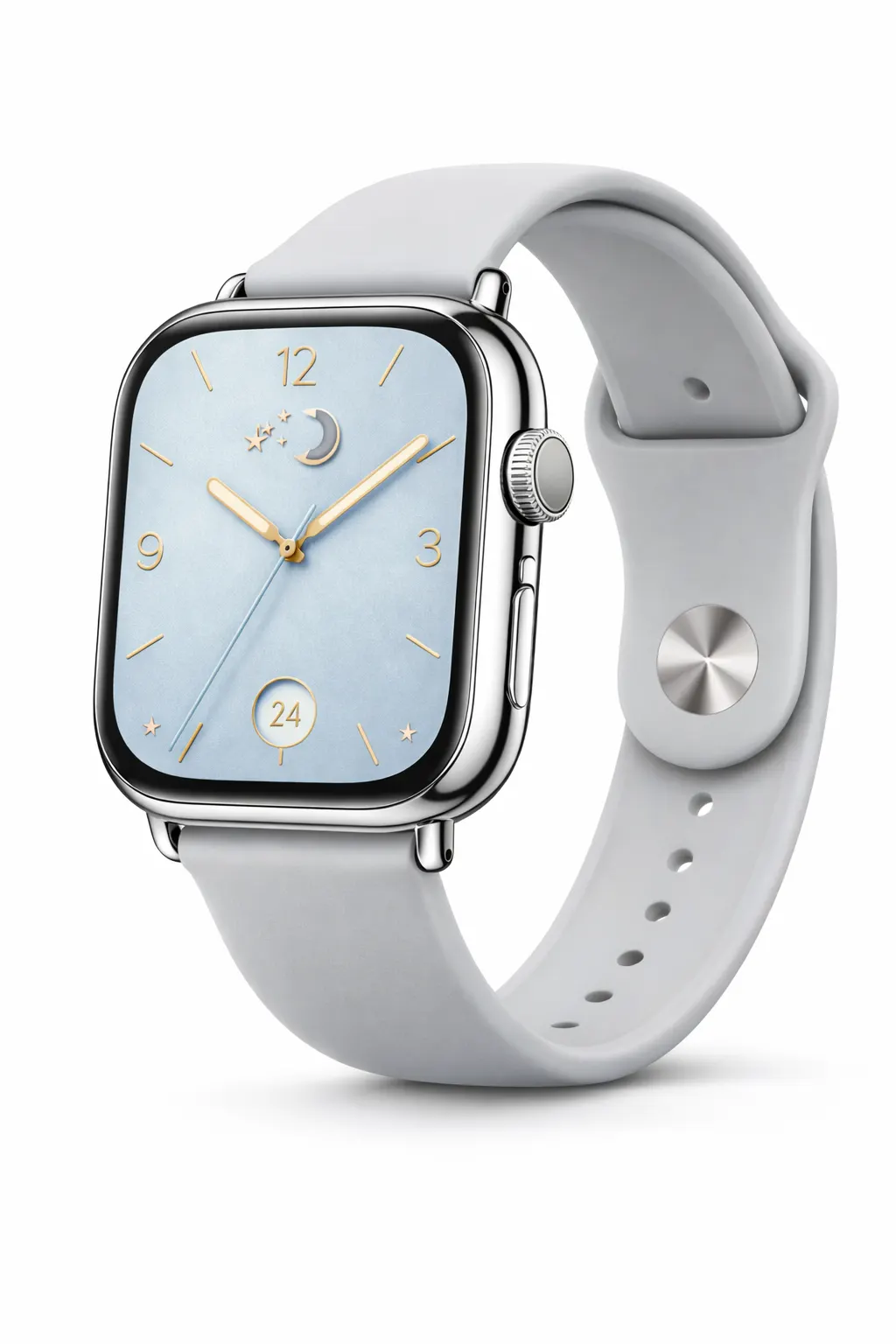 |
A smartwatch with a polished silver case paired with a classic brown leather strap. | An elegant rose-gold smartwatch with a soft blush strap and delicate dial details. | A fresh and modern smartwatch with a cool silver case and soft sky-blue dial. |
Classic brown | Blush pink | Sky blue |
$199 | $179 | $219 |
Details | ||
Display | ||
Always-On square display | Slim square display | Wide square display |
Classic analog dial | Elegant minimal dial | Modern numeric dial |
Case & Size | ||
42mm case size | 40mm case size | 44mm case size |
Stainless steel case | Rose gold aluminum case | Polished silver aluminum case |
Reinforced glass display | Scratch resistant glass | Edge-to-edge glass display |
Strap | ||
Premium leather strap | Soft leather strap | Silicone sport band |
Breathable stitched design | Lightweight and flexible | Soft-touch sport fit |
This Smartwatch Comparison Table is designed for eCommerce stores that want to showcase product variations in a visually organized format. Inspired by modern product pages, the layout presents multiple smartwatch models side-by-side with images, color indicators, pricing, and purchase buttons. The template includes a structured details section that groups key specifications—such as display type, case size, materials, and strap design—into clear categories. This allows customers to scan differences quickly without reading long product descriptions.
With its clean card-style design and categorized feature breakdown, this template works perfectly for tech products, wearables, gadgets, or any product line with multiple variations.
How to use this watch comparison table:
The layout is fully customizable using Ninja Tables, allowing you to easily modify product specs, pricing, images, and call-to-action buttons. Just follow these steps to utilize this comparison tool fully:
- Install and activate Ninja Tables on your WordPress dashboard.
- Go to Ninja Tables → Tables → Import Table.
- Select the JSON file and in the import format section choose: JSON- Exported From Ninja Tables Drag and Drop.
- Click on the Import button and wait for the confirmation message.
After getting the success message, you can edit your table as you wish. Add or remove columns, rows, and features. Change the colors, fonts, and styles.
When you are done, save your table and copy the shortcode to your clipboard. You can paste it on any page or post where you want to display the table. Enjoy!
***This table may include some Pro features. Get Ninja Tables Pro for all-access fun!
You May Also Like
-
Product Display Box
Simple product display table with image, buy button, ratings, and description.
-

Travel Package Pricing Comparison Table
Compare travel packages, pricing, and destinations in one clean layout
-
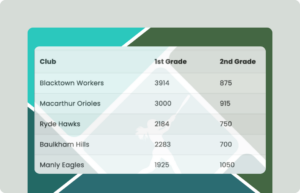
Baseball Championship Standings
Visualize the Baseball Championship scores in beautiful tables.
Craft Responsive Data Tables Fast!
Ninja Tables is the best table plugin to show data in an organized table format.