Product Tables for WordPress Stores: Turn Browsers Into Buyers


Spoiler: Your online store’s product grid is costing you sales.
When a shopper lands on your store they see a grid of product cards, each card shows a thumbnail, title, and price for each product. To compare two products, they open multiple tabs. To filter by specs, they dig through category pages. To check stock status, they click into each product individually.
People don’t have the time to spend on your store comparing products. So they leave.
But product tables flip this experience. Instead of hunting through grids, shoppers see everything side-by-side. They filter by price, size, or category without page reloads. They add to cart without leaving the table.
This results in faster decision-making, fewer abandoned sessions, and more sales.
We’ll show you exactly how to set up product tables for your WordPress store using WooCommerce or FluentCart. You’ll learn which features drive conversions, see real setup walkthroughs and examples, and avoid the mistakes that kill mobile sales.
Let’s turn your boring catalog into a conversion machine.
Why Product Tables Outsell Default Grids
Product tables aren’t just a different layout to prettify your online store. They change how shoppers make decisions. For stores with large product catalogs, grids often hide stock and variation data until it’s too late.
Whereas, a product table is a structured, filterable list of products displayed in rows and columns, allowing side-by-side comparison. So, product tables are the answer to turn casual browsers into engaged buyers.
The Psychology of Comparison Shopping
When someone’s ready to buy, they’re comparing options. That’s true whether they’re choosing between your products or between you and a competitor.
Default WordPress product grids force shoppers to:
- Open products in separate tabs to compare specs
- Remember details as they click back and forth
- Scroll through pages to find products matching their criteria
- Click into each product just to see stock status
Product tables eliminate this friction:
Shopper action | Grid layout | Table layout |
Compare 3 products | 3 tabs open, manual comparison | One glance, side-by-side |
Filter by price range | Browse multiple pages | Instant filter, no reload |
Check stock of 10 items | 10 clicks minimum | Visible in one column |
Add multiple items to cart | 10+ page loads | Checkboxes + bulk add |
 | ||
The difference isn’t subtle.
It becomes obvious in stores with 40 or 50+ products, where grids start hiding critical buying information behind extra clicks.
Tables compress the decision process from minutes to seconds.
Learn more on table data visualization.
When Tables Beat Grids
Product tables work best for:
Stores with 20+ products: Grids become overwhelming. Tables let shoppers filter and sort to find exactly what they need.
Products with specs to compare: Electronics, auto parts, supplements, software plans. Anything where buyers need to compare dimensions, compatibility, or features.
B2B and wholesale catalogs: Business buyers want efficiency. They’re not browsing for inspiration; they’re filling orders. Tables with bulk add-to-cart are essential.
Subscription and membership tiers: Pricing tables comparing features across plans convert better than separate plan pages.
Course and digital product catalogs: Learners comparing courses by duration, level, and price make faster decisions with tables.
When Grids Still Win
Tables aren’t always the answer:
Small catalogs under 10 products: If you’re selling 6 items, a clean grid with strong visuals is simpler.
Visual-first products: Art prints, fashion lookbooks, and home decor rely on imagery. Tables can feel clinical for these categories.
Single-product stores: If you sell one product with variants, a well-designed product page beats a table.
Although for most WordPress stores, product tables are an upgrade. Let’s set one up.
WooCommerce Product Table Setup
WooCommerce powers over 5 million stores. Its default product display, the familiar grid of product cards works fine for small catalogs. But as your store grows, that grid becomes a conversion bottleneck.
Here’s how to create a filterable WooCommerce product table that lets shoppers compare, filter, and buy without friction.
What you’ll build
- A product table displaying images, titles, prices, and stock status
- Filters by category, price range, and custom attributes
- Inline add-to-cart buttons (no page redirects)
- Mobile-responsive layout that works on any screen size
What you’ll need
- WordPress site with WooCommerce installed
- Ninja Tables Pro
- Woo Products ready to sell
Step 1: Install Ninja Tables Pro
If you haven’t already, install and activate Ninja Tables Pro. The WooCommerce product table feature requires the Pro version.

- Download Ninja Tables Pro (special discount going on!)
- Go to Plugins → Add New → Upload Plugin
- Upload the zip file and activate
- Enter your license key under Ninja Tables → License
Step 2: Create a New WooCommerce Table
- Navigate to Ninja Tables Pro → Add Table
- Select WooCommerce Table as your table type
- Name your table (e.g., “All Products” or “Electronics Catalog”)
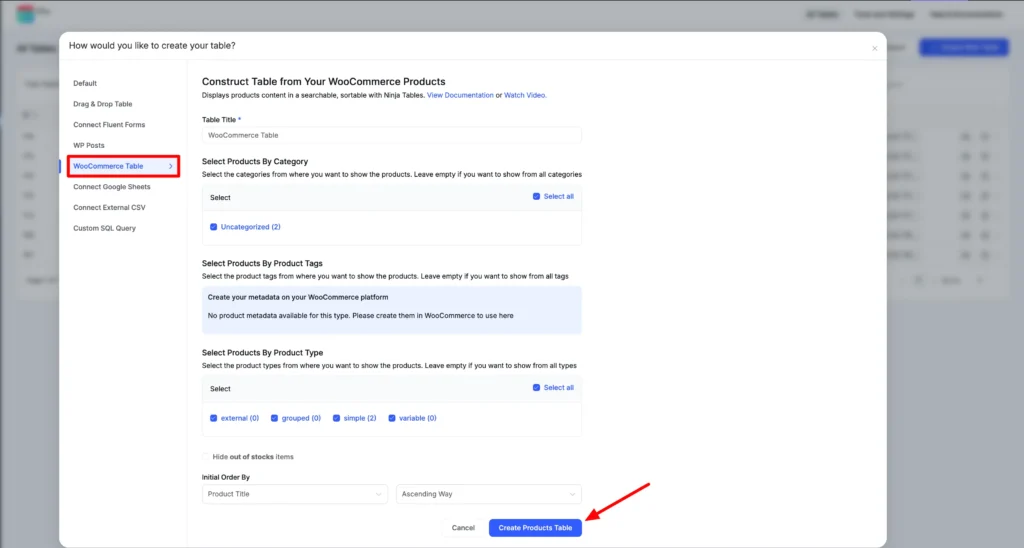
You’ll see the WooCommerce configuration panel.
Learn how to integrate WooCommerce with Ninja Tables
Step 3: Choose Which Products to Display
Ninja Tables gives you several filtering options:
All Products: Display your entire catalog. Best for stores with strong filtering.
By Category: Select specific WooCommerce categories. Useful for category-specific landing pages.
By Tag: Filter by product tags. Good for curated collections like “Staff Picks” or “On Sale.”
Specific Products: Hand-pick products by ID. Ideal for comparison tables featuring your top sellers.
Product Type: Filter by simple, variable, grouped, or external products.
We’ll leave this one up to you.
Step 4: Configure Your Columns
This is where Ninja Tables shine. Choose columns that help shoppers compare and decide.
Essential columns:
- Thumbnail: Visual anchor, helps recognition
- Product Name: Linked to product page for details
- Price: Shows sale prices automatically
- Add to Cart: Inline button
| Image | Name | Category | Price | Choose | |
|---|---|---|---|---|---|
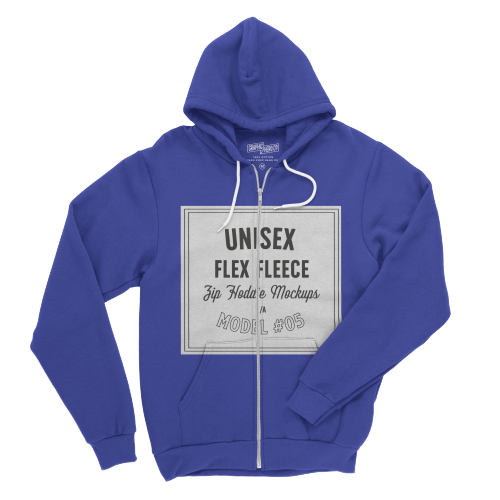 | Blue Hoodie (Zipper) | Hoodies | Original price was: $40.00.$35.00Current price is: $35.00. | | |
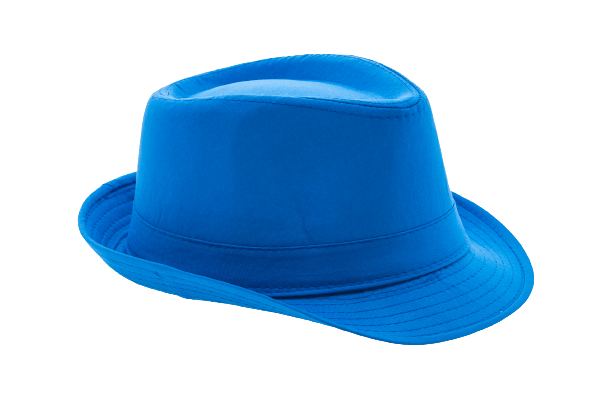 | Hat | Hat | Original price was: $20.00.$15.00Current price is: $15.00. | | |
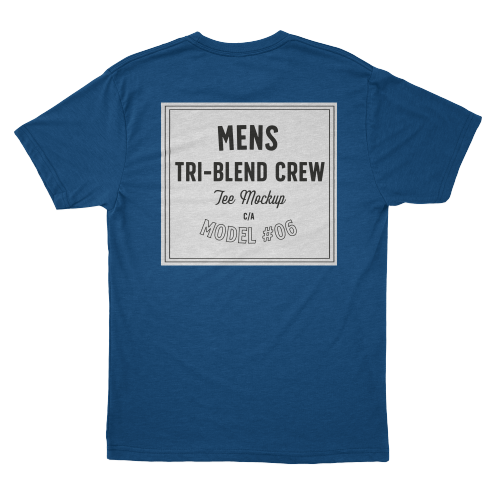 | T Shirt | Half sleeve | $45.00 | | |
 | T-Shirt with Logo | Tshirts | Original price was: $10.00.$8.00Current price is: $8.00. | | |
 | Beanie with Logo | Accessories | Original price was: $20.00.$18.00Current price is: $18.00. | | |
 | T-Shirt | Tshirts | $18.00 | | |
 | Long Sleeve Tee | Tshirts | $25.00 | | |
 | Polo | Tshirts | $20.00 | | |
 | Hoodie with Logo | Hoodies | $45.00 | | |
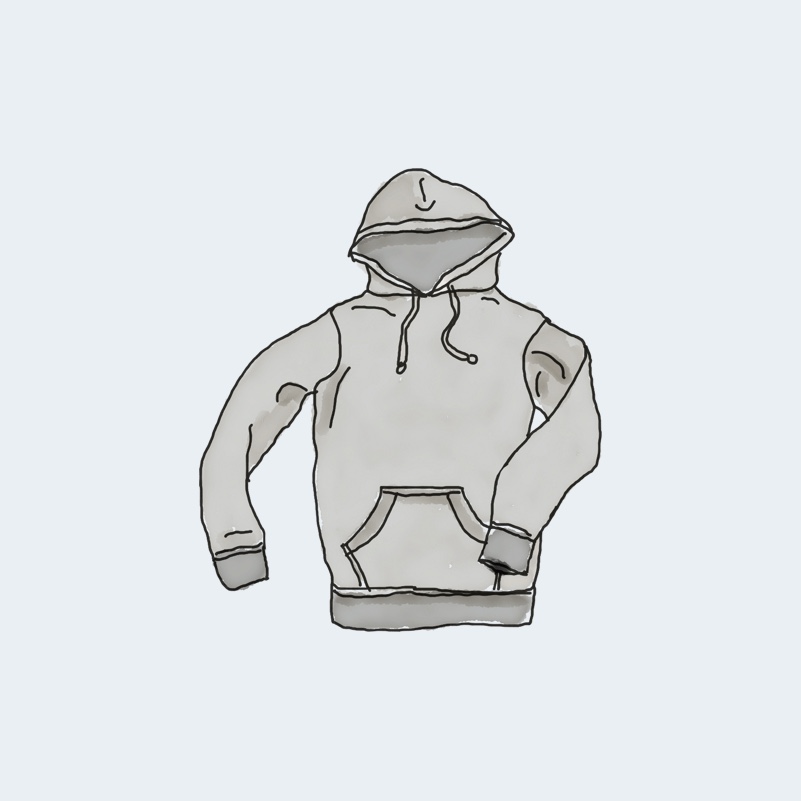 | Hoodie with Pocket | Hoodies | Original price was: $45.00.$35.00Current price is: $35.00. | | |
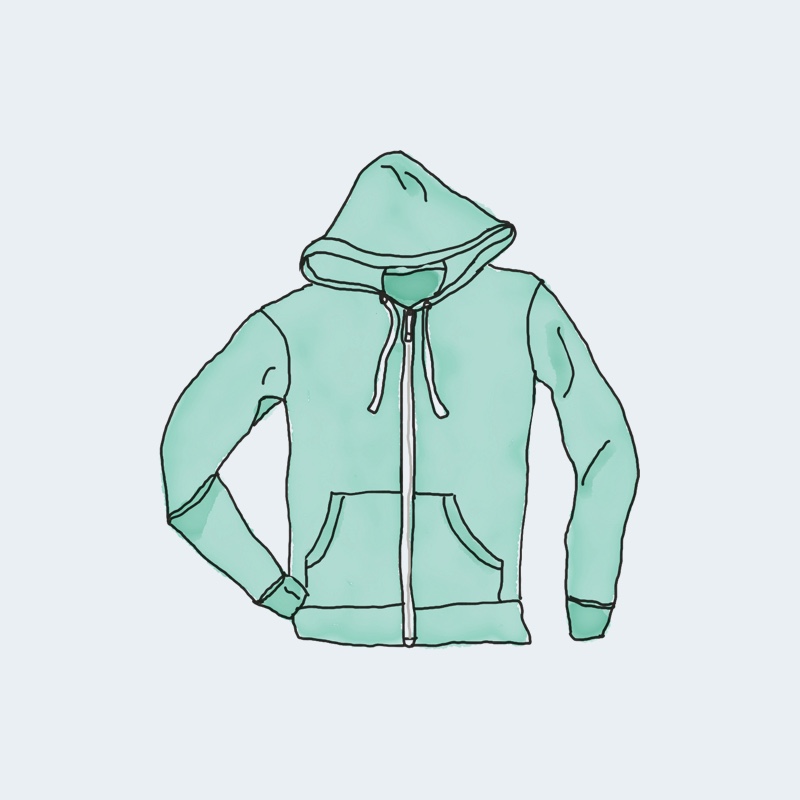 | Hoodie with Zipper | Hoodies | $45.00 | | |
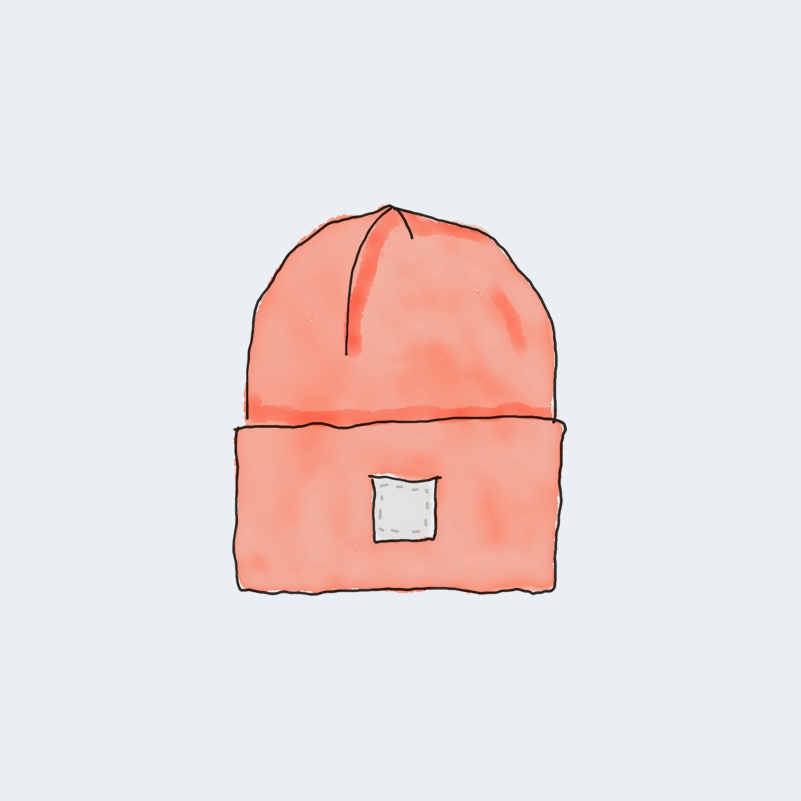 | Beanie | Accessories | Original price was: $20.00.$18.00Current price is: $18.00. | | |
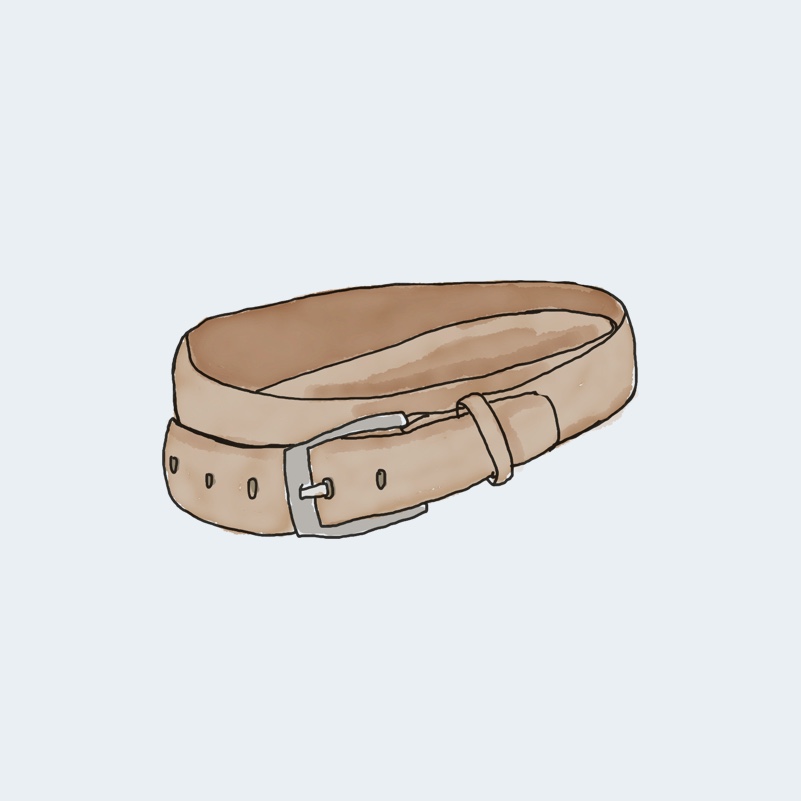 | Belt | Accessories | Original price was: $65.00.$55.00Current price is: $55.00. | | |
 | Cap | Accessories | Original price was: $18.00.$16.00Current price is: $16.00. | | |
 | Sunglasses | Accessories | $90.00 | | |
 | Tank Top | Tanktop | Original price was: $45.00.$40.00Current price is: $40.00. | |
The table above is customized using some smart Ninja Tables features and some WooCommerce-specific functions like product variation.
Recommended columns:
- Stock Status: Shows In Stock / Out of Stock / X remaining
- SKU: Useful for B2B buyers reordering
- Short Description: Quick product summary
- Rating: Social proof from reviews
For variable products:
- Attributes: Size, color, or custom attributes
- Variation Dropdowns: Let shoppers select options before adding to cart
Pro tip: Start with 5-6 columns. You can always add more, but too many columns hurt mobile usability. Also, keep an eye on product table issues.
However, you can use Ninja Tables’ “Stackable Table Configuration” option or “Responsive Breakpoints” option for a nice mobile view.
Step 5: Add Filters, Search Box, Sort
Filters transform a static data table into an interactive shopping tool. Potential customers can apply filters in the table frontend and choose what they like.
Navigate to the Custom Filters section, create and enable whichever filter suits your product table.
Category filter: Dropdown or checkbox list of WooCommerce categories.
Price range filter: Slider or min/max inputs. Shoppers use this constantly.
Attribute filters: Filter by size, color, brand, or any custom WooCommerce attribute.
Stock filter: Let shoppers hide out-of-stock items.
Filters should appear above the table. Configure them to update results instantly without reloading.
| Image | Name | Category | Price | Quantity | Buy |
|---|---|---|---|---|---|
 | Pumpkin Spice (Sweet) | Decor | $20.00 | | |
 | White Tea & Wisteria Scent (Calm) | Decor | $12.00 | | |
 | Magnolia Scent (Fresh) | Decor | Original price was: $15.00.$13.00Current price is: $13.00. | | |
 | Orange-Marigold Scent (Fresh) | Decor | Original price was: $6.00.$4.00Current price is: $4.00. | | |
 | Coffee candle (Sweet) | Decor | Original price was: $10.00.$8.00Current price is: $8.00. | |
And any table created with Ninja Tables comes with a default search bar. People can do free-text searches across product names and descriptions. It’s essential for stores with 50+ products. You can turn it off anytime.
If you want customers to sort products in the frontend, enable it from table backend.
Step 6: Style Your Table
You don’t want a plain product table that doesn’t match your store’s branding. Luckily, Ninja Tables includes 100+ pre-built styles and unlimited color options to style your tables your way.
Custom colors:
- Header background should contrast with your page background
- Highlight rows on hover for better scannability
- Use your brand’s accent color for add-to-cart buttons
Typography:
- Match your theme’s font family
- Keep font sizes readable (14-16px minimum for body text)
- Custom Woo button text
- Custom cart and checkout button text
Bordered table:
- Control table border color
- Make table cells bordered
Conditional Formatting:
- Highlight sale items with a colored badge or row background
- Mark low-stock items (“Only 3 left!”)
Custom CSS/JS:
- Upload table background image
- Custom Woo button color
Try some fun customizations for your WooCommerce table.
And some actionable design tips for better conversion.
Step 7: Configure Mobile Responsiveness
More than half your traffic is probably mobile. Tables can be tricky on small screens, but Ninja Tables handles this with:
Stackable Table Configuration: On mobile, each row becomes a card with columns stacked vertically. Enable this for tables with 5+ columns.
Responsive Breakpoints: Choose which columns to hide on mobile. Keep thumbnail, name, price, and add-to-cart; hide SKU and secondary details.
Horizontal Scroll: Alternative to stacking. Table scrolls sideways on mobile. Better for comparison use cases where side-by-side matters.
Pro tip: Test on actual devices. Emulators don’t catch everything.
Learn how Ninja Tables helps with table responsiveness.
Step 8: Embed Your Table
You have three options.
Shortcode: Copy the shortcode and paste it into any page, post, or widget.
Gutenberg Block: Add the Ninja Tables block and select your table from the dropdown.
Page Builder: Elementor, Divi, Beaver Builder, and others all support shortcode widgets.
Where to embed:
- Replace your default shop page
- Create category-specific landing pages
- Add to product comparison pages
- Embed in blog posts (“See all products in this category →”)
WooCommerce Product Table: Complete
Your WooCommerce product table is ready. Customers can review multiple products in one view, filter or search with built-in controls, and purchase without breaking their browsing flow.
FluentCart Product Table Setup
FluentCart is the newer eCommerce solution in the WordPress space. It’s built for speed, with 0% transaction fees, and with deep integration with the Fluent ecosystem (FluentCRM, FluentForms, FluentCommunity).
If you’re using FluentCart for your online store, product tables work just as well.
Why Integrate FluentCart with Ninja Tables
FluentCart and Ninja Tables are both built by the same team, which means native integration without workarounds.

Key advantages:
- Direct data connection: No CSV imports or manual syncing
- Real-time updates: Price changes reflect instantly
- Ecosystem benefits: Combine with FluentCRM for abandoned cart emails, FluentForms for custom product inquiries
- 0% transaction fees: FluentCart doesn’t take a cut of your sales
The process mirrors WooCommerce, with a few FluentCart-specific options.
Step 1: Connect Ninja Tables to FluentCart
- Install and activate both Ninja Tables and FluentCart. It’s a free integration.
- Navigate to Ninja Tables → Add Table
- Select FluentCart as your data source
Ninja Tables will automatically detect your FluentCart installation and pull available products.
Learn how to integrate FluentCart with Ninja Tables.
Step 2: Select Products to Display
Choose from:
- All Products: Your entire FluentCart catalog
- By Category: FluentCart product categories
- By Brand: Product brands
- Specific Products: Hand-picked by ID
| Image | Name | Category | Price | Total Stock | Variations | Quantity | Buy |
|---|---|---|---|---|---|---|---|
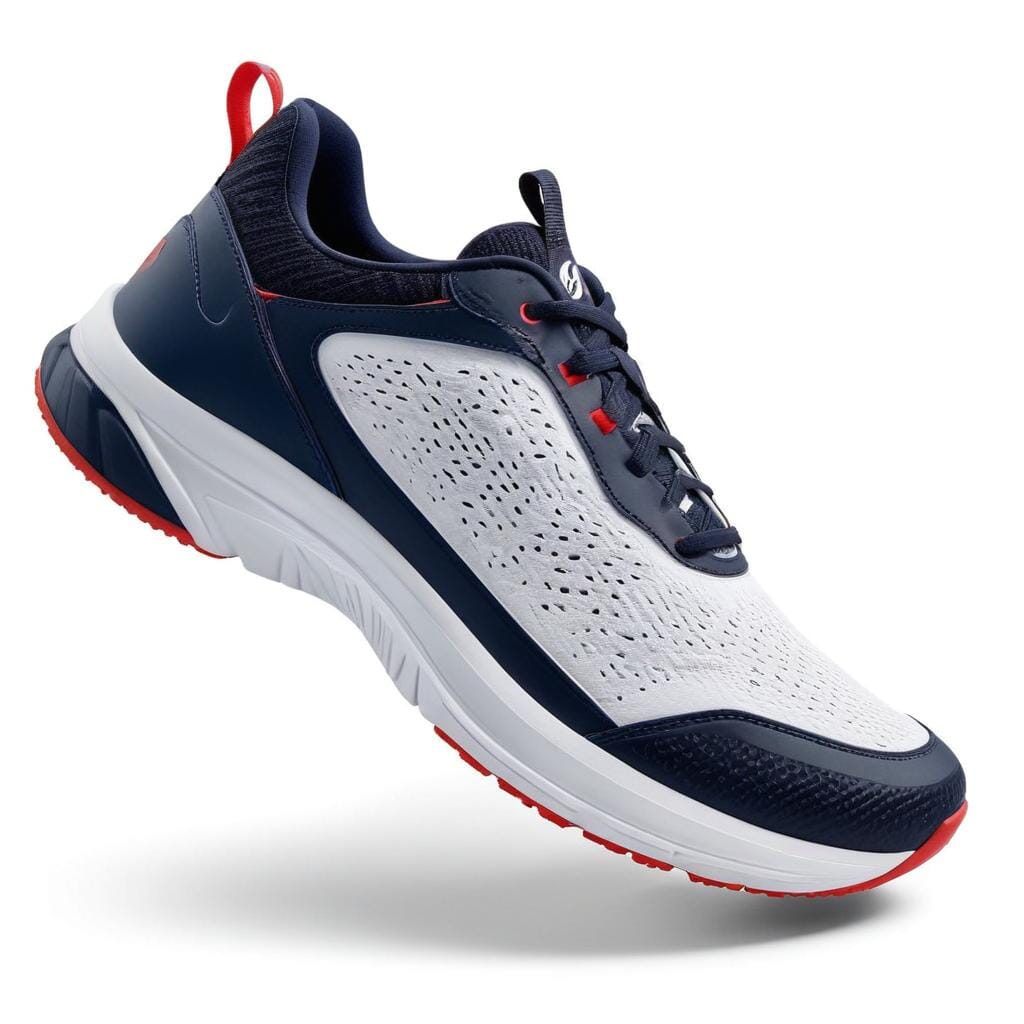 | Air Max 1 running shoe | Mens Shoes | 100 | | |||
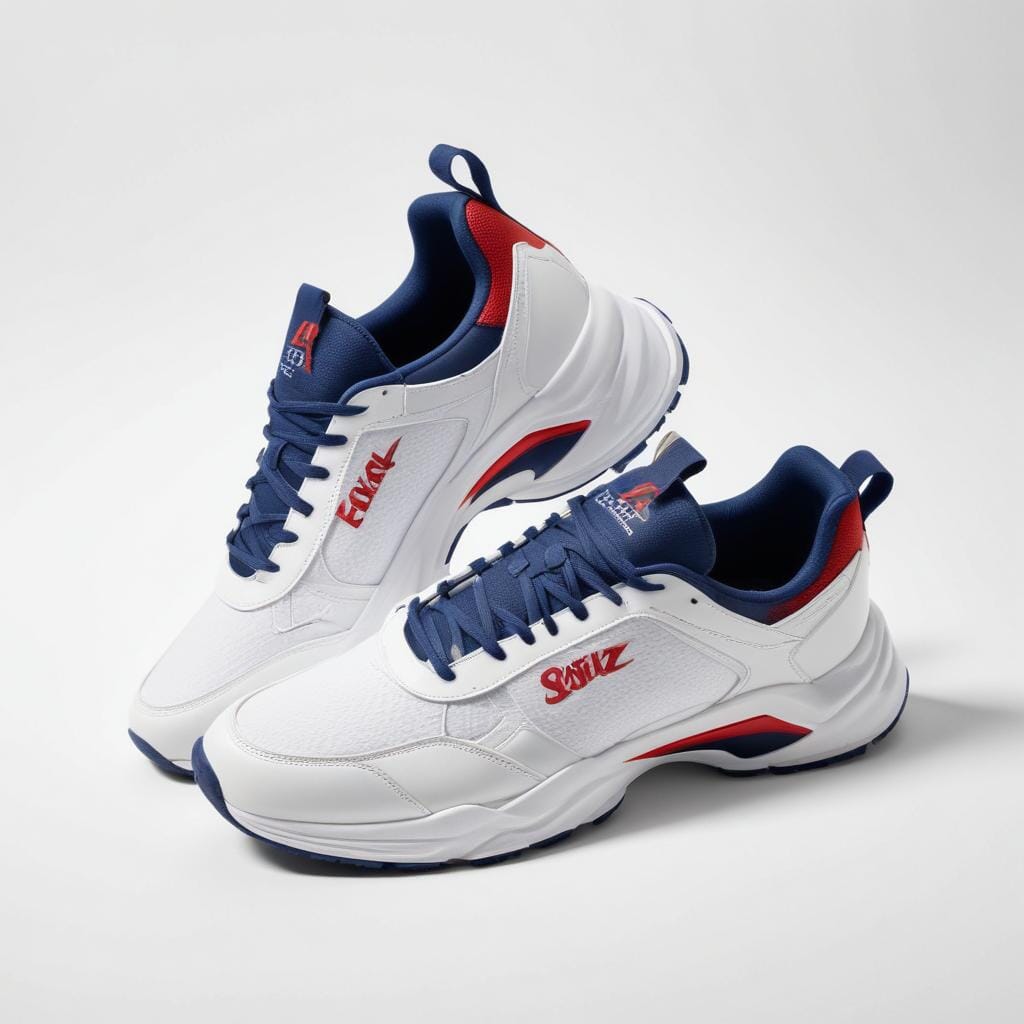 | Air Max 97 | Mens Shoes | 100 | | |||
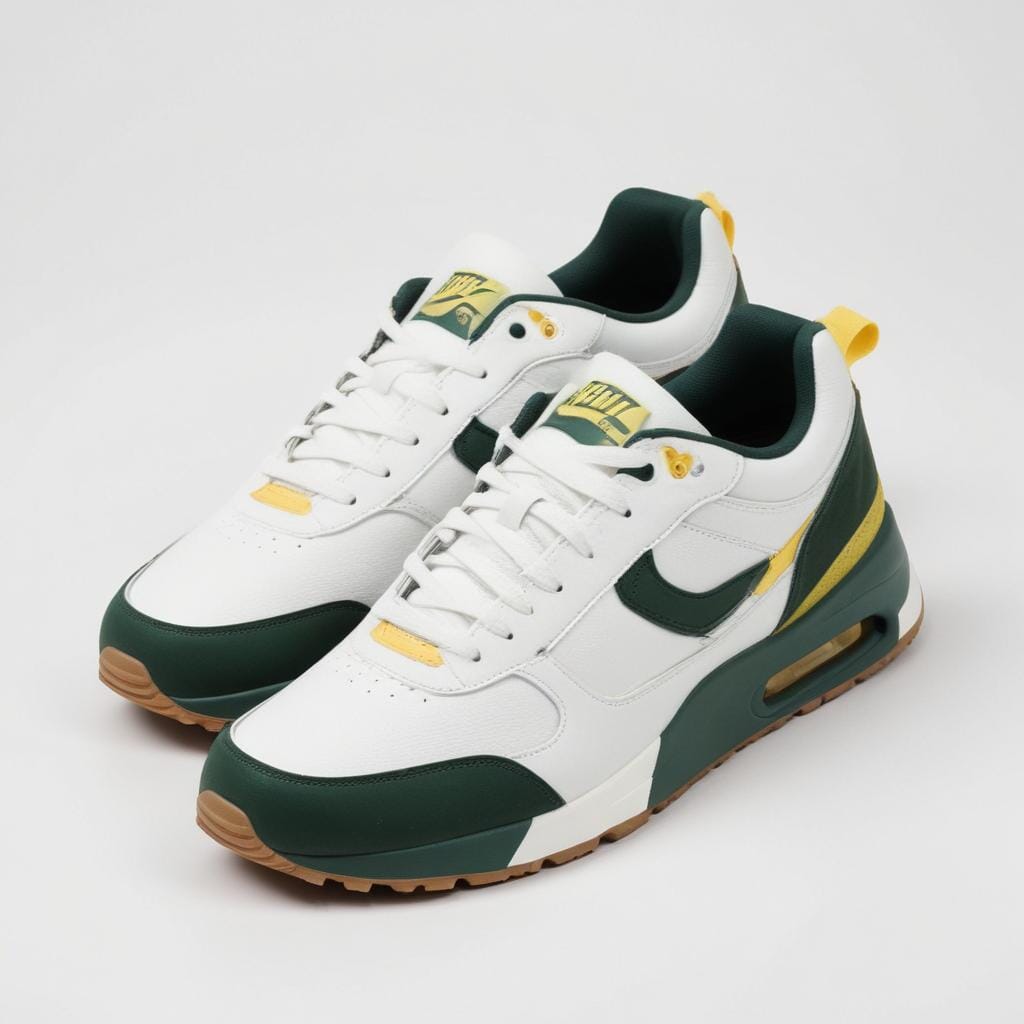 | Air Max Essential | Mens Shoes | 100 | | |||
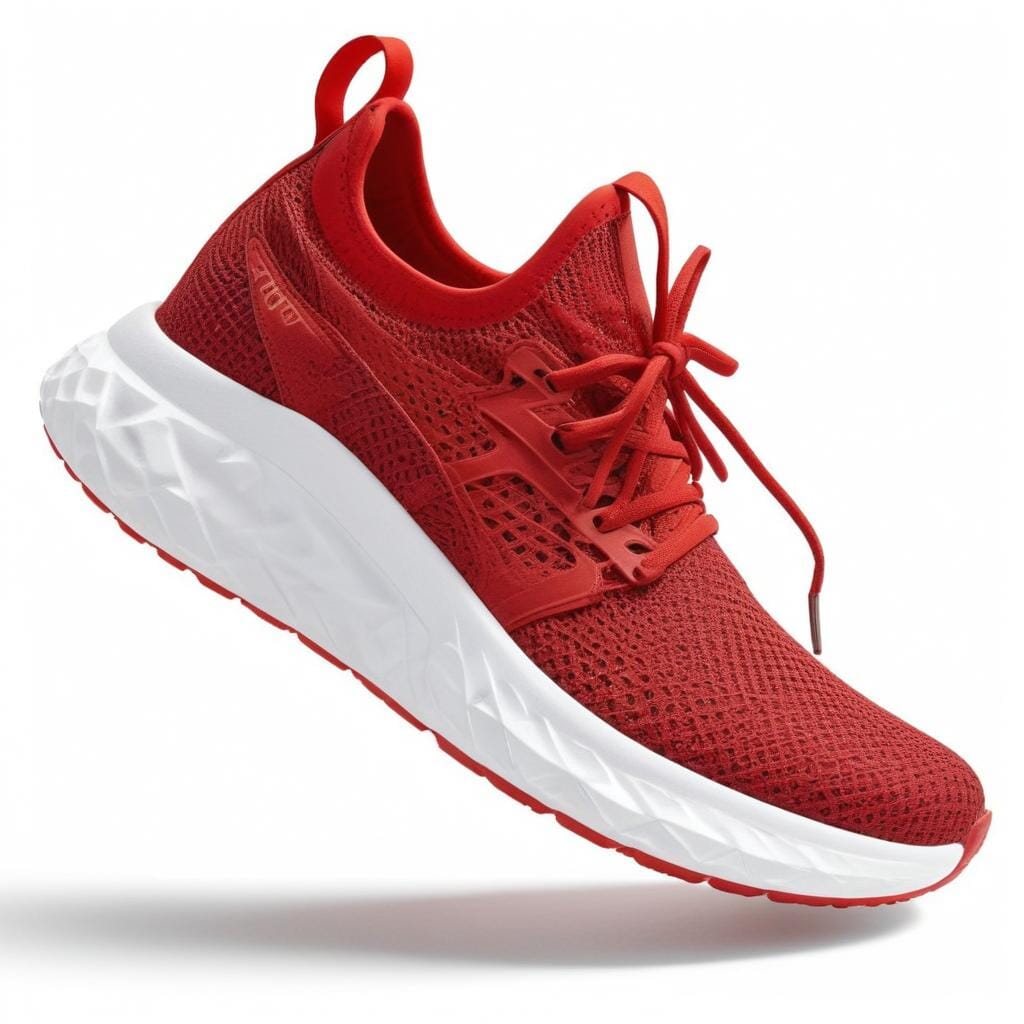 | Elegant Running Shoe | Mens Shoes | 100 | | |||
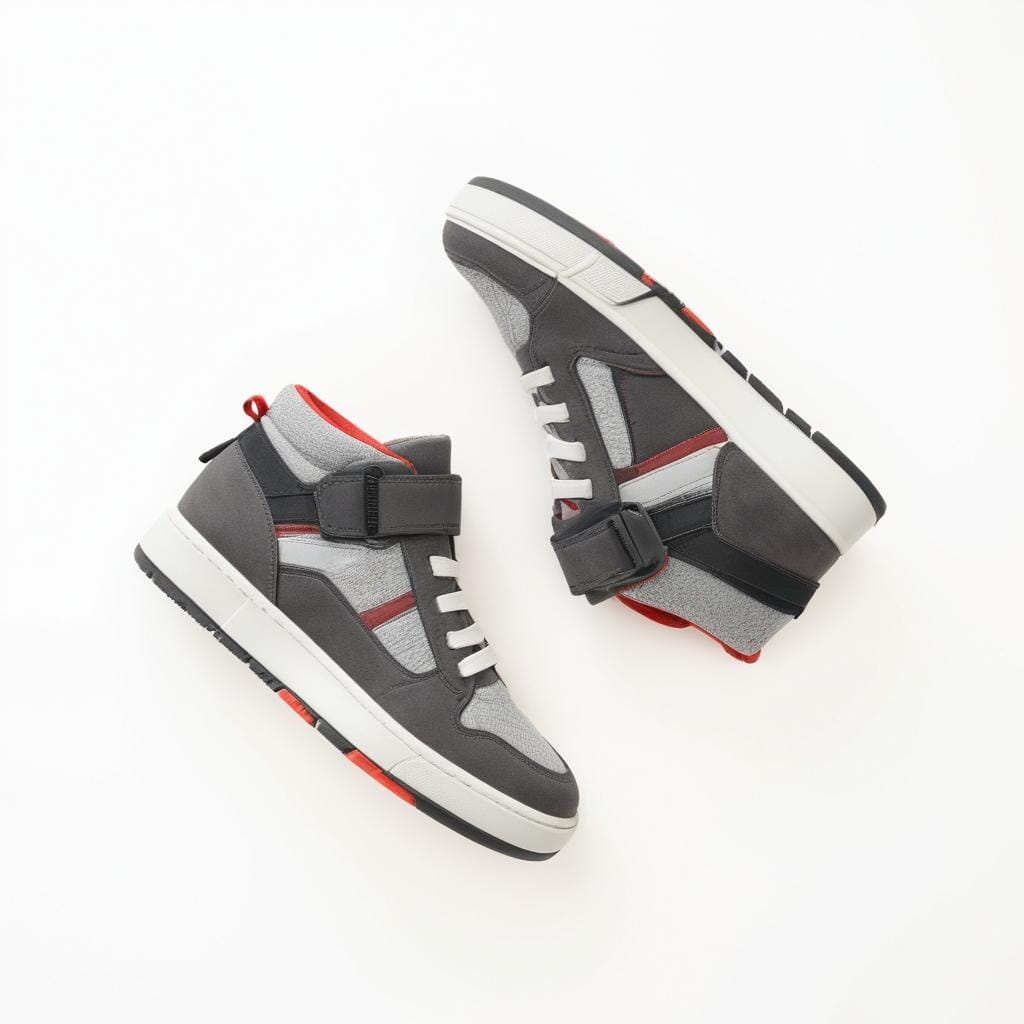 | Grey and Red sneakers | Mens Shoes | 100 | | |||
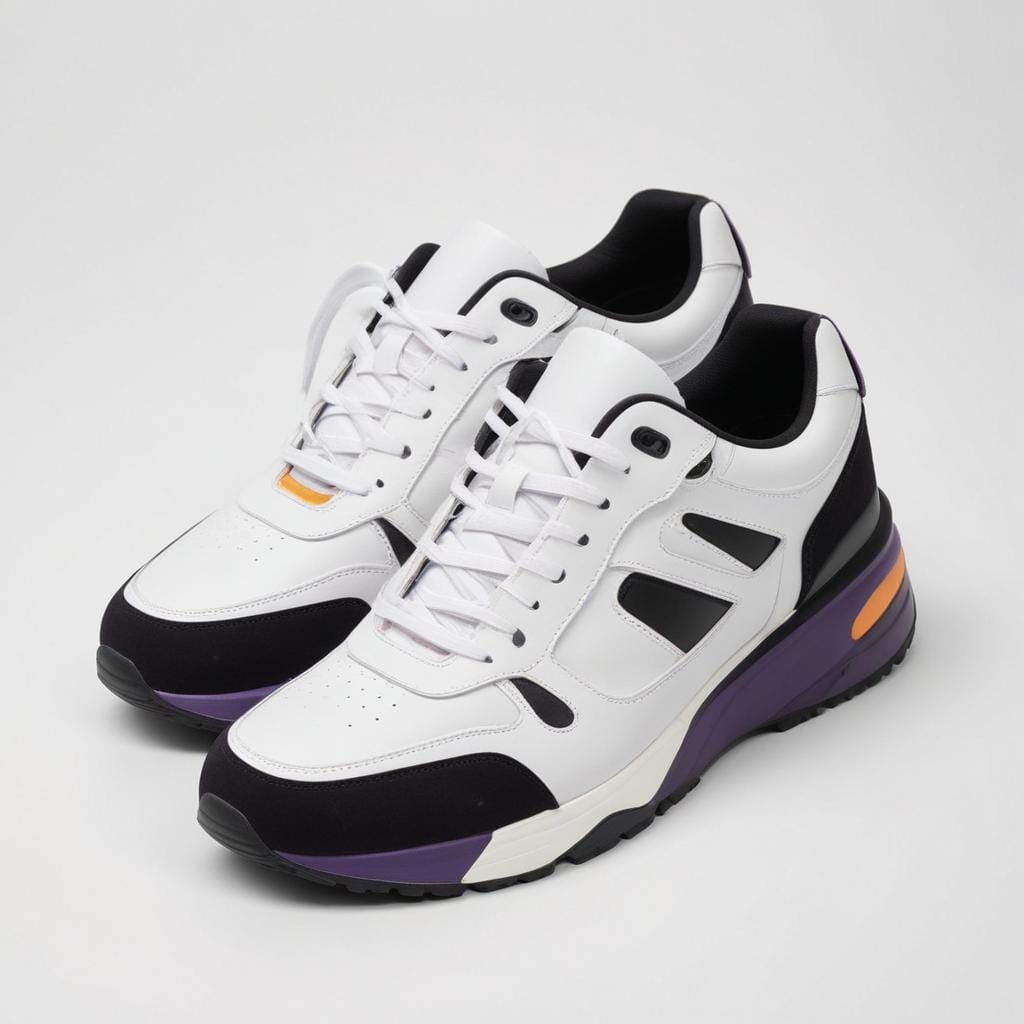 | Purple Air Max trainers | Mens Shoes | 100 | | |||
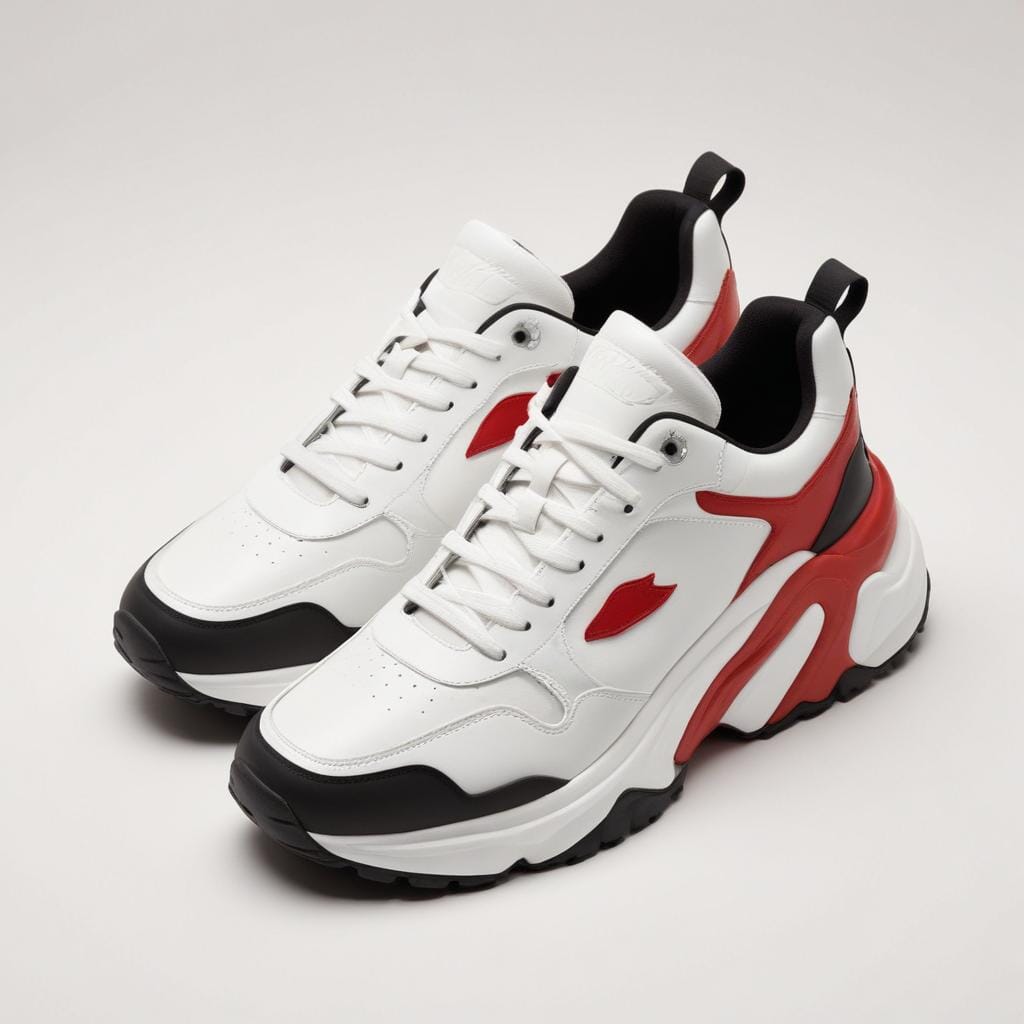 | Red Black Stripped Sneakers | Mens Shoes | 100 | | |||
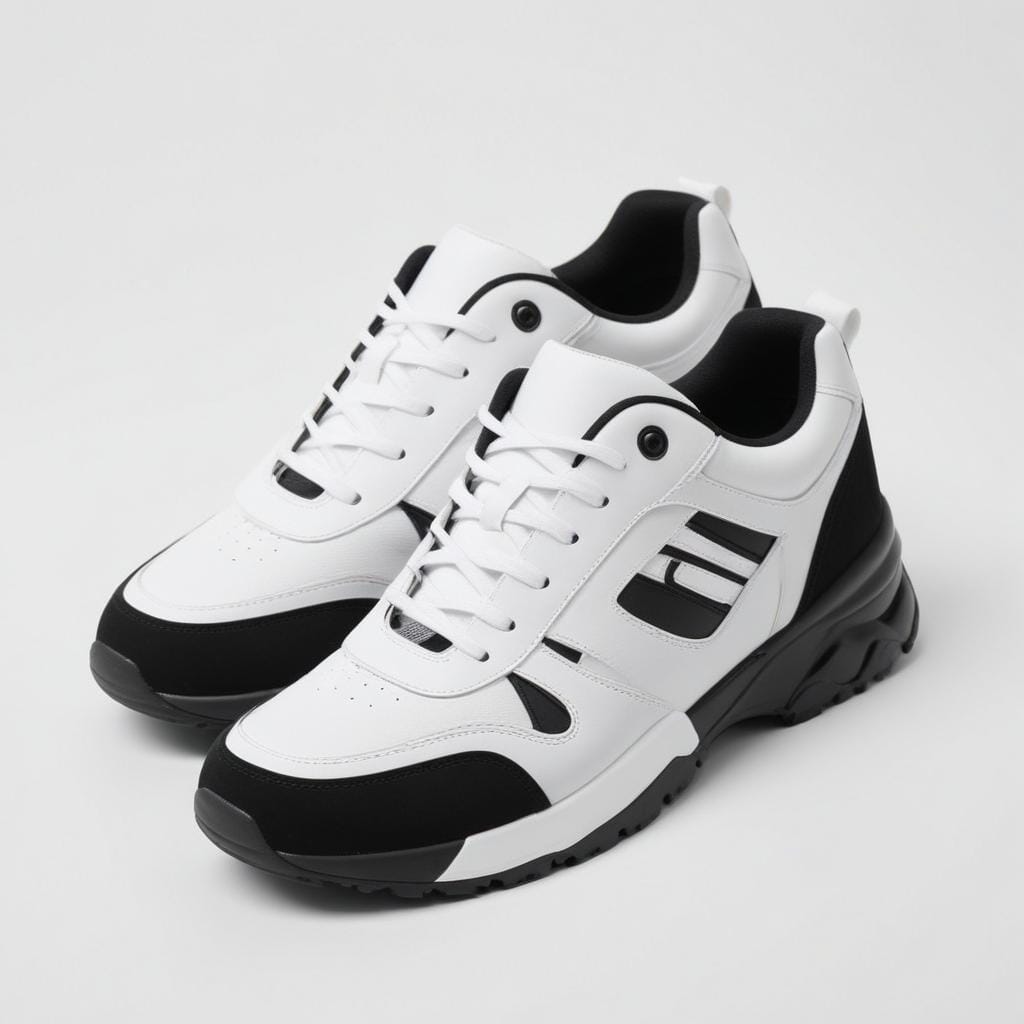 | Sleek black and white Sneakers | Mens Shoes | 100 | | |||
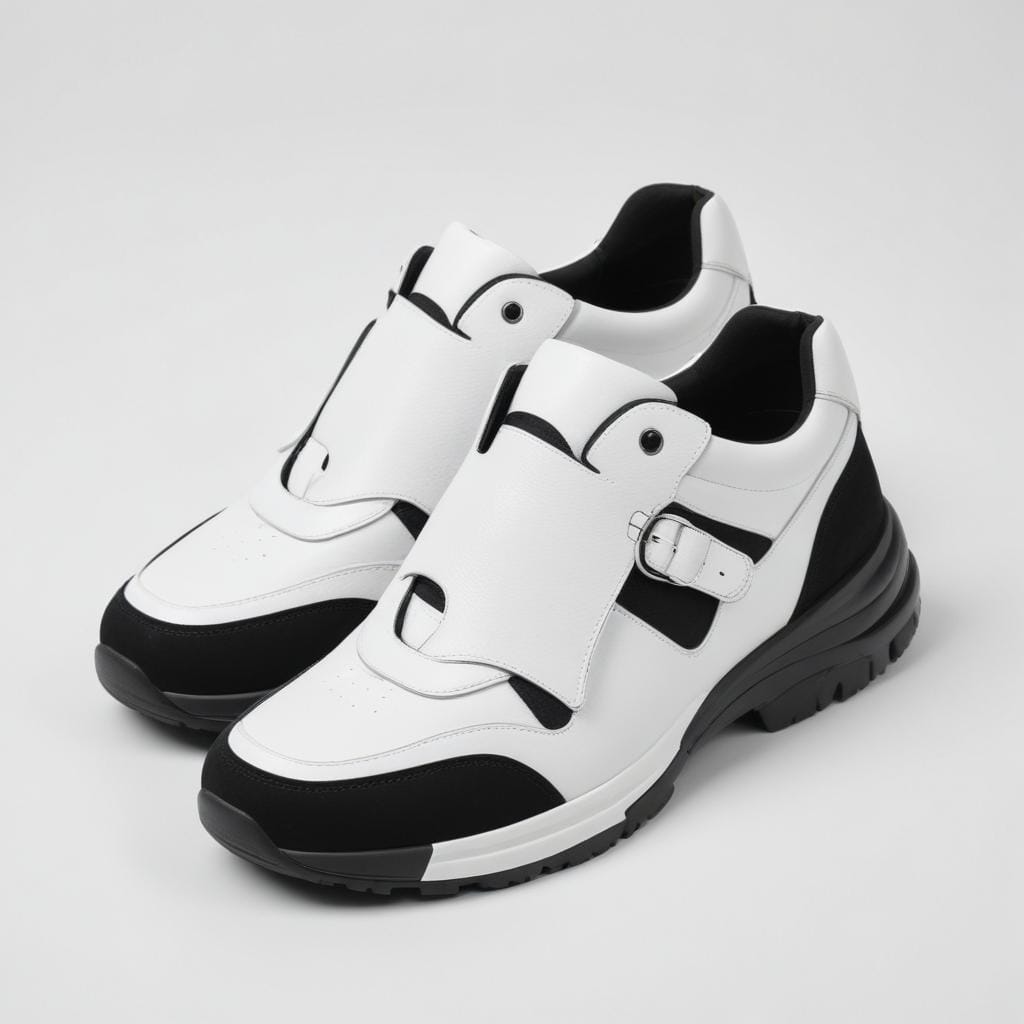 | Stylish white and black sneakers | Mens Shoes | 100 | | |||
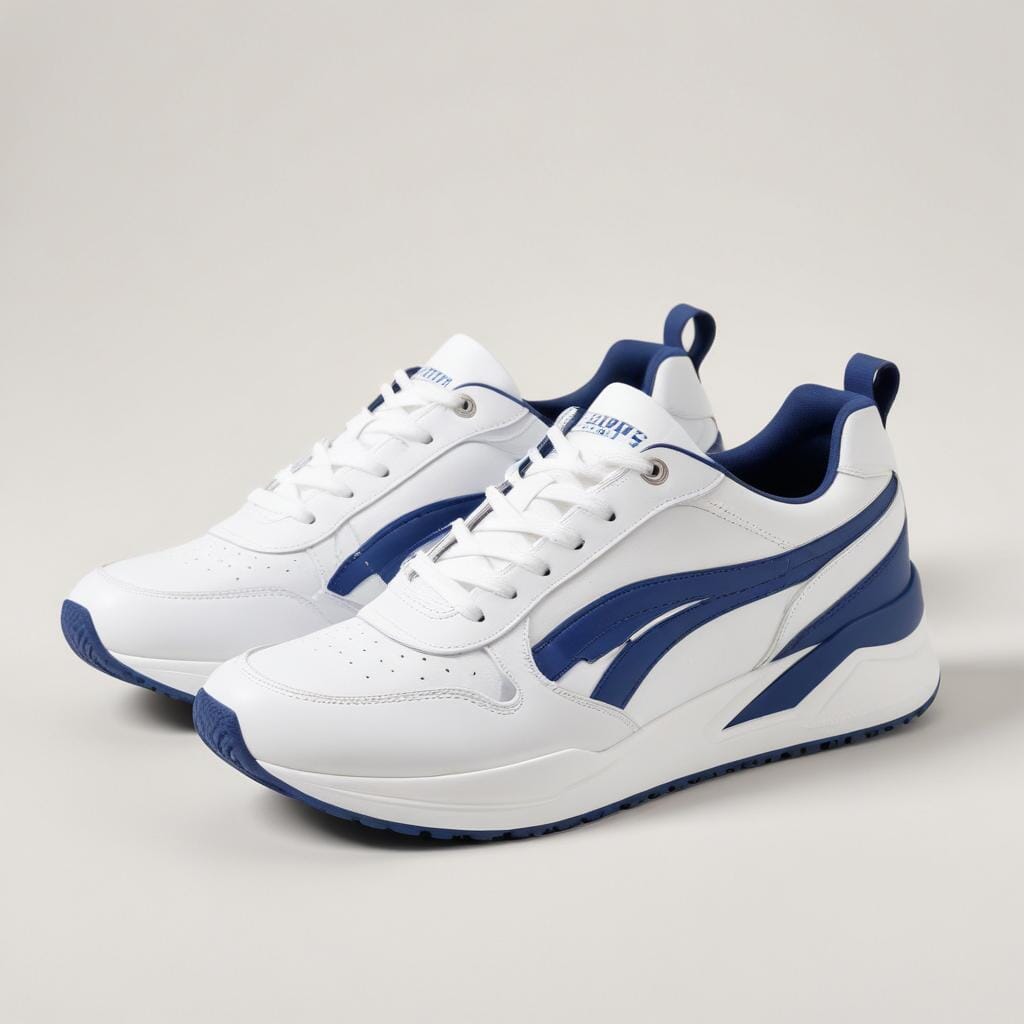 | Stylish white and blue sneakers | Mens Shoes | 100 | |
For digital product stores, consider creating separate tables:
- “All Courses” filtered to course products
- “Templates & Downloads” for digital assets
- “Membership Plans” as a comparison table
Step 3: Configure Columns
Configure columns relevant to your product types:
| For digital products | For courses | For subscriptions | For physical products |
|---|---|---|---|
| Product Name | Course Name | Plan Name | Product Name |
| Price (one-time or subscription) | Duration (hours/modules) | Monthly / Annual Price | Thumbnail |
| Description snippet | Difficulty Level | Features included | Price |
| File type / format | Price | Subscribe button | Stock status |
| Buy Now button | Enroll button | Add to Cart |
Ninja Tables lets you add as many columns as you need!
Step 4: Add Filters
Enable filters relevant to your catalog:
- Search: Always useful
- Product Type: If you sell mixed digital/physical
- Category: For large catalogs
- Price Range: Universal
Step 5: Style and Embed
Same processes are as before:
- Use the default style or customize colors/fonts
- Add custom filters for products
- Make table searchable and sortable
- Use custom CSS/JS for further tweaks
- Enable mobile responsiveness (stackable, breakpoints, or scroll)
- Apply conditions
- Embed via shortcode, Gutenberg, or page builder
FluentCart Product Table: Complete
You now have a filterable, sortable, mobile-responsive FluentCart product table. Shoppers can evaluate options in one place, refine their selection with filters, and complete purchases right from the table.
Some More Product Tables You’ll Need
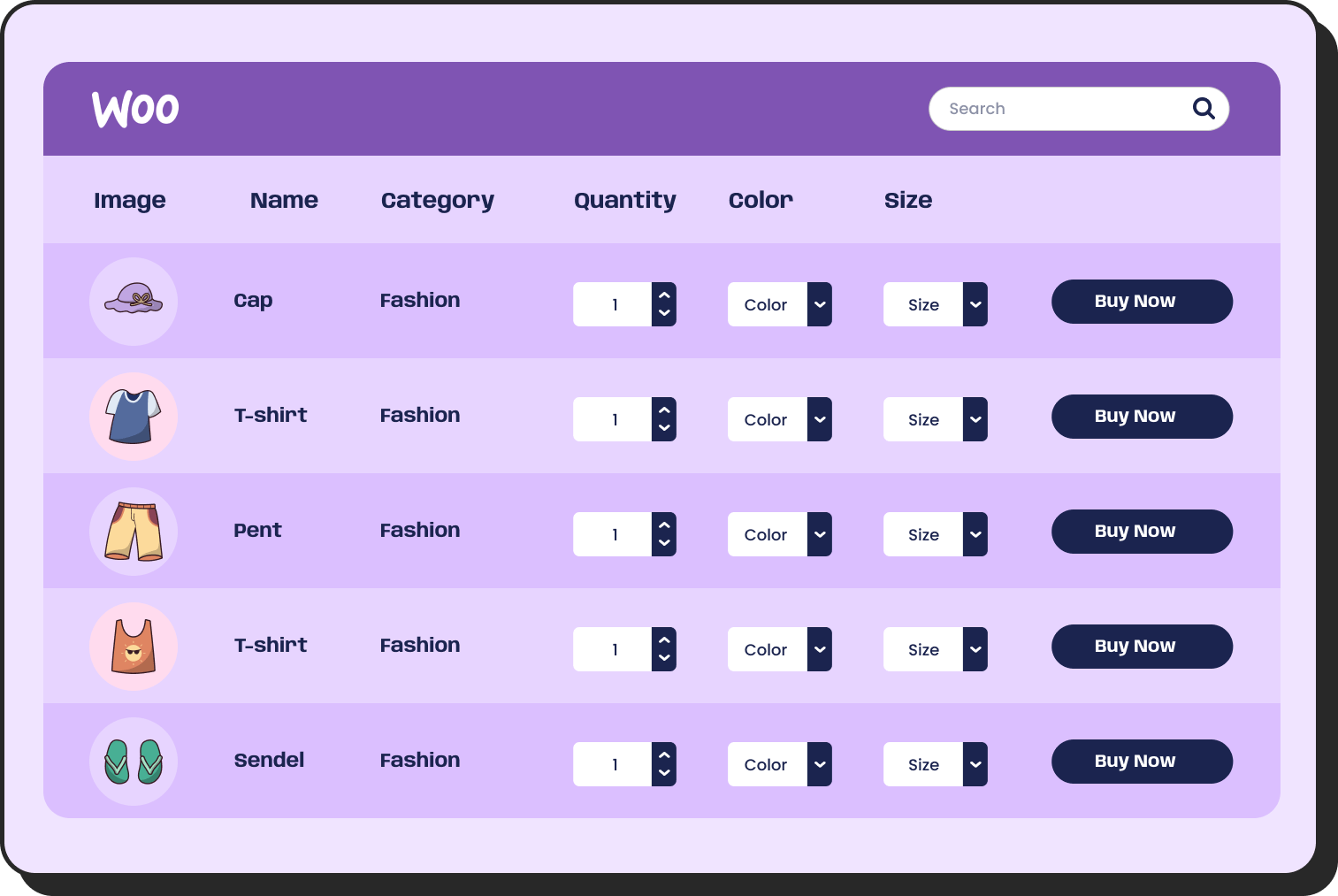
Every product-led business needs to display some sort of product table. It can be a product specification table or a table with product’s real-user reviews. Product pricing tables or product comparison tables are also important in deciding to purchase.
Product Tables for You
WooCommerce
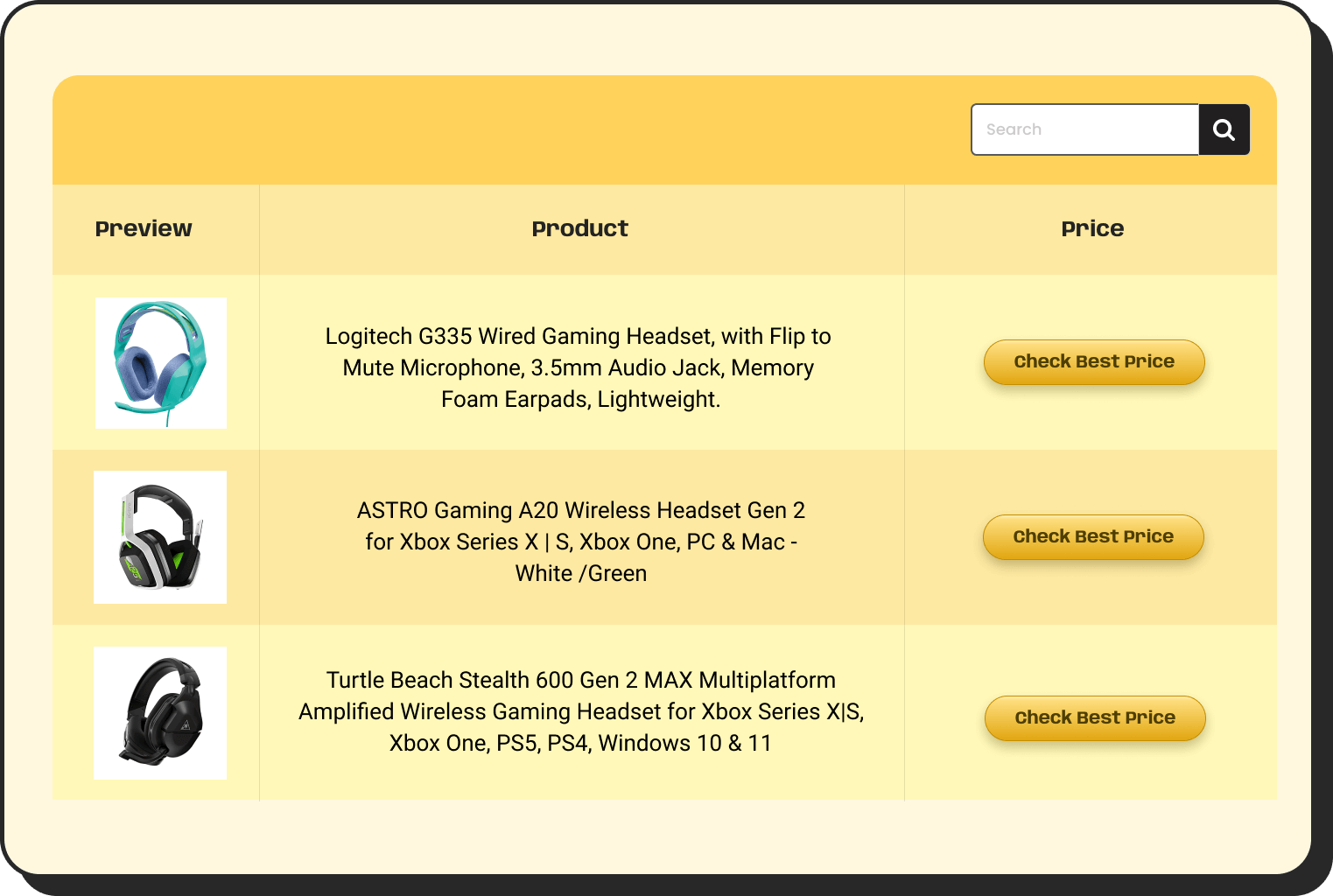
Amazon Products
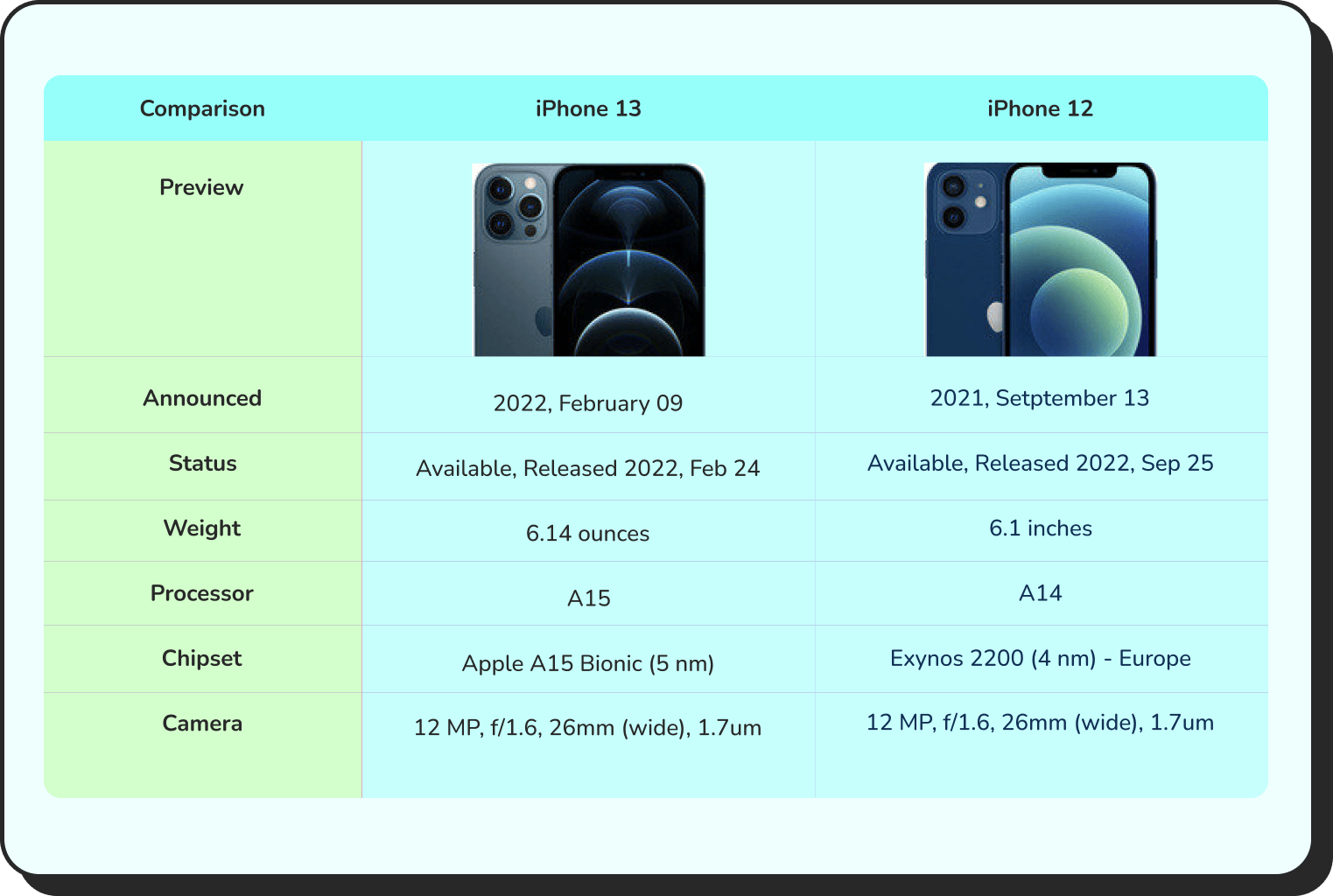
Product Comparison
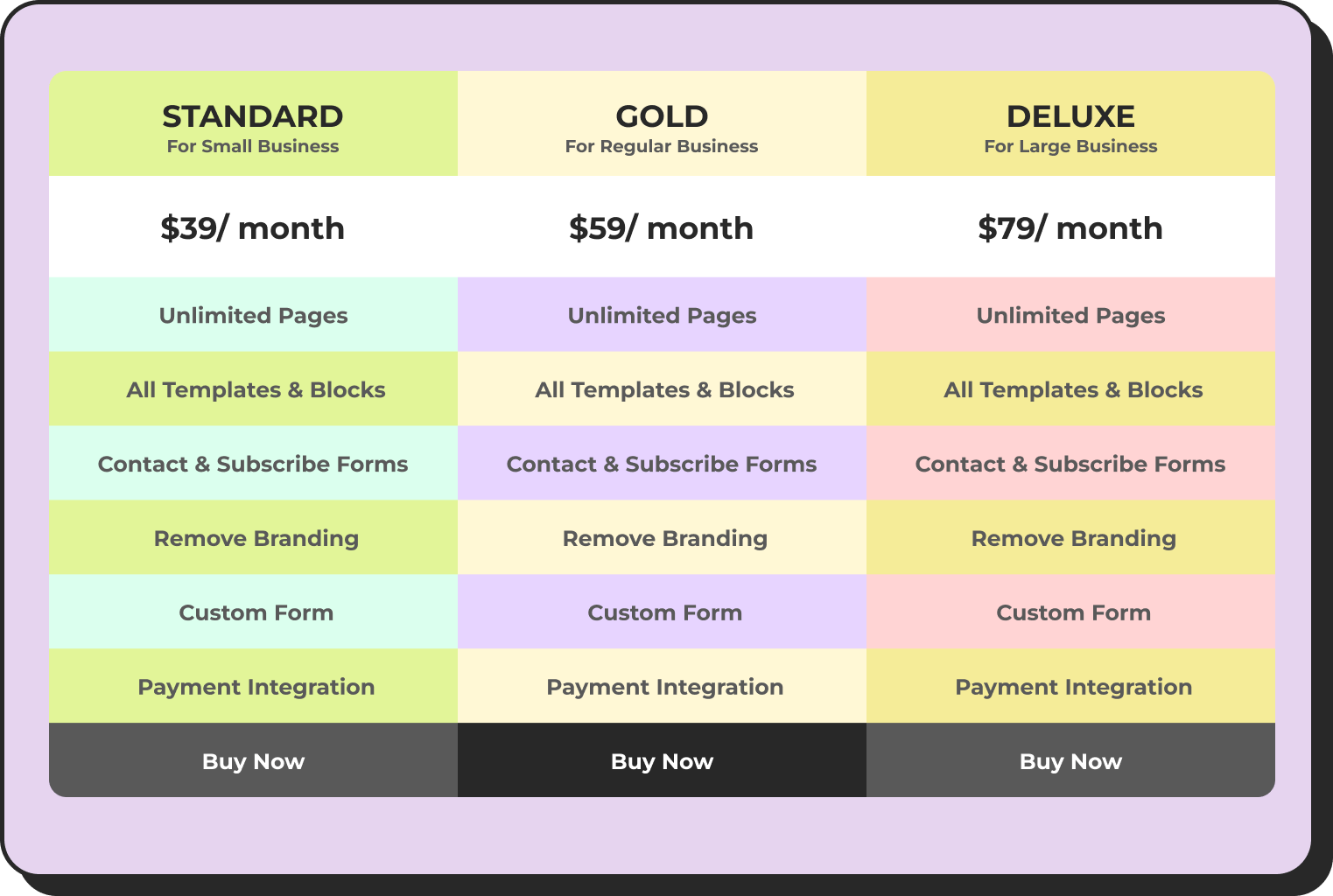
Pricing Table
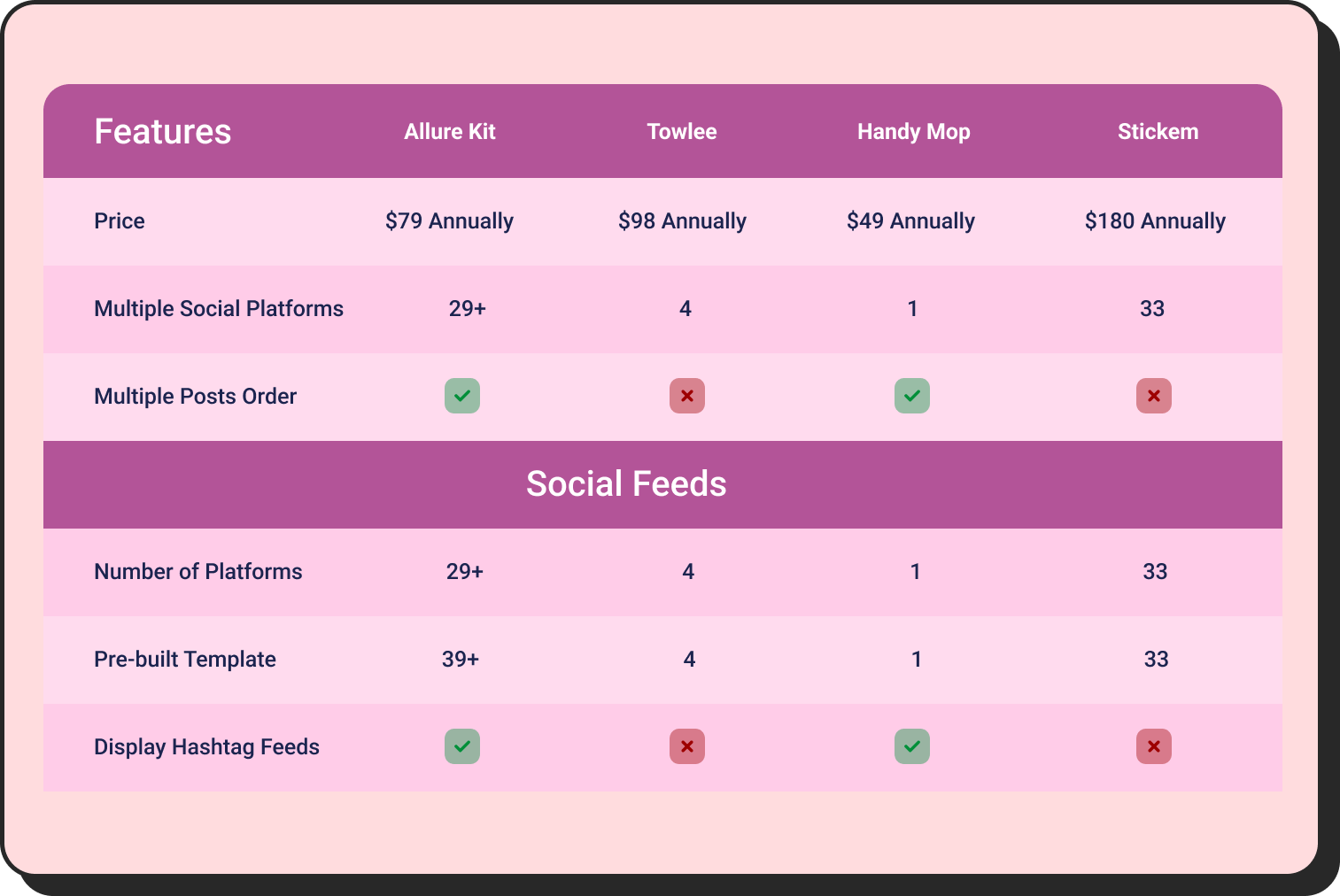
Product Specification
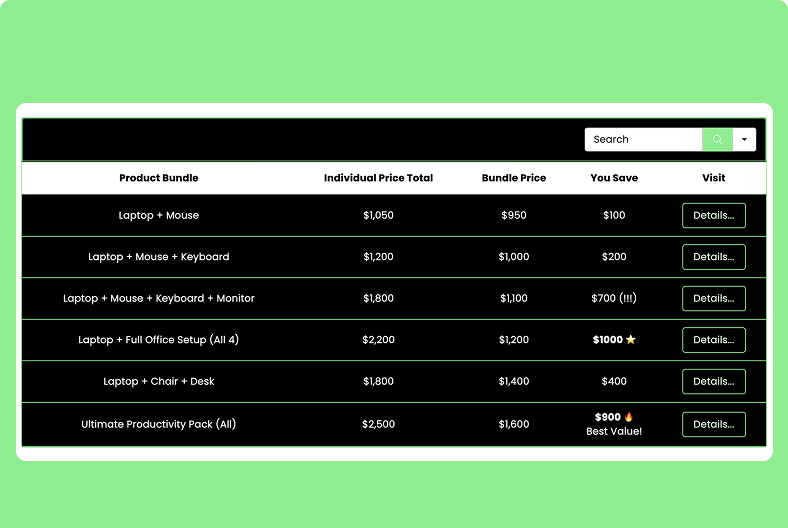
Product Discounts
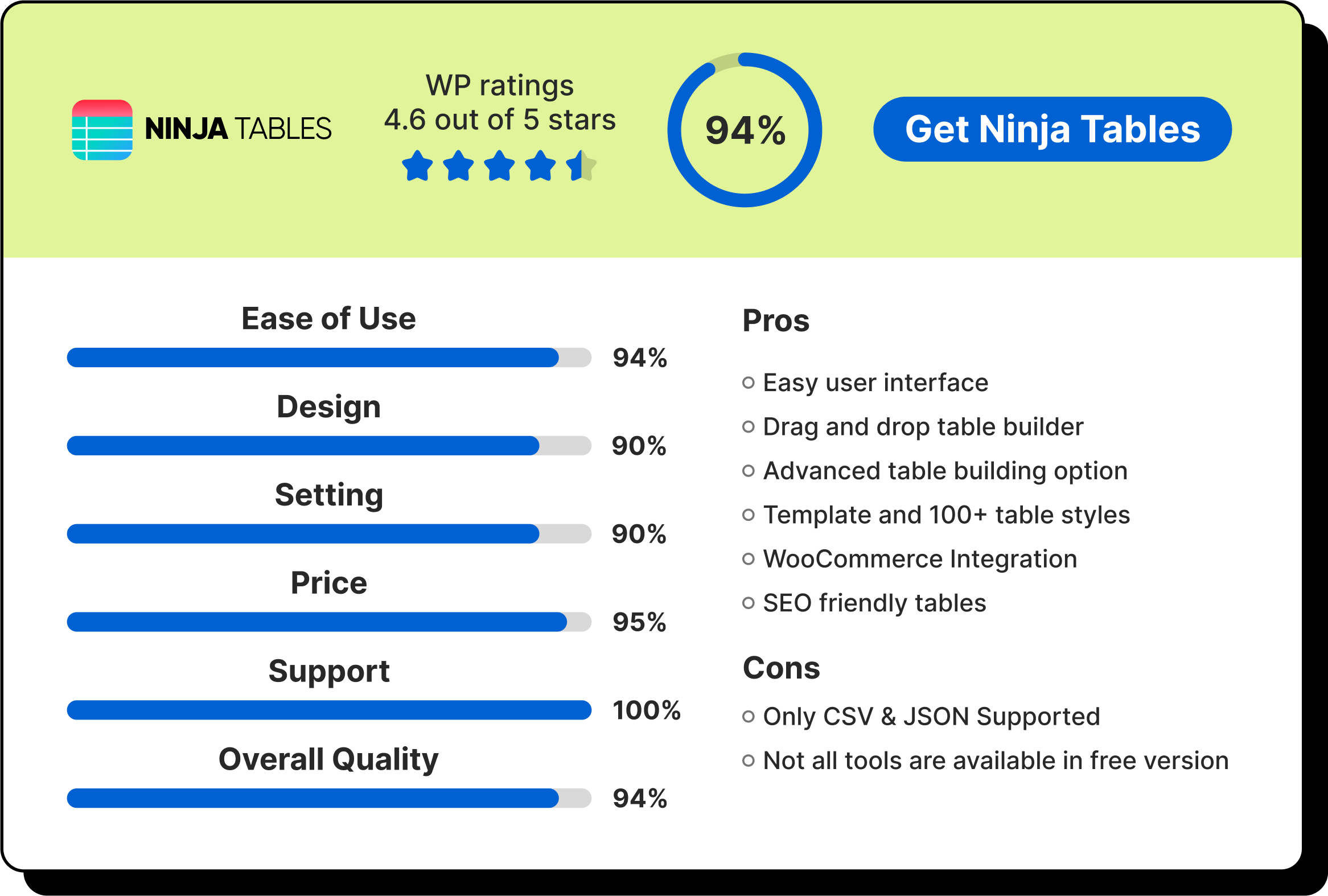
Product Reviews
Check out all the types of product tables your business might need and pick your favourite!
Table Features That Drive Conversions
Not all product table features matter equally. These are the ones that directly impact whether visitors buy.
Must-Have Features
Inline “Add-to-Cart”: Every click between “I want this” and “It’s in my cart” is a chance to lose the sale. Inline add-to-cart buttons let shoppers add products without navigating away.
Product attribute: For variable products, show attribute dropdowns (size, color) in the table row. Shoppers select options and add to cart in one place.
Live filters: Filters should update results instantly without reloads so it doesn’t kill UX/CX.
Search bar: For stores with 50+ products, search is non-negotiable. Shoppers who know what they want shouldn’t have to scroll.
Mobile responsiveness: Over 60% of eCommerce traffic is mobile. If your table breaks on phones, you’re losing most of your visitors. Make your product tables mobile responsive.
Key Takeaway: Tables reduce decision friction and increase clicks.
Nice-to-Have Features
Conditional formatting: Visual cues that highlight sale items, low stock, bestsellers, new arrivals, etc.
Bulk options: Bulk “Add-to-Cart” is critical for B2B and wholesale stores. Shoppers check multiple items, enter quantities, and add all to cart with one click. Without this, a business buyer ordering 15 items has to click add-to-cart 15 times. They’ll go to a competitor with a better UX. Bulk select to compare is another useful feature. There’s a bulk product compare option in the frontend as well.
Pagination: For large product tables, paginations work as page numbers.
Common Mistakes to Avoid
Product tables can backfire if implemented poorly. We see this most often in large catalogs where store owners try to show everything at once, assuming more information helps.
Too Many Columns
Ignore the temptation to show everything! Shoppers see a wall of data and leave.
Instead, start with 5-6 columns maximum for the default view. Use expandable rows or quick view for additional details. On mobile, show 3-4 columns max.
No Filters on Large Catalogs
A 500-product table without filters is worse than a grid. Shoppers can’t scroll through 500 rows.
Fix: Always enable filters for tables with 20+ products. Minimum: search, category, price range.
Ignoring Mobile Preview
Tables that look perfect on a desktop can be unusable on phones. Columns squish, text wraps awkwardly, buttons become untappable.
Fix: Enable stackable/responsive mode. Test on real devices — not just browser dev tools. Hide non-essential columns on mobile.
Generic Styling
Default table styles look boring. They don’t match your brand, and they feel disconnected from the rest of your site.
Fix: Customize colors to match your theme. Use your brand’s accent color for CTA buttons. Match typography to your site’s fonts.
Forgetting the CTA
Every row needs a clear action. Some tables show products beautifully but forget the add-to-cart button, or make it too subtle.
Fix: Add-to-cart or Buy button in every row. Use your brand’s primary button style. Consider making the CTA column sticky on horizontal scroll.
Slow Loading
Tables with hundreds of products and no optimization load slowly. Shoppers leave before the table renders.
Fix: Enable pagination (20-50 products per page). Use lazy loading for images. Minimize custom scripts that block rendering.
Ready to Turn Browsers Into Buyers?
Default product grids made sense when online stores had 20 products. Today, they’re a conversion bottleneck.
Product tables give your shoppers what they actually want:
- Compare products side-by-side
- Filter to find exactly what they need
- Buy without endless clicking and redirecting
Whether you’re running your store with WooCommerce or FluentCart, Ninja Tables makes it smooth and smart. No coding, no complexity. Just better product displays that drive more sales.
Next steps:
Browse free templates – Start with pre-built designs
Get Ninja Tables Pro – Full WooCommerce & FluentCart integration
Try the interactive demo – See product tables in action
Check Ninja Tables Playbook – Learn from videos
Your products deserve better than a grid. Your shoppers deserve better than endless clicking.
Create tables that sell.

Ninja Tables– Easiest Table Plugin in WordPress
FAQs
Will product tables slow down my site?
Product tables won’t slow down your site if implemented correctly. Use pagination (10-20 products per page), enable lazy loading, and avoid loading hundreds of products at once. Ninja Tables is optimized for performance even with large datasets.
Can I use product tables on my existing shop page?
Yes. You can replace WooCommerce’s default shop display with Ninja Tables product table shortcode, or create a separate “Browse All Products” page with the table.
Do product tables work with variable products?
Yes. You can display variation dropdowns (size, color, etc.) directly in the table, allowing shoppers to select options and add to cart without visiting the product page.
What about SEO? Will tables hurt my product page rankings?
Product tables don’t replace your individual product pages. Tables are an alternative browsing interface. It’s for better UX, lower bounce rate, higher engagement that indirectly help SEO.
Can I show different tables for different products?
Yes. You can create multiple product tables for different purposes. Wholesale pricing product table for B2B customers or category-specific tables for different landing pages.
How do tables handle out-of-stock products?
You can show stock status in a column, use conditional formatting to gray out unavailable items, or hide out-of-stock products entirely. You can also let shoppers filter to show only in-stock items.
Ninja Tables– Easiest Table Plugin in WordPress




Add your first comment to this post