
How To Build Large Product Catalogs In WordPress With Ninja Tables


Building a product catalog in WordPress sounds simple until you actually try to do it well. WooCommerce gives you a store, but the default product grid was designed for comfort browsing. Standalone WordPress without WooCommerce gives you pages and posts, built for content publishing, not for organising large product data with built-in filtering, sorting, and search.
The gap between what WordPress provides by default and what a functional product catalog actually needs is where most of the frustration grows. No column-level filtering, no compact view showing fifty products at once, no clean way for visitors to sort by price, category, or specification without stacking plugins that conflict with each other.
A properly structured product catalog table closes that gap. This guide covers how to build one in WordPress, covering both WooCommerce-backed catalogs and standalone catalog setups, with Ninja Tables handling the display layer for both.
TL;DR
- A WordPress product catalog requires organized display, search, filtering, and sorting that WordPress’s default tools do not provide out of the box
- Two distinct approaches exist: WooCommerce-backed catalogs for stores with cart and checkout, and standalone table catalogs for display-only use cases
- Ninja Tables supports both paths through its WooCommerce integration and its standalone Advanced Mode table builder
- The WooCommerce integration pulls live product data directly into a customizable table with search, sort, and filter, replacing the default grid layout
- The standalone approach builds a custom table from CSV, Google Sheets, or manual entry, with full control over columns, data types, and filtering
- Both paths publish via a simple shortcode that drops the catalog into any page or post
What a WordPress Product Catalog Actually Needs
Before choosing a tool, it helps to be specific about what a product catalog needs to do that default WordPress cannot.
Organized column structure. A product catalog is fundamentally tabular data: each product is a row, each attribute is a column. WordPress pages are not structured this way. WooCommerce product archives present products as cards in a grid, which works for visual browsing but is poor for comparing specifications across products.
Searchable and filterable display. Visitors to a product catalog typically arrive with a specific need. They want to filter by category, search by product name or SKU, or narrow by a specification like size, material, or compatibility. None of these behaviors exist in WordPress by default, and WooCommerce’s built-in filtering is limited without additional plugins.
Responsive layout that works at any product count. A catalog with 20 products and a catalog with 2,000 products need to feel equally usable. Pagination, responsive column collapsing on mobile, and search-first navigation all contribute to usability at varying scales.
Manageable data maintenance. Products change. Prices update. Stock statuses change. A product catalog that requires manual page edits for every change is not sustainable. The catalog needs to be connected to a data source that can be updated in bulk, whether through CSV import, a spreadsheet sync, or a direct connection to WooCommerce product data.
Two Approaches: WooCommerce-Backed vs. Standalone
The first decision when building a WordPress product catalog is whether to include WooCommerce in the architecture.
WooCommerce makes sense when the catalog is also a store. If visitors need to add products to a cart, and if you manage inventory, orders, product variations, and customer accounts, WooCommerce provides all of that without custom development. The catalog display problem in this case is not about replacing WooCommerce but about improving how its product data is presented.
A standalone catalog makes sense when the site does not need a shopping cart. B2B reference catalogs where orders happen offline, supplier or parts directories, showroom-style product showcases, and catalog pages where visitors identify products and make contact all fit this model. Here, WooCommerce adds database overhead, query complexity, and plugin dependencies that provide no return.
Ninja Tables handles both cases with separate but equally capable approaches.
Building a WooCommerce Product Catalog with Ninja Tables
For stores already running on WooCommerce, Ninja Tables replaces the default product grid with a clean, sortable, filterable product table. The integration pulls live WooCommerce data directly, meaning the table always reflects current product information without requiring a separate import step.
How the WooCommerce integration works
Ninja Tables connects to WooCommerce through its Advanced Mode table builder. When creating a new table, selecting WooCommerce as the data source tells the plugin to read from the existing WooCommerce product database. No manual data entry is needed. Any product that exists in WooCommerce is immediately available in the table.
The integration supports all standard WooCommerce product fields: product name, SKU, price, sale price, stock status, product image, categories, tags, short description, and the Add to Cart button. Custom fields and product attributes added via WooCommerce are also accessible and can be mapped to table columns.
Setting up the table
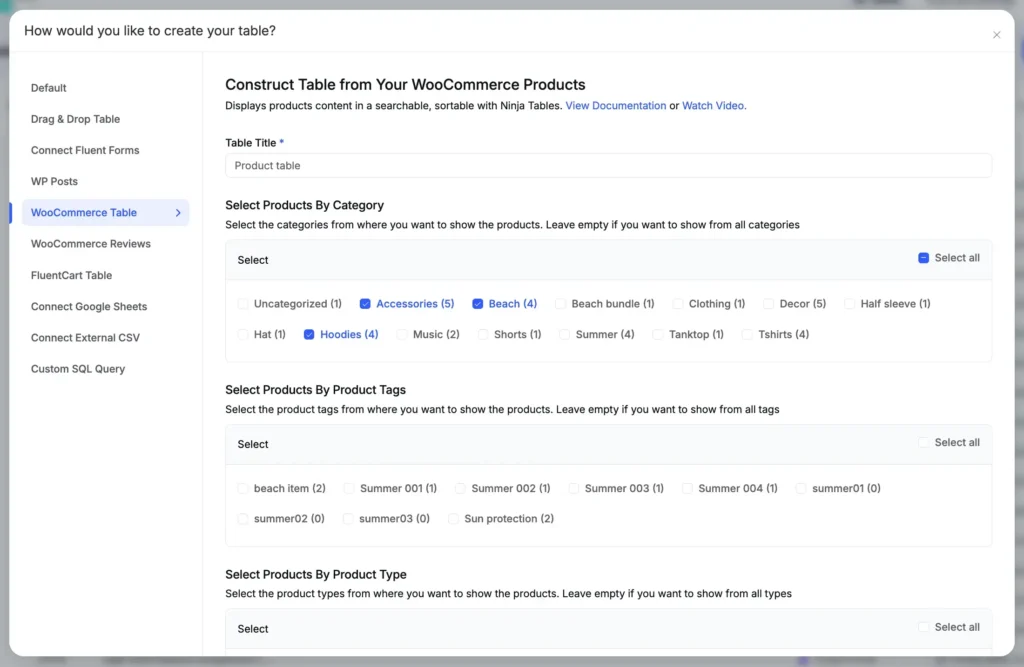
From the WordPress admin, navigate to Ninja Tables and create a new table. In the table type selection, choose WooCommerce. The plugin generates the connection and presents a column selection panel where you choose which WooCommerce fields to include as columns in the table.
Configure each column: set a label, choose the data type (text, image, numeric, button), and decide whether the column should be sortable, searchable, or used as a filter field. For a standard product catalog, a practical starting column set includes product image, product name, category, price, stock status, and an Add to Cart or View Product button.
Search, filter, and sort configuration
Within the WooCommerce table settings, enable search to add a global search bar above the table. Visitors can type a product name or keyword, and the table narrows results accordingly. For category-level filtering, Ninja Tables supports dropdown or checkbox filters linked to WooCommerce product categories, allowing visitors to isolate a specific product type before searching within it.
Column sorting is activated by clicking column headers once the table is published. Visitors can sort by price (low to high or high to low), by product name alphabetically, or by any other column set as sortable during configuration.
Product catalog mode: hiding Add to Cart
For WooCommerce stores that want to present a browsable catalog without enabling direct purchase from the table, the Add to Cart button column can simply be excluded from the table configuration or replaced with a View Product link. This gives the visual experience of a display catalog while keeping WooCommerce managing product and inventory data in the background.
| Image | Name | Category | Price | Quantity | Buy |
|---|---|---|---|---|---|
| Summer Bundle 1 | Beach bundle | $15.00 | |||
 | Sun hat | Beach | $15.00 | ||
 | Beach towel (Colorful) | Beach | $15.00 | ||
 | Beach sandles | Beach | $15.00 | ||
 | Sun protection | Beach | |||
| Beach essentials | Summer | Original price was: $50.00.$38.00Current price is: $38.00. | | |
| Beach slippers | Summer | $15.00 | | |
| Beach towel | Summer | $33.00 | | |
| Beach hats | Summer | $28.00 | | |
 | Foam Cleanser (Oily) | Uncategorized | $12.00 | | |
 | Pumpkin Spice (Sweet) | Decor | $20.00 | | |
 | White Tea & Wisteria Scent (Calm) | Decor | $12.00 | | |
 | Magnolia Scent (Fresh) | Decor | Original price was: $15.00.$13.00Current price is: $13.00. | | |
 | Orange-Marigold Scent (Fresh) | Decor | Original price was: $6.00.$4.00Current price is: $4.00. | | |
 | Coffee candle (Sweet) | Decor | Original price was: $10.00.$8.00Current price is: $8.00. | | |
 | Blue Hoodie (Zipper) | Hoodies | Original price was: $40.00.$35.00Current price is: $35.00. | | |
 | Hat | Hat | Original price was: $20.00.$15.00Current price is: $15.00. | | |
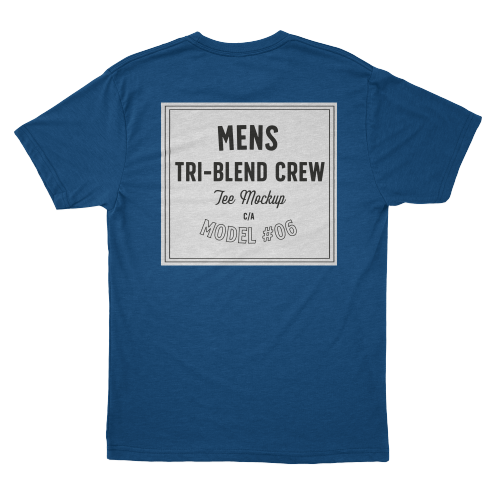 | T Shirt | Half sleeve | $45.00 | | |
 | WordPress Pennant | Clothing | $11.05 | ||
 | Beanie with Logo | Accessories | Original price was: $20.00.$18.00Current price is: $18.00. | | |
 | T-Shirt with Logo | Tshirts | Original price was: $10.00.$8.00Current price is: $8.00. | | |
 | Single | Music | Original price was: $20.00.$18.00Current price is: $18.00. | | |
 | Album | Music | $15.00 | | |
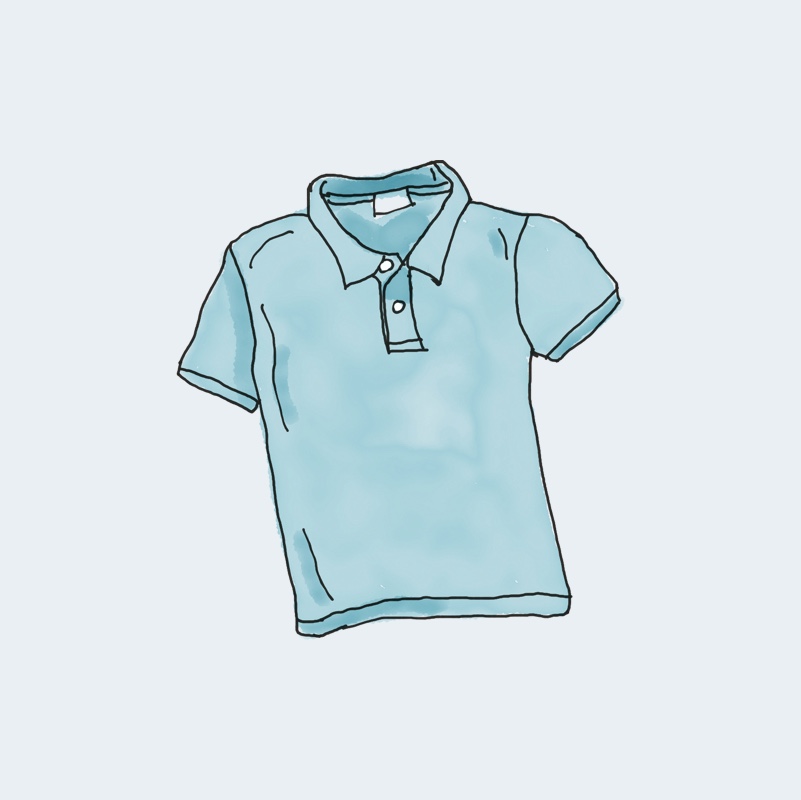 | Polo | Tshirts | $20.00 | | |
 | Long Sleeve Tee | Tshirts | $25.00 | | |
 | Hoodie with Zipper | Hoodies | $45.00 | | |
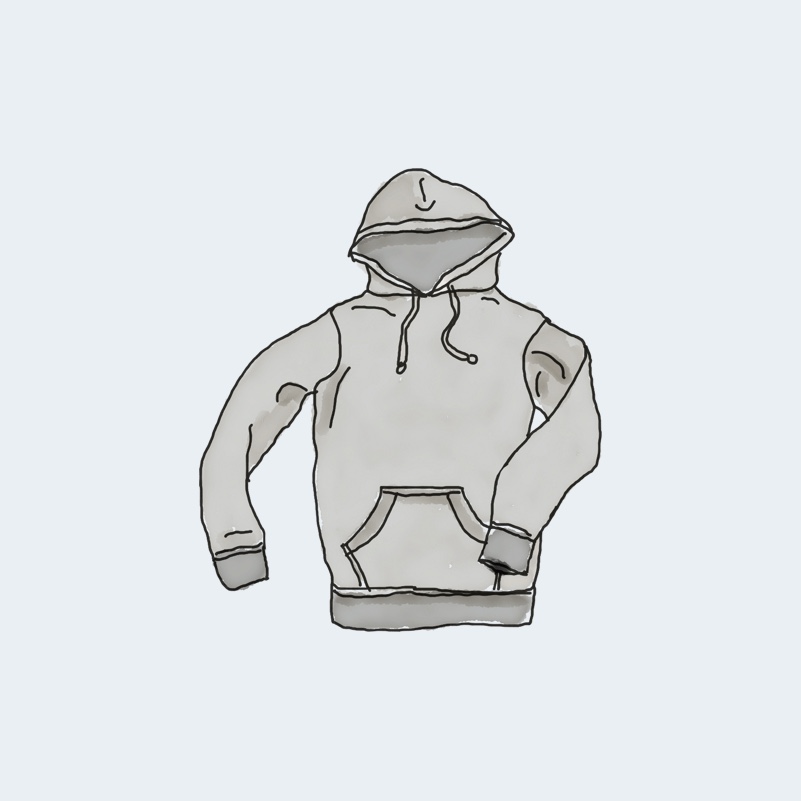 | Hoodie with Pocket | Hoodies | Original price was: $45.00.$35.00Current price is: $35.00. | | |
 | Sunglasses | Accessories | $90.00 | | |
 | Cap | Accessories | Original price was: $18.00.$16.00Current price is: $16.00. | | |
 | Belt | Accessories | Original price was: $65.00.$55.00Current price is: $55.00. | | |
 | Beanie | Accessories | Original price was: $20.00.$18.00Current price is: $18.00. | | |
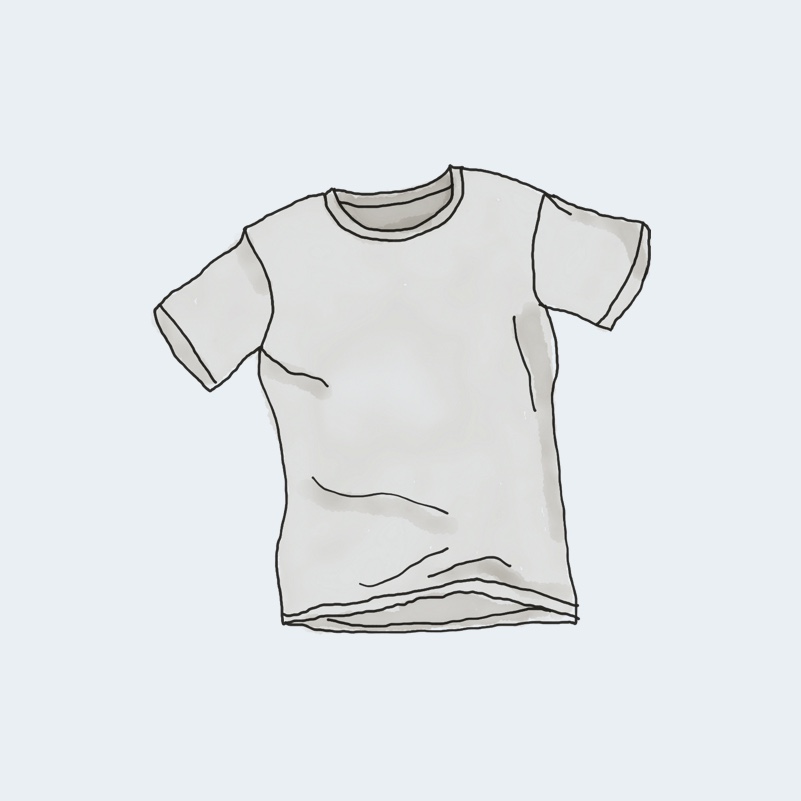 | T-Shirt | Tshirts | $18.00 | | |
 | Hoodie with Logo | Hoodies | $45.00 | | |
 | Tank Top | Tanktop | Original price was: $45.00.$40.00Current price is: $40.00. | | |
 | Pants | Shorts | $15.00 | |
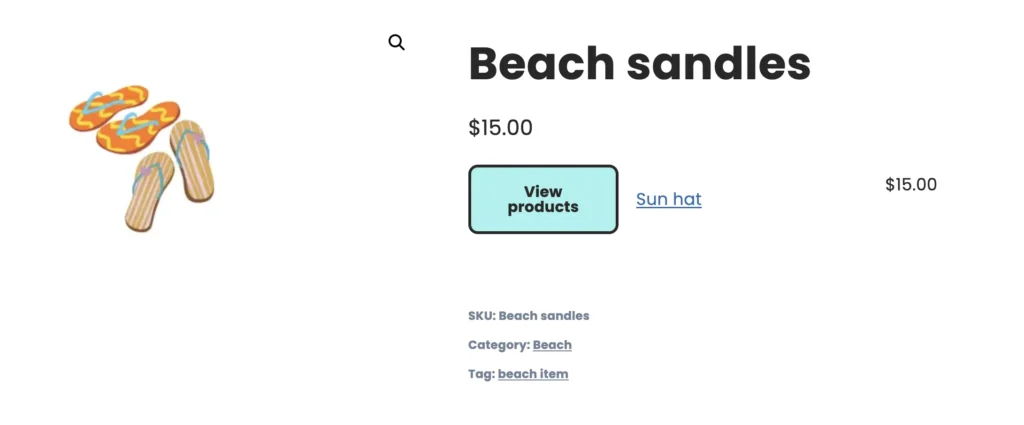
Click on the view details, where you can see the product in a card view in a new tab.
Publishing the catalog
Once the table is configured, Ninja Tables generates a shortcode. Paste it into any page or post where the product catalog should appear. The table renders with all configured search, filter, and sort behavior active. The page requires no additional setup beyond the shortcode placement.
| Image | Name | Category | Price | Choose | |
|---|---|---|---|---|---|
| Blue Hoodie (Zipper) | Hoodies | Original price was: $40.00.$35.00Current price is: $35.00. | | |
| Hat | Hat | Original price was: $20.00.$15.00Current price is: $15.00. | | |
| T Shirt | Half sleeve | $45.00 | | |
| T-Shirt with Logo | Tshirts | Original price was: $10.00.$8.00Current price is: $8.00. | | |
| Beanie with Logo | Accessories | Original price was: $20.00.$18.00Current price is: $18.00. | | |
| T-Shirt | Tshirts | $18.00 | | |
| Long Sleeve Tee | Tshirts | $25.00 | | |
| Polo | Tshirts | $20.00 | | |
| Hoodie with Logo | Hoodies | $45.00 | | |
| Hoodie with Pocket | Hoodies | Original price was: $45.00.$35.00Current price is: $35.00. | | |
| Hoodie with Zipper | Hoodies | $45.00 | | |
| Beanie | Accessories | Original price was: $20.00.$18.00Current price is: $18.00. | | |
| Belt | Accessories | Original price was: $65.00.$55.00Current price is: $55.00. | | |
| Cap | Accessories | Original price was: $18.00.$16.00Current price is: $16.00. | | |
| Sunglasses | Accessories | $90.00 | | |
| Tank Top | Tanktop | Original price was: $45.00.$40.00Current price is: $40.00. | |
Building a Standalone Product Catalog Without WooCommerce
For sites that do not use WooCommerce, Ninja Tables’ Advanced Mode table builder creates a fully custom product catalog from scratch. The data source is a CSV file, a Google Sheets document, or data entered manually, and the table structure is defined entirely by the columns you create.
When standalone makes sense
A standalone catalog removes all WooCommerce dependencies. There is no product post type overhead, no WooCommerce database tables, and no plugin conflicts with WooCommerce extensions. For display-only catalogs, this is a cleaner and faster setup.
Businesses that benefit from standalone catalogs: manufacturers publishing technical specifications across a product line, distributors maintaining a parts reference that customers use to identify products before calling a sales team, services firms listing packages or tiers in a structured format, and any organization maintaining a product database in a spreadsheet that needs to become a browsable web page.
Creating the table structure
In Ninja Tables, create a new table in Advanced Mode without selecting a data source integration. Define columns manually based on the product fields the catalog needs: typically product name, category, one or more specification columns, price or price range, and a contact or enquiry button column.
Click "+" to Expand and Compare
| Model | Image | Capacity | Cooking Modes | Display | Special Features | Dimensions | Warranty | Price | Discount |
|---|---|---|---|---|---|---|---|---|---|
| Compact Series |  | 20L | Basic heating, defrost | LED display | Child lock | 45cm x 35cm x 25cm | 1 year | $129 | 20% |
| Standard Series |  | 28L | Heating, defrost, grill | LED display | Auto cook menus | 52cm x 40cm x 30cm | 2 years | $199 | 30% |
| Premium Series |  | 32L | Heating, defrost, grill, convection bake | Touch control with LCD | Smart sensor cooking, voice assistant compatible | 55cm x 42cm x 32cm | 3 years | $349 | 40% |
Each column has a data type. Text columns handle product names, descriptions, and category labels. Numeric columns handle prices and quantities and enable range filtering. Image columns display product photos as thumbnails with an optional lightbox on click. Button/Link columns create actionable elements that open a product page, trigger a contact form, or download a spec sheet.
Importing products from CSV
For any catalog with more than a handful of products, CSV import is the practical way to populate the table. Export the product list from whatever system maintains the product data: an ERP, a spreadsheet, a supplier feed, or an existing database. Ensure the CSV has a clean header row with column names that match what you have set up in the Ninja Tables column configuration.
In the Ninja Tables table editor, navigate to the Import/Export section and select CSV import. Map the CSV columns to the corresponding table columns and run the import. For existing tables being updated, Ninja Tables supports importing into an existing table structure, which allows product data refreshes without rebuilding the table configuration from scratch.
For catalogs that update frequently, Google Sheets integration is often more practical than repeated CSV imports.
Connecting Google Sheets for live data
Ninja Tables can connect directly to a Google Sheets document and render the sheet data as a live table. When the spreadsheet is updated (prices changed, products added, stock statuses revised), the table on the WordPress site reflects those changes automatically at the next refresh interval.
To set this up, publish the Google Sheet as a CSV URL from the Google Sheets share settings, then connect that URL in Ninja Tables as the data source. The table pulls and caches the sheet data, and cache settings control how frequently the table syncs with the latest sheet version.
This workflow suits small to mid-size catalogs maintained by non-technical teams who are comfortable with spreadsheets but do not need WordPress access to update product information.






Adding search and filtering
Custom filters in Ninja Tables standalone tables allow visitors to filter by any column field. A dropdown filter on a category column narrows the table to a single product type. A text search filter on a name or SKU column finds specific products instantly. A numeric range filter on a price column lets visitors set a budget before browsing.
Filters are configured in the table’s Custom Filters settings, where each filter specifies the column it targets, the filter type (dropdown, text input, range), and optional default values. Multiple active filters narrow results together, so a visitor can filter by category and price range simultaneously.
What Makes Ninja Tables Work Well for Product Catalogs
Both the WooCommerce integration and the standalone table path share the same underlying display capabilities, and several of those are particularly relevant for product catalogs.
Responsive layout. All Ninja Tables output is responsive. On narrow screens, columns can be configured to collapse or stack, so the catalog remains usable on mobile without requiring a separate mobile version.
Multimedia in table cells. Product image thumbnails display inline within table rows. Clicking an image opens a lightbox for a larger view without leaving the page. This gives visitors product visual confirmation in the context of a browsable, filterable list rather than requiring a page visit for each product.
Conditional formatting. Columns can apply cell-level formatting based on data conditions. A stock status column can highlight “Out of Stock” rows in a different color. A price column can visually distinguish sale prices. This kind of contextual signaling improves scannability in a long catalog.
Custom CSS and design control. Table colors, typography, row height, border styles, and header appearance are configurable within Ninja Tables without touching theme files. For catalogs that need to match a specific brand design, this keeps the catalog visually consistent without requiring custom development.
Export functionality. Visitors can export the current filtered view of the catalog to CSV or trigger a print view, both of which are standard expectations in B2B catalog contexts where buyers take product lists to purchasing teams or quote processes.
Managing the Catalog After Launch
A product catalog requires ongoing maintenance. Ninja Tables handles this differently depending on the data source.
For WooCommerce-backed catalogs, product management happens entirely within WooCommerce. Adding a product in WooCommerce makes it immediately available in the Ninja Tables product table without any additional steps. Editing a price, changing stock status, or updating a product image in WooCommerce reflects in the table automatically.
For standalone CSV-based catalogs, updates require re-importing a revised CSV. Ninja Tables supports importing into an existing table to refresh data, so the column configuration and table settings are preserved between imports. For catalogs updated regularly, establishing a consistent export routine from the source system (scheduled ERP export, weekly spreadsheet export) and a corresponding import process keeps the catalog current without rebuilding it.
For Google Sheets-connected catalogs, updates happen directly in the spreadsheet. No WordPress login is required for the people maintaining product data, which simplifies the workflow for teams where the person managing the product database and the person managing the website are not the same.
Wrapping Up
A WordPress product catalog needs more than a list of products on a page. It needs structure, search, filtering, responsive display, and a manageable update process. WordPress’s default tools do not provide all of these together, and building them from scratch or assembling them from multiple plugins creates maintenance overhead that grows with the catalog.
Ninja Tables addresses the complete display layer for both WooCommerce stores and standalone catalog setups. The WooCommerce integration transforms an existing store’s product data into a filterable, sortable table without rebuilding the store. The standalone mode gives full control over structure and data source for catalogs that live outside of WooCommerce entirely. Either way, the catalog publishes with a single shortcode and stays maintainable as the product database grows.

Ninja Tables– Easiest Table Plugin in WordPress







Add your first comment to this post