
Create WordPress Tables from Excel Sheets in Minutes


If you work with data, chances are it already lives in an Excel sheet. Price lists, product specs, staff directories, class schedules, and sales reports. They all start in a spreadsheet.
The tricky part has always been getting that data onto your WordPress site. Copying cells one by one takes forever. Saving the file as CSV first is an extra step that often messes up your formatting.
And pasting a screenshot of your spreadsheet? Visitors can’t search it, Google can’t read it, and it looks blurry on mobile.
Ninja Tables solves that completely. You can now import an Excel (.xlsx) file straight into WordPress with Ninja Tables. Upload the file, and your table is ready. Everything after that, like colors, filters, and layout, is up to you.
Let’s walk through the step-by-step guide to create a table in WordPress from an Excel sheet.
Key takeaways
Before You Start: Get Your Excel File Ready
A couple of minutes of prep here saves you from fixing things later. Open your spreadsheet and check these:
- Keep your data on the first worksheet. Ninja Tables reads only the first sheet in the file. If your data is on another tab, move it to the front.
- Put your column headers in the first row. The first non-empty row becomes your table header, so make sure it holds names like “Product,” “Price,” or “Stock,” not a title or a note.
- Remove merged cells and empty columns. They don’t translate well into a clean table.
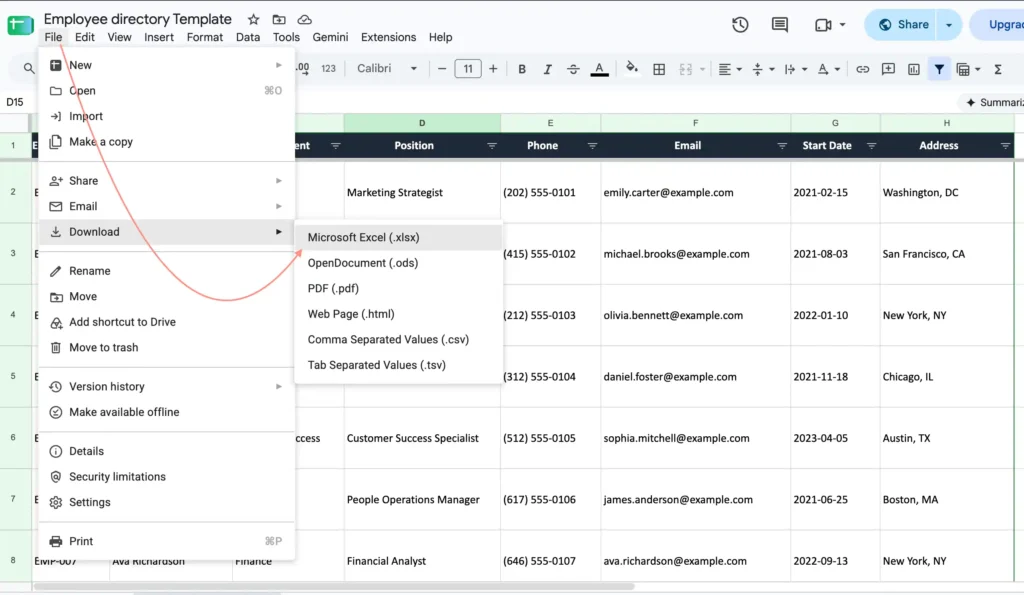
- Save the file as .xlsx. If you’re working in Google Sheets, go to File → Download → Microsoft Excel (.xlsx).
That’s all the prep you need.
Why Put Your Excel Data into a WordPress Table?
You might wonder why not just attach the Excel file to a post and let people download it. It works, but it asks a lot of your visitors. They have to download the file, open it in another app, and dig through it on their own. On a phone, that’s usually where they give up.
Turning your sheet into a proper WordPress table fixes that, and it brings a few other benefits along the way:
- Visitors see your data right away: No downloads, no extra apps. The information is right there on the page, ready to read.
- It’s easier to find what matters: With search, sorting, and filters, someone looking for one product or one name in a list of hundreds can find it in seconds.
- It works on every screen: A spreadsheet is hard to read on a phone. A responsive table adjusts to the screen, so mobile visitors get a clean view too.
- Search engines can read it: Text in a table is crawlable, unlike a screenshot or a file attachment. That gives your content a better chance of showing up in search results.
- It matches your site: You control the colors, fonts, and layout, so your table looks like part of your website, not something pasted in from elsewhere.
- It’s easier to keep up to date: Change a price or add a row from your dashboard, and the update shows up everywhere the table is published.
In short, an Excel file stores your data. A WordPress table puts it to work.

Get Exclusive Tips, Updates, and Inspirations in Your Inbox!
How to Create WordPress Tables from Excel Sheets
Creating a table in WordPress from an .xlsx file won’t take much work. In fact, it requires only two to three mandatory steps.
So, here we go with the step-by-step guide.
Step 1: Install or update Ninja Tables
If you don’t have Ninja Tables yet,
- Go to Plugins → Add New in your WordPress dashboard
- Search for “Ninja Tables“
- Install and activate it.
You can also grab it directly from WordPress.org.
Already a Ninja user?
Make sure you’re on version 5.2.18 or later. Excel import arrived in that release, so older versions won’t show the option.
Head to Plugins, find Ninja Tables, and click Update now if an update is waiting.
Step 2: Import your Excel file
This is the part that used to take the longest. Now it takes a few seconds.
- Go to Ninja Tables → Import
- Select Excel – Spreadsheet (.xlsx) as the import format
- Choose your file from your computer
- Click Import
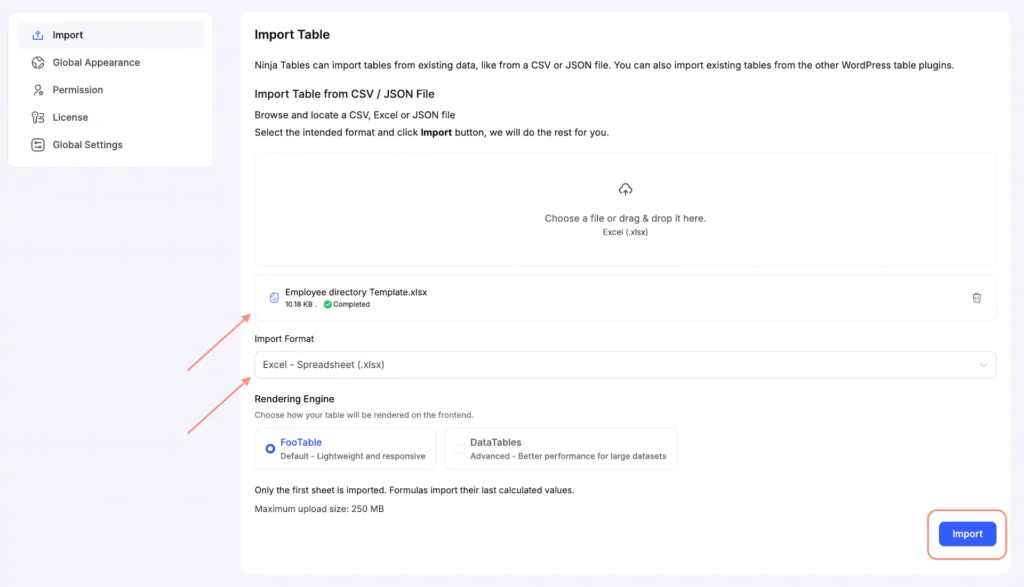
Working with a big spreadsheet? No problem. Large files are imported in small batches in the background, so a sheet with thousands of rows won’t time out halfway through. Just let it finish.
Step 3: Review your table data
Once the import is done, open your new table. You’ll see your columns and rows laid out exactly as they were in Excel.
Take a quick look to make sure everything landed where it should:
- Are the headers correct?
- Did all the rows come through?
- Are numbers and text showing properly?
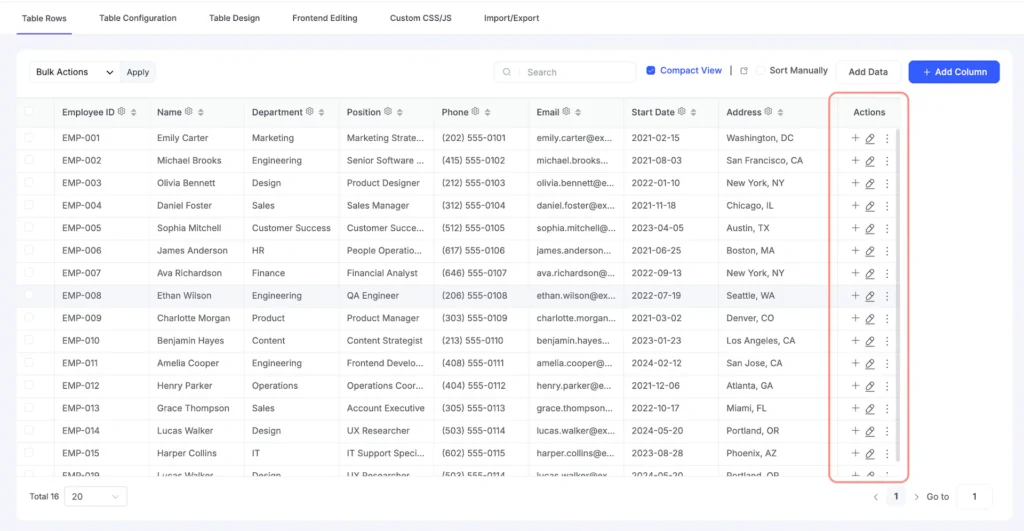
Spotted a typo or a missing row? You don’t need to go back to Excel. You can edit cells, add new rows, or delete the ones you don’t need right inside the table editor.
- To edit a row, click on the pen icon
- To add a new row, click on the + icon
Step 4: Customize your table
At this point, your table is already ready to go. Everything from here is optional, so customize as much or as little as you like.
A few things most people tweak first:
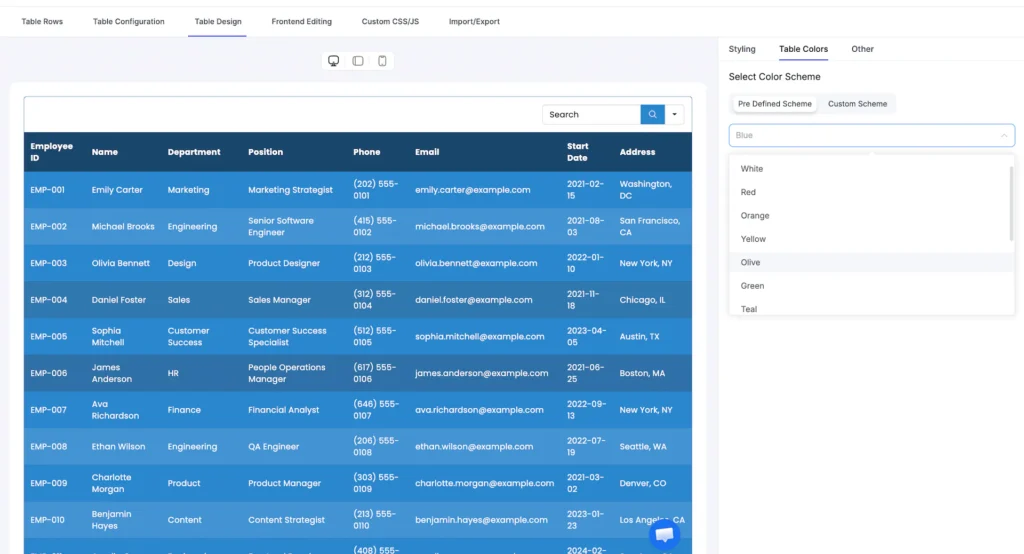
- Design and colors: Open Table Design and pick a style that suits your site. The preview now shows your table exactly as it’ll look on the frontend, so you can try different options without guessing.
- Search, sorting, and filters: Turn these on from Table Configuration so visitors can find what they need without scrolling through every row.
- Pagination: If you have a long table, split it into pages to keep things tidy.
- Mobile view: Choose which columns to show or hide on smaller screens, so your table stays readable on phones.
- Allow front-end editing: You can allow your team members, visitors, or subscribers to enter their details on your existing WordPress tables.
- Excel download button (Pro): Want visitors to take your data with them? Add an Excel button to the table toolbar. It downloads exactly what the visitor sees, including their search and filter results.
Step 5: Preview and publish the table
Before you put your table in front of visitors, give it one last look.
Click Preview in the table editor to see how your table looks on the frontend. Check the layout, test the search box, try sorting a column, and resize your browser window to see how it behaves on smaller screens. If something feels off, go back and adjust it.
Happy with how it looks? Now it’s time to publish your WordPress table. You have two easy options:
- Shortcode: Copy your table’s shortcode and paste it into any post, page, or widget area.
- Gutenberg block: In the block editor, add the Ninja Tables block and pick your table from the list.
Publish or update your page, and your Excel data is now a live, searchable table on your site.
Bonus: Export Your Table Back to Excel
Need to share your table data with a teammate or work on it offline? You can send it back to Excel just as easily.
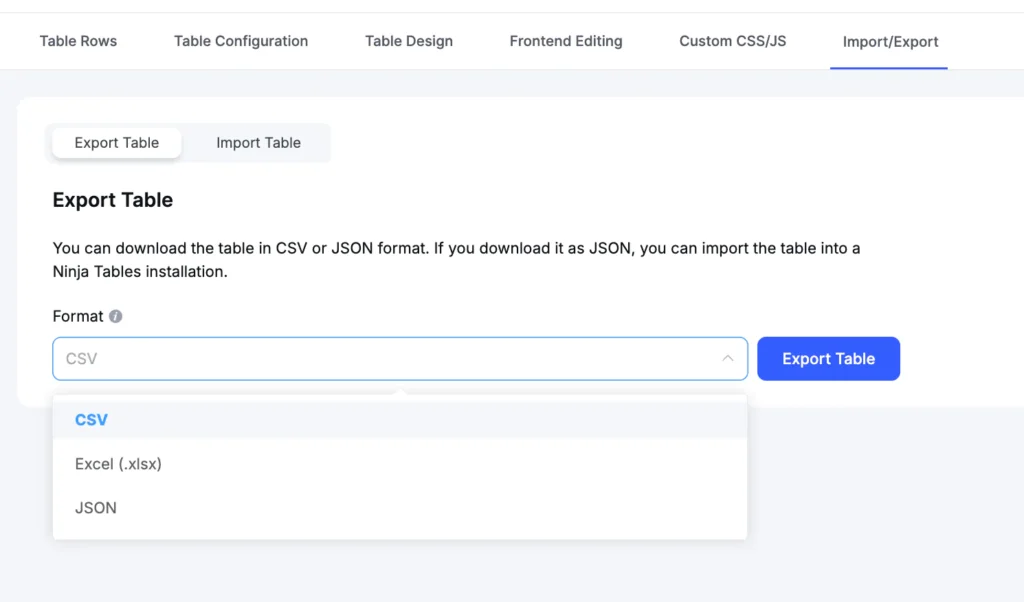
Open your table, go to Import/Export → choose the format as Excel (.xlsx) → click on Export Table . The file opens in Excel, Google Sheets, and Numbers, and your data stays the way you left it:
- Numbers export as real numbers, so you can sum and sort them right away
- Codes with leading zeros (like 00123) and long IDs stay as text, so Excel won’t change them
- Values that look like formulas are saved as plain text, so the file is safe to open
If you move data between tools often, our guide on exporting and importing tables in WordPress has more tips.
Ready to Turn Your Spreadsheet into a Table?
Here’s your quick to-do list to turn your Excel sheet into a WordPress table:
- Clean up your Excel file and save it as .xlsx
- Install or update Ninja Tables to the latest version
- Import your file from Tools and Settings → Import
- Customize, preview, and publish
Your first table should take less time than making a cup of tea. Give it a try, and if you get stuck anywhere, our support team is just a message away.
FAQs
Can I import an Excel file with multiple sheets?
Ninja Tables imports only the first worksheet. If you need data from several tabs, import them as separate tables, or combine them into one sheet before importing.
Do I still need to convert my Excel file to CSV?
No. You can upload your .xlsx file directly. The CSV step isn’t needed anymore.
Will my Excel formulas work in the table?
Ninja Tables imports the values in your cells, not the formulas behind them. So if a cell shows a calculated total in Excel, that total is what appears in your table.
Is Excel import available in the free version?
Yes, but the advanced customization requires a pro.
My data is in Google Sheets. Do I have to download it as Excel every time?
Not if it changes often. You can connect Google Sheets to your WordPress table so your table stays in sync automatically.

Ninja Tables– Easiest Table Plugin in WordPress







Add your first comment to this post