
Ninja Tables 5.5.0: A Fully Redesigned Admin, Dark Mode & More!

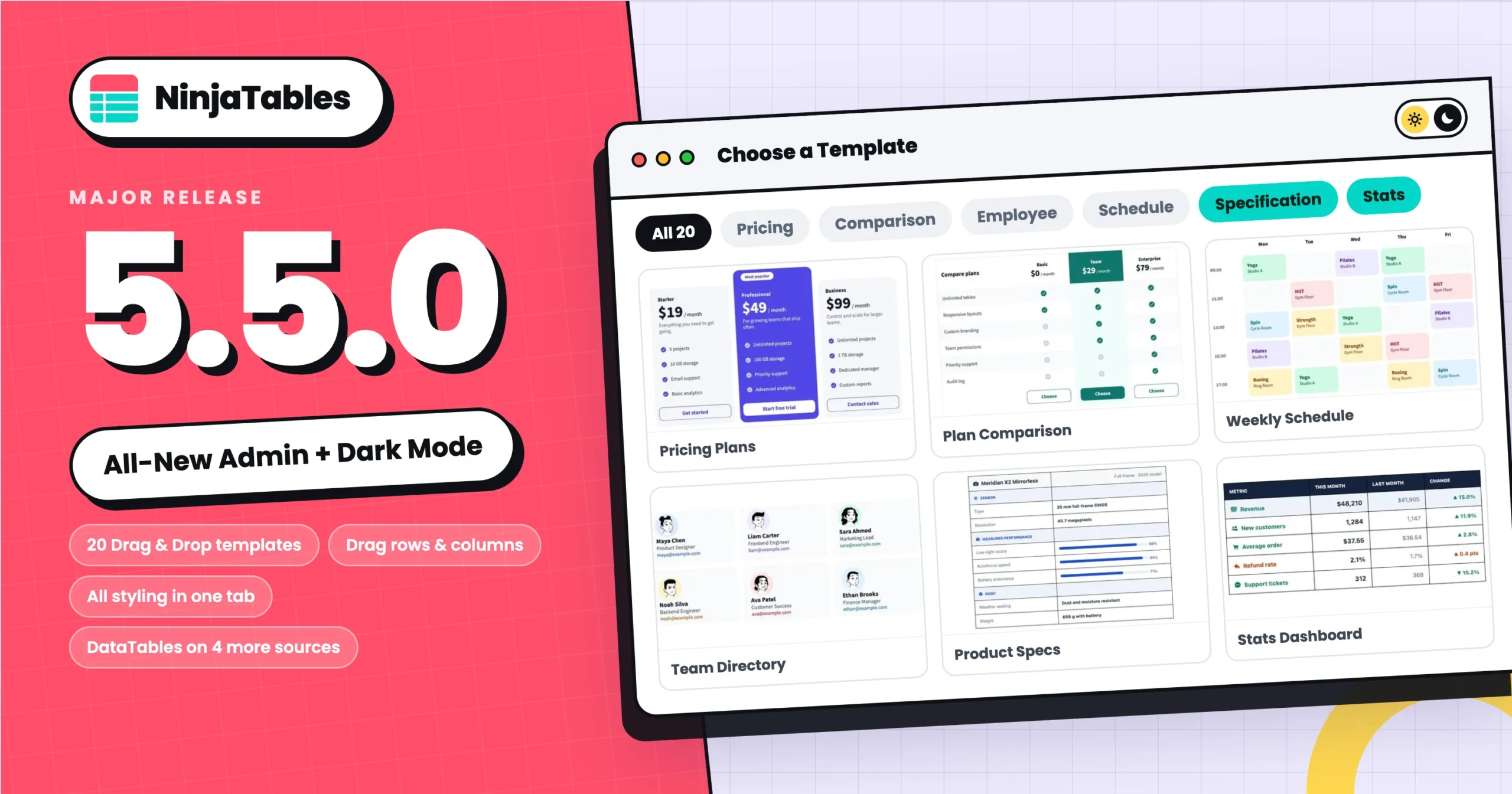
Welcome back to another Ninja Tables update!
This is a big one. We took a long, honest look at every screen you work in, from the Tables list to the last setting in the Drag and Drop builder, and rebuilt them all.
But most importantly: Ninja Tables has a brand-new admin!
Alongside it you get dark mode, 20 ready-made Drag and Drop templates, the DataTables engine for more of your connected tables, a better colour picker, and a handful of fixes. And don’t worry: your tables, shortcodes and frontend stay exactly as they were. Let’s dive in.
What’s New in Ninja Tables 5.5.0?
A fully redesigned admin
The old admin grew one screen at a time over several years, and it showed: separate page shells that each looked slightly different, controls at inconsistent heights, settings that lived wherever they were first added. We rebuilt all of it on a single design system, so once you learn one screen you know them all.
Here are a few of the places you’ll notice it most:
- The Tables list shows where each table is used on your site, lets you filter by source and engine, and opens a table when you click its row. A table whose source plugin or licence is missing is marked, instead of opening into an error.
- Creating a table is one screen with a tile for every source. Pick one and its settings open in a side panel. You can drop a file anywhere on the page to start an upload.
- Table Rows is a tidier grid. Edit rows and row colours in a side panel, sort every row by clicking a column header, and drag whole columns to reorder them.
- Column settings open in a side panel, right next to your data.
- Table Design collects styling that used to be spread across five panels into one tab with three sections, Styling, Features and Colors, next to a live preview that updates as you change things, without reloading.
- The Drag and Drop table builder has a new look too, with cleaner element settings, clearer row and column controls, and an easier way to merge cells.
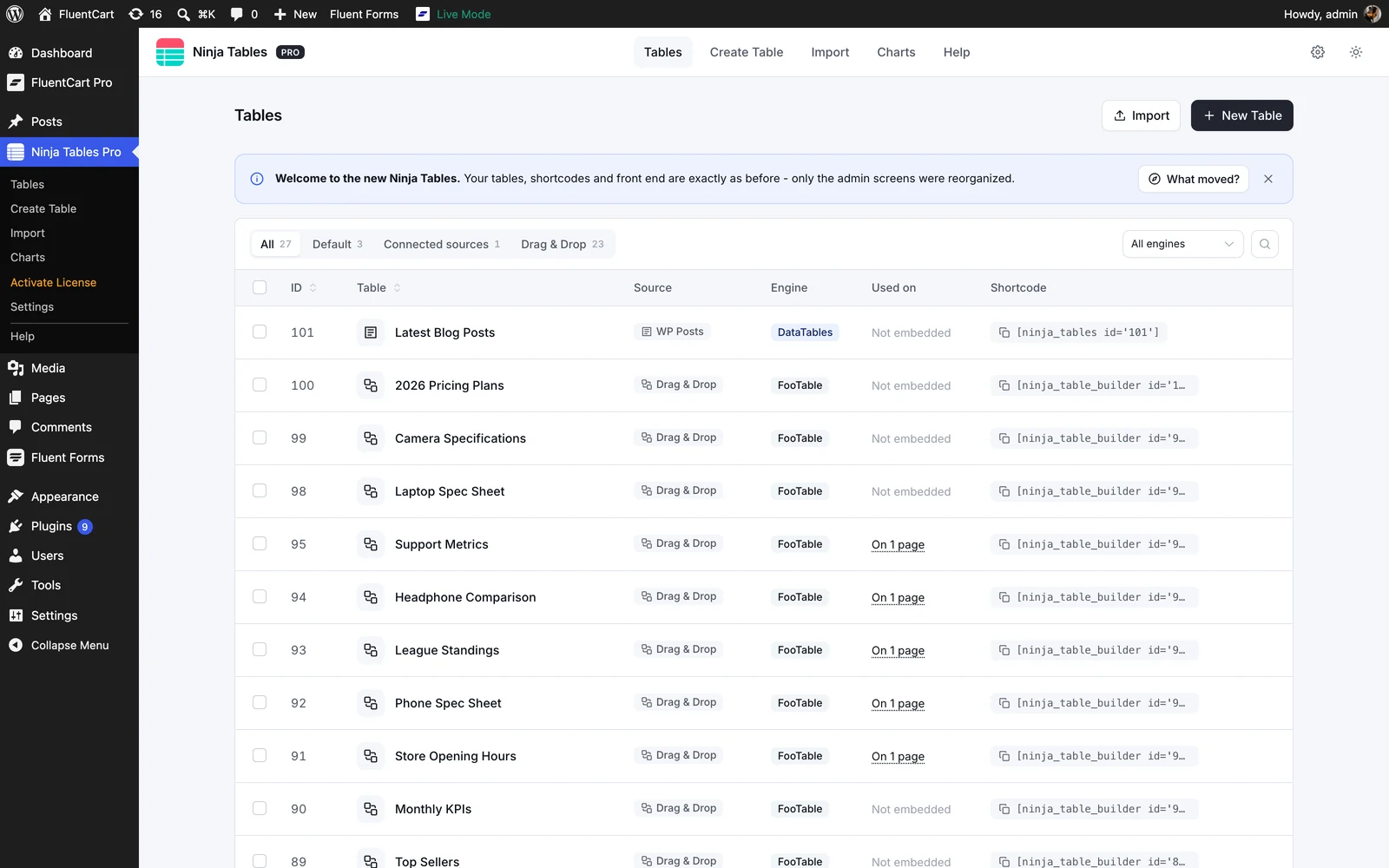
The redesigned Tables list with the Used on column, source tabs and engine filter
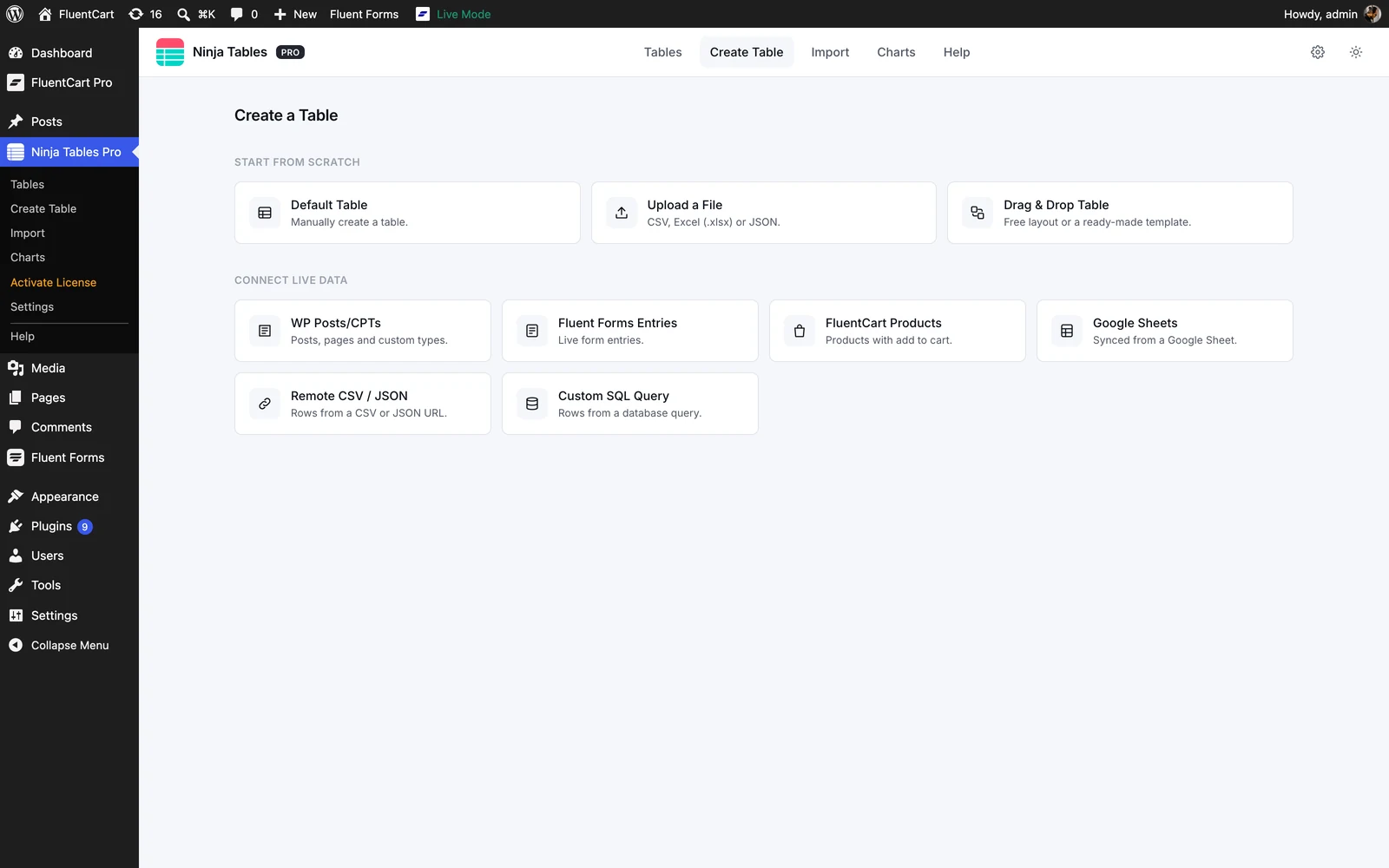
Create a table, with a tile for every source
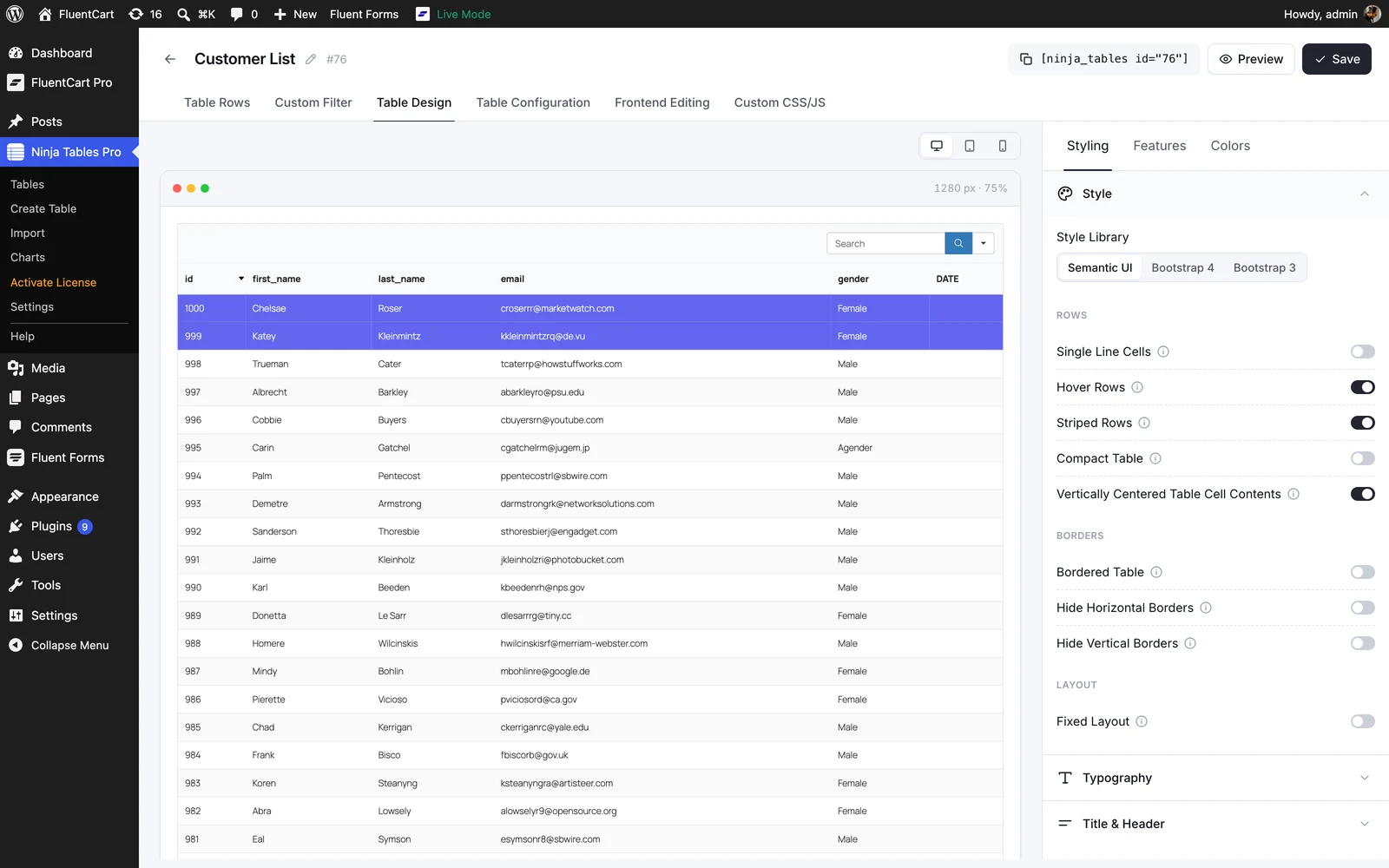
Table Design: the live preview beside the Styling, Features and Colors panel
Wondering where an old setting went? Click What moved? in the welcome banner on the Tables list. It shows where each old screen lives now.
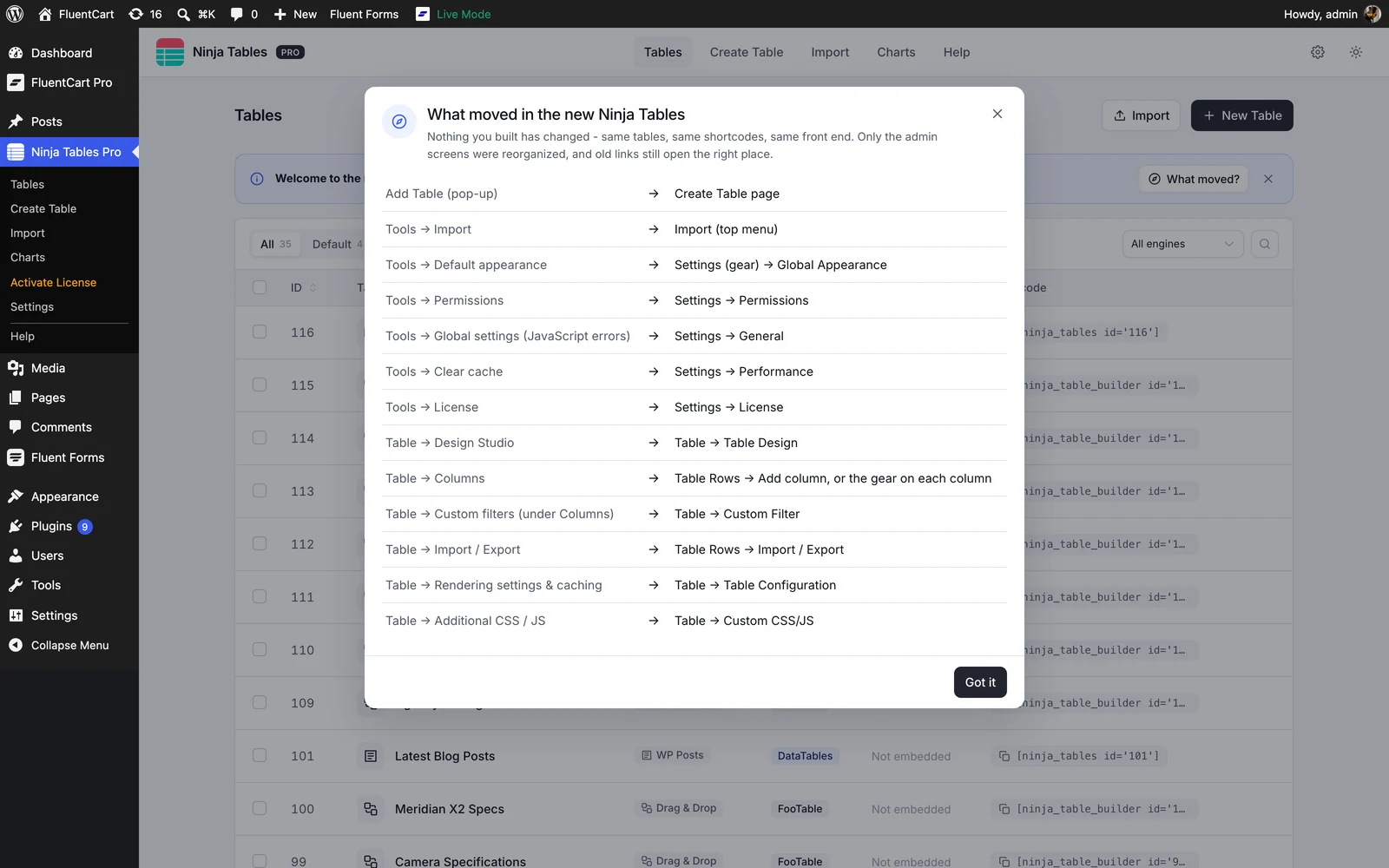
The What moved? guide, opened from the welcome banner on the Tables list
Dark mode
Working late? The Ninja Tables admin now has a dark mode. Use the sun and moon switch in the top bar and choose Light, Dark or System. System follows your computer’s setting, so the admin switches along with it.
The choice is shared across our plugins. Set dark mode in FluentCRM or another Fluent plugin on the same site and Ninja Tables picks it up, and the other way around. It is an admin setting only, so it has no effect on how your tables look to visitors.
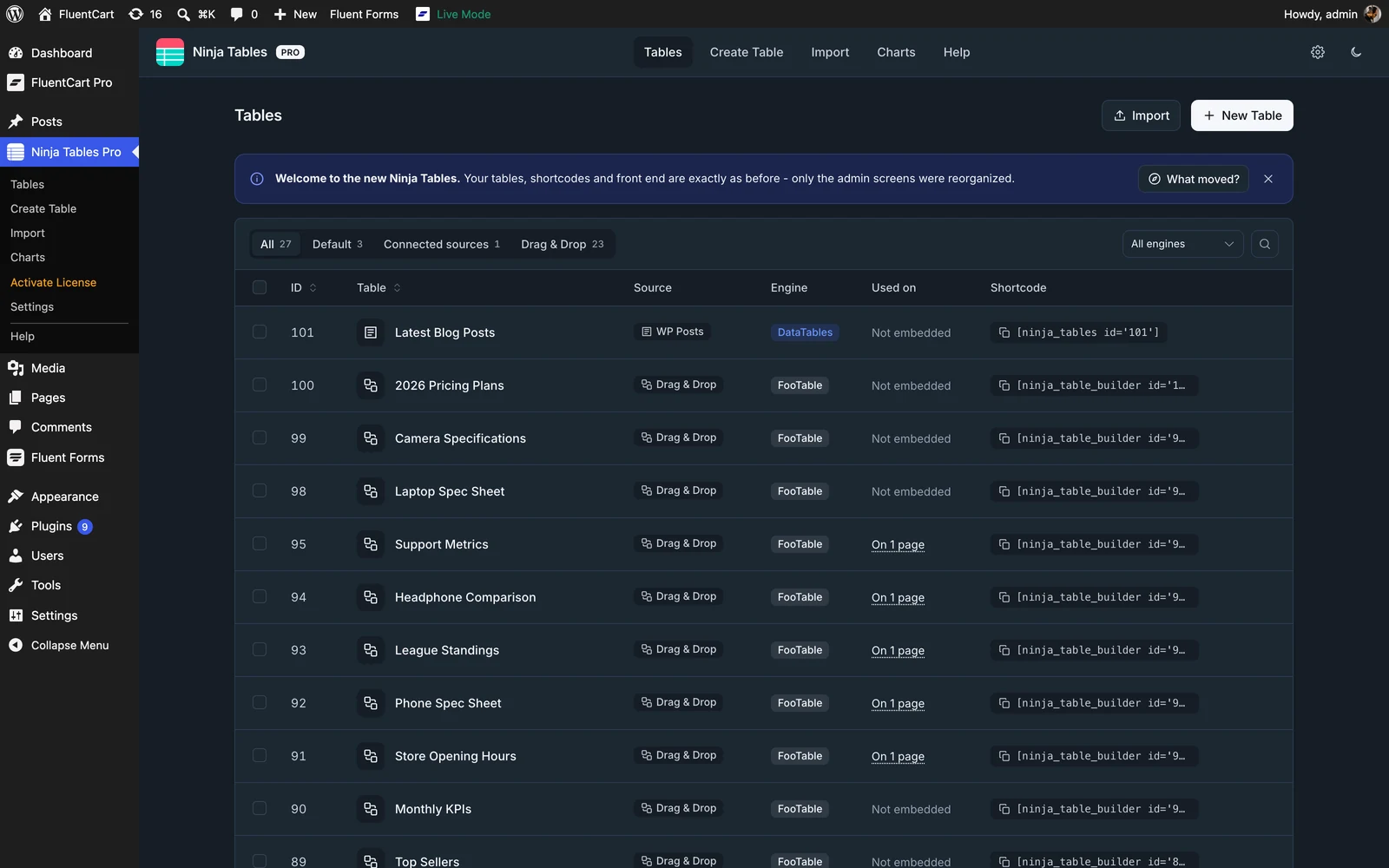
The Ninja Tables admin in dark mode
20 Drag and Drop templates, and a rebuilt builder
The Drag and Drop builder is for tables you lay out by hand, like pricing tables, comparison tables and spec sheets, rather than tables fed from a data source. It now opens on a template picker: 20 ready-made tables in six categories, with a preview on hover. Click one to select it, then Next asks for a table name, prefilled from the category. The table is created once you confirm, so a stray click no longer leaves one behind.
All 15 existing templates have been redrawn in a modern style, and five are new. Two new categories account for four of them. Specification adds Spec Sheet and Product Specs, for the technical tables people publish under a product, and Stats adds Leaderboard and Stats Dashboard, for rankings and month-over-month numbers. The fifth, Opening Hours, joins the Schedule category. Nine of the 20 are available on Free; the other eleven need Pro.
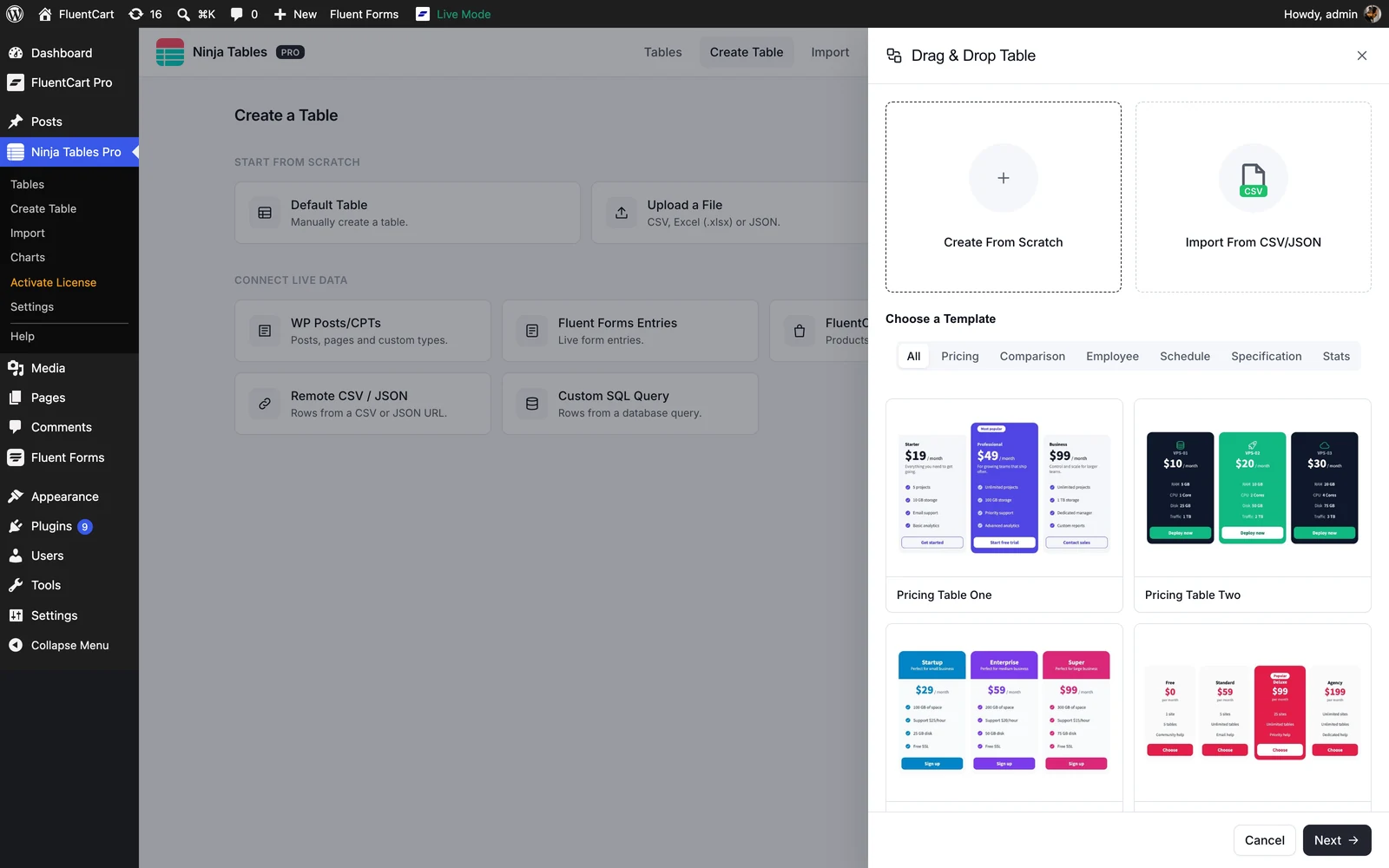
Choose a Template, with the two new categories, Specification and Stats
All 20 now ship with responsive mode on. On a phone or tablet each record stacks as its own block with the top row as its heading, so a wide table reads top to bottom instead of scrolling sideways. You can still turn it off per table.
The builder itself was rebuilt around the canvas. A single click selects a cell and a double-click starts typing, so you can move around a table without opening an editor by accident. Esc steps back out of whatever you have selected, Delete removes the selected element, and Cmd or Ctrl+D duplicates it.
- Drag whole columns. Dragging a column letter now moves the column’s cells with it and the other columns slide aside, the same way rows already worked. This works in the builder and in the Table Rows grid.
- Merge cells. Click Merge, click the cells you want, then Merge N cells. Nothing opens for editing while you are picking.
- Responsive, per device. One device switch shared by the toolbar and the Responsive tab, one settings list per device, and the preview at that device’s real width.
- Ribbons in four shapes, Tag, Corner, Bookmark and Banner, pinned to their cell corner and clipped the same way on the canvas and on the live page, with a fine-tune control for position.
- Corner radius settings, so a template’s rounded edges survive your changes.
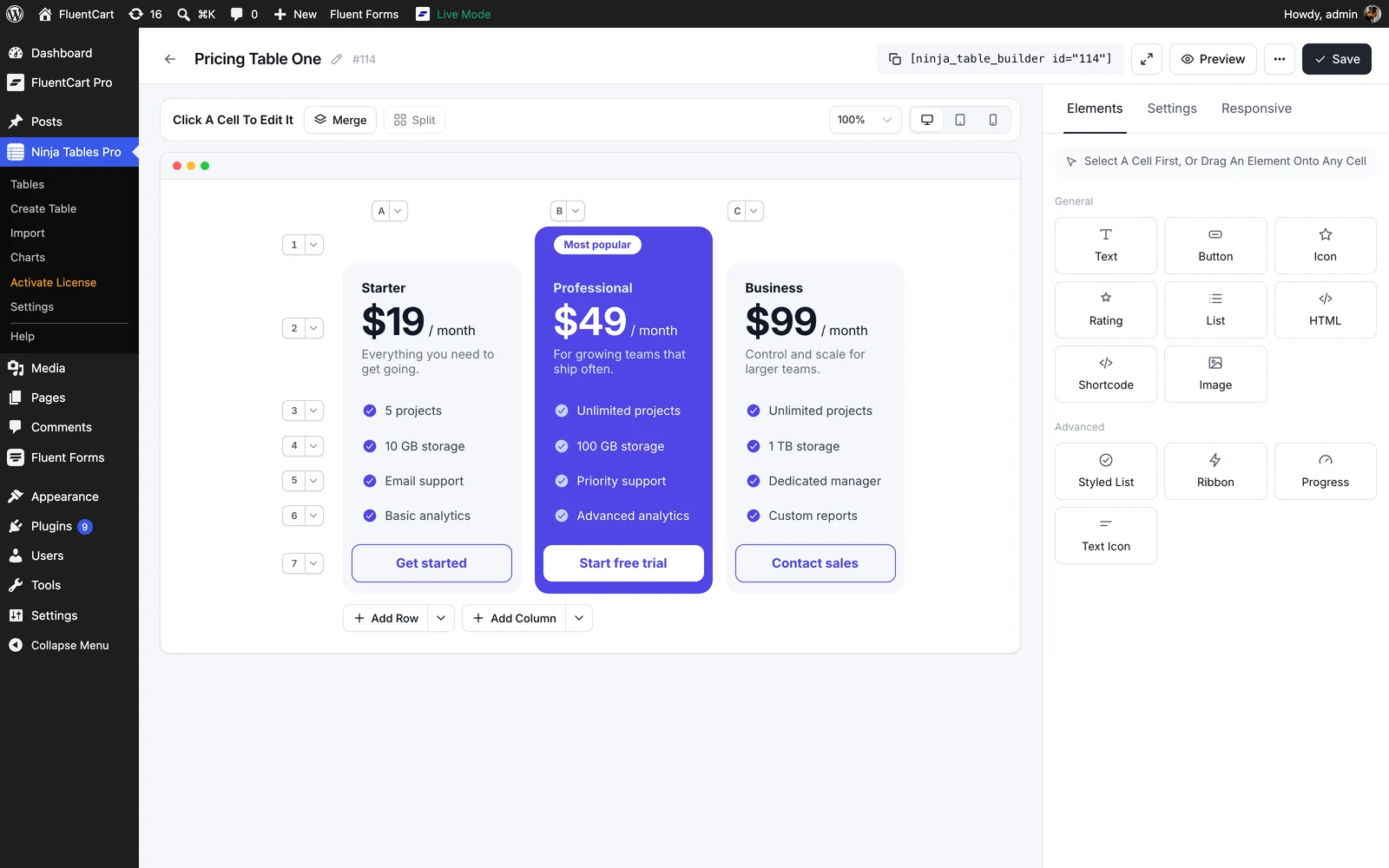
The rebuilt Drag and Drop builder, editing the Pricing Table One template
DataTables for more of your connected tables
Ninja Tables has two render engines. FooTable is the classic one that most existing tables use, and it stays fully supported. DataTables is the newer one, added in 5.2.8: faster with large tables, and the engine every new feature is built on.
Until now, though, only tables you typed or imported yourself could use it, plus Google Sheets and Remote CSV tables through the Pro sync since 5.2.17. Every other source was created on FooTable with no choice offered.
Four more sources can use DataTables in 5.5.0:
- Fluent Forms entries
- FluentCart products
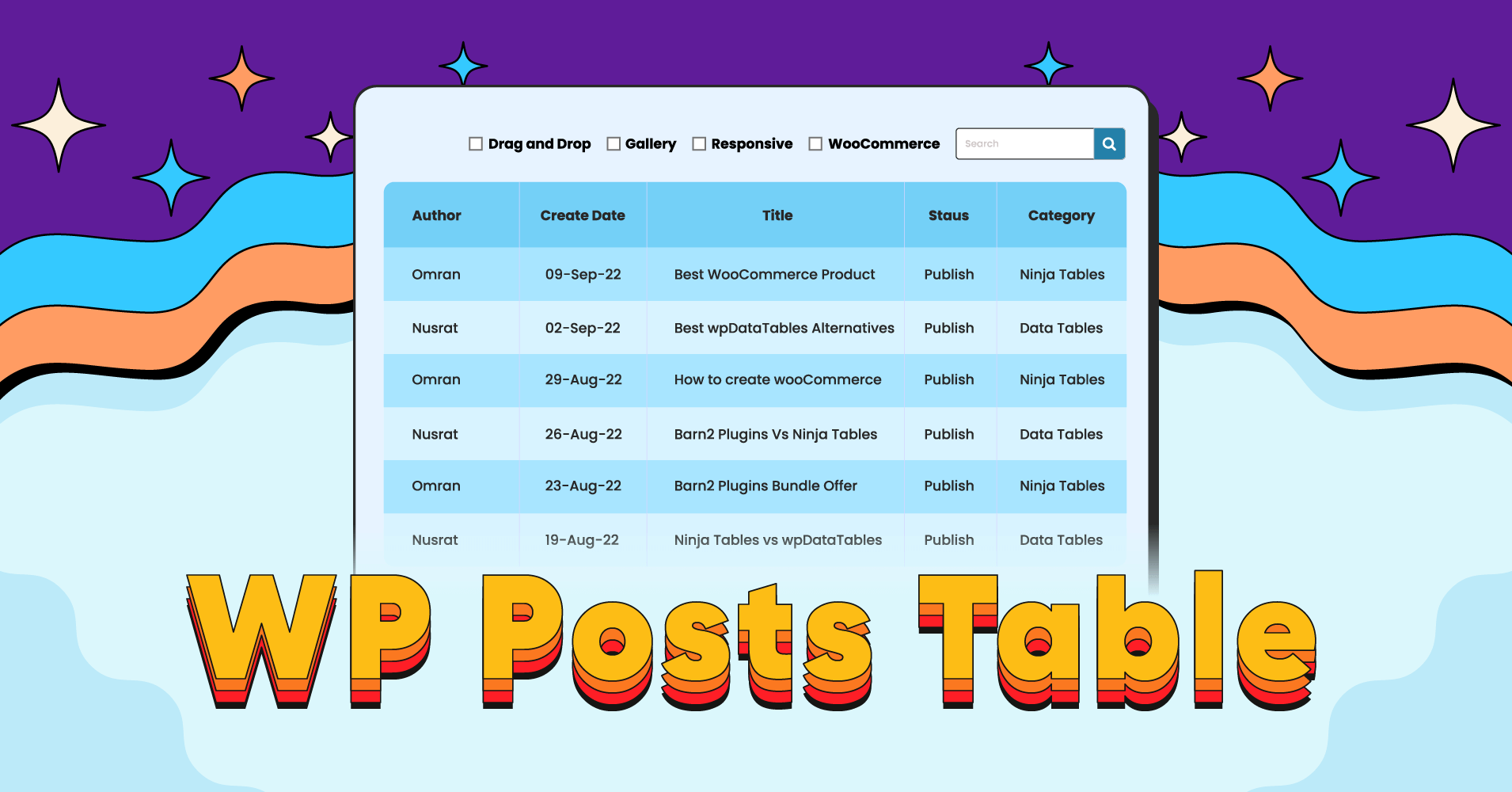
- WP Posts/CPTs (Pro)
- Custom SQL query tables (Pro)
You pick the engine when you create the table, and all four now offer DataTables by default. The choice is locked once the table exists, so Table Configuration shows you which engine a table uses but does not change it. If you want an existing table on the other engine, create a new one.
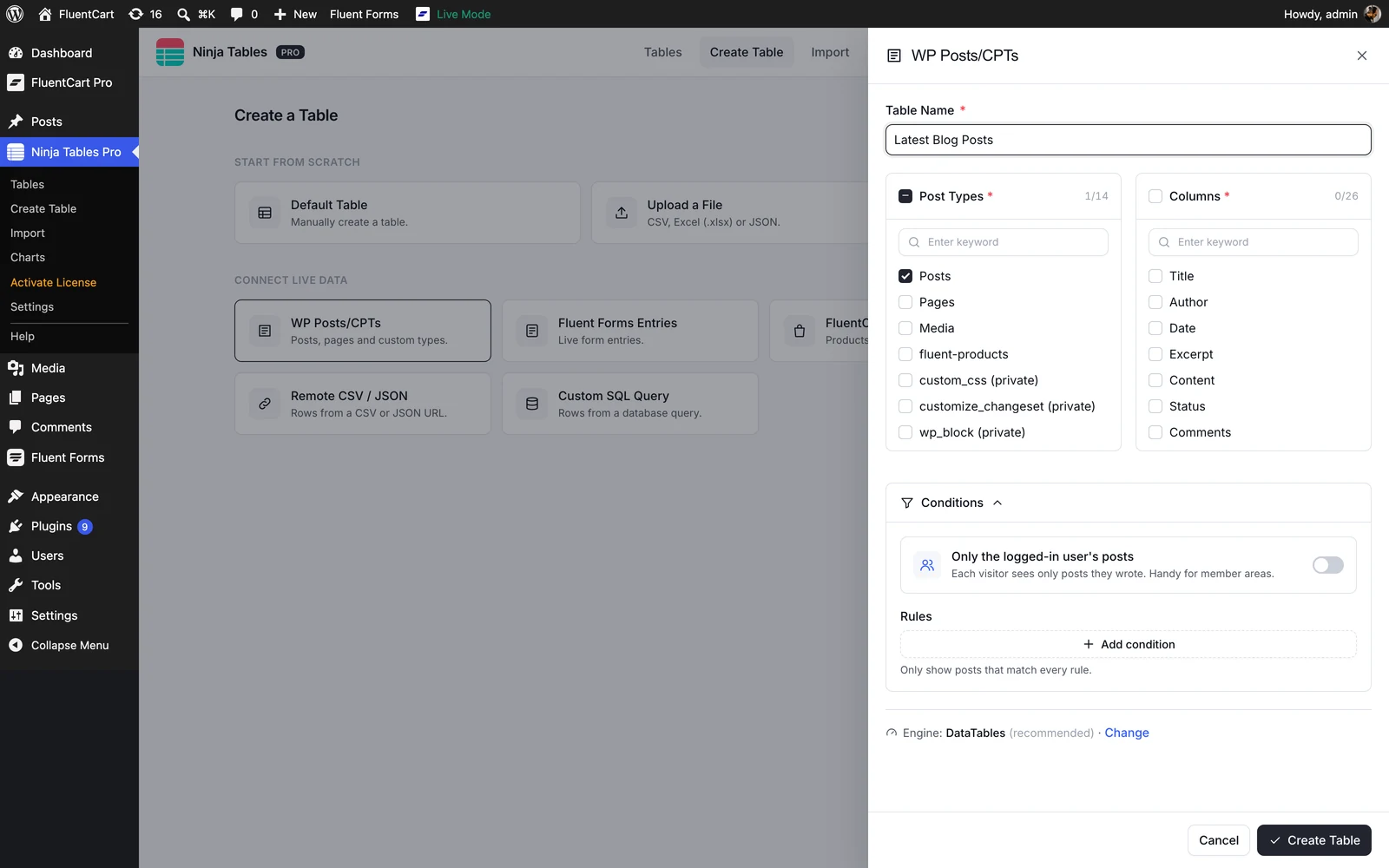
Picking the engine while creating a WP Posts table
One thing worth knowing: because these four read from the source rather than from a table of their own, their rows arrive in a single request and DataTables then pages, searches and sorts them in the browser. That is the same 3,000-row ceiling these tables already had on FooTable, so nothing gets slower. If you are after true server-side paging over a very large dataset, a typed or imported table is still the one that gives you it.
WooCommerce products and WooCommerce reviews tables stay on FooTable in this release, and the engine option does not appear for them. They are next: DataTables support for both is planned for the following release.
Working in the editor
A handful of changes that take the friction out of everyday editing.
- Unsaved edits are visible, and harder to lose. A dot sits on the Save button while you have unsaved changes, and leaving the tab or reloading the page asks first. Table Rows and Columns save as you go, and say so where the other tabs show Save.
- Add several columns at once. A new table used to offer one Add column button, with every column going through the full form. Now you can name several at once, setting type and responsive visibility per line. Enter adds a line, and pasting a list or a spreadsheet header row fills in several at a time.
- The Table Design preview shows the real layout. The preview pane is about 800px wide, so Desktop used to show you the tablet breakpoint. Each device now renders at its real width, 1280, 768 or 480px, scaled to fit, with the width and scale shown in the corner.
- Room on smaller screens. At 1024px the Design settings used to drop below the preview and the Tables list pushed the shortcode and row actions off screen. The settings panel now stays beside the preview down to 960px, and up to 1280px the list hides Source and Engine, with the icon by each title still showing the source.
- Settings open where the settings are. The gear and the WordPress Settings menu used to open General, which only holds the JavaScript error option. They now open Global Appearance, and each settings page has one Save button instead of two.
- Permissions keep customer roles apart. Select all used to give full table access to every role, customers included. Roles that cannot write posts now sit in their own group with a note, and a warning names any that are ticked.
Optional email tips and usage sharing
The old one-click opt-in pop-up is gone. In its place there is a card on the Tables and Help pages asking whether you want email tips, and whether you are happy to share anonymous usage counts so we can see which features people actually use.
Both are off until you tick them, and they are separate choices. The usage report carries counts only, nothing from inside your tables and no personal data, and it is sent weekly. The optional site details box, which covers things like active plugins and the site language, only rides along if you tick that box too.Connected sources (Pro
New features added
1. A better colour picker
The colour picker across the admin got an upgrade. It now supports opacity, so you can use soft, see-through colours, and it comes with a row of ready-to-use preset colours. You can type a hex or rgba value too. Picking a colour and clicking away keeps it, with no OK button needed, and Esc still cancels. Where no colour is set you get a checkerboard rather than a guess.
You’ll find it in table colours, row and cell colours, conditional formatting and column settings.
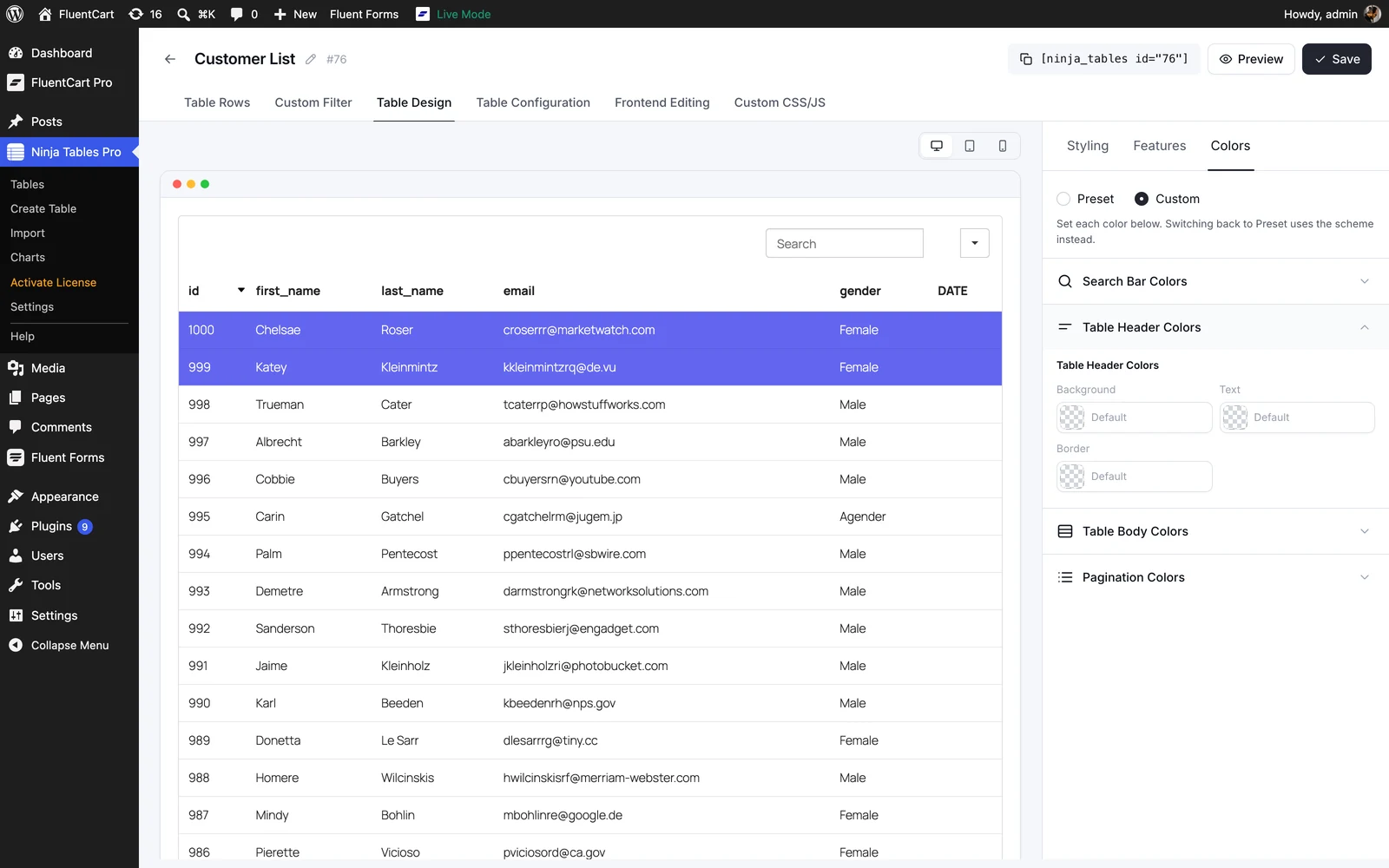
Colours set per area of the table, in Table Design
2. Onboarding for new installs
A short first-run flow now walks you from an empty install to your first table, instead of dropping you on an empty list.
3. Documentation in its new home
All documentation links in the plugin now point to our new docs site, docs.ninjatables.com. Faster to search, easier to read.
Fixes and improvements
Accessibility
An admin that works for everyone. We went through the admin for labels, focus outlines and keyboard use, so more of it works well with a keyboard and a screen reader.
Table styling
Row hover no longer gets stuck. On FooTable tables with a colour scheme and striped rows, a row could keep its hover colour after the mouse moved away. Now the highlight follows your mouse.
The search button is always visible. On tables with custom colours but no search colour set, the search button could disappear against its background. It now always shows.
No Edit Table link inside previews. The preview is opened from the editor, so the link only led back to where you came from. It is gone from the Design preview and both Preview pages. Live pages keep it for admins.
The admin rows grid no longer adds to cart. On WooCommerce tables, the quantity boxes and Add to cart button in the admin grid used to act on the admin’s own cart. They are inert now.
Spacing between pagination and cart buttons in FluentCart DataTables tables.
Connected sources (Pro)
Searching a manual-sorted table with quotes. Searching a manual-sorted DataTables table for a term containing an apostrophe or a quote returned nothing. Fixed.
Re-sync no longer wipes customised columns. A CSV or Google Sheet re-sync reset the settings of any column whose name contained an apostrophe. Those columns now survive a sync.
HTML in Google Sheet columns. HTML typed into a cell in an HTML column rendered as literal tags. It renders as HTML again.
Security
Your WP Posts tables are safer. WP Posts tables now list only published posts by default, so drafts, pending and private posts never show up on a public table by accident. If you deliberately listed other statuses, set them explicitly in the table’s query. We recommend updating as soon as you can.
Why This Update Matters
You spend a lot of time in the Ninja Tables admin, and it should feel good to work in. With the redesign, dark mode, 20 ready-made templates and DataTables for more sources, building and managing tables gets faster and clearer, while everything your visitors see stays exactly the same.
We held this work back rather than shipping it in pieces, because half a redesign is worse than none. A new tables list next to an old editor would have been more confusing than leaving both alone. That is why the version jumps from 5.2.18 to 5.5.0.
How to Update
Updating is easy:
- Go to your WordPress dashboard, then Plugins.
- Find Ninja Tables (and Ninja Tables Pro, if you have it) and click Update now.
Pro users can also download the latest version from their account dashboard. Free and Pro ship on the same version number and each needs the other at that version, so update both together.If Pro is still on an older version after you update, the admin will tells you, with a link to update it.
Update Ninja Tables and Get Started!
That’s all for Ninja Tables 5.5.0! Update now, take the new admin for a spin, and let us know what you think.
Love the update? A quick rating on WordPress.org means a lot to us. Want the full list of changes? Check out the changelog and our documentation.
Happy table building!
Full changelog
Ninja Tables 5.5.0 (Free)
- Added: Fully redesigned admin screens, including the Drag and Drop table builder.
- Added: Dark mode for the admin.
- Added: 5 more Drag and Drop table templates.
- Added: DataTables engine for Fluent Forms, WP Posts, FluentCart and Custom SQL Query tables.
- Added: Colour picker with opacity and presets.
- Added: Admin notice when Ninja Tables Pro is older than 5.5.0, with a link to update it.
- Added: Add several columns at once to a new table: name, type and visibility per line, or paste a list.
- Added: Optional email tips and usage sharing, on the Tables and Help pages. It replaces the old opt-in pop-up.
- Improved: Documentation links now point to docs.ninjatables.com.
- Improved: Accessibility across the admin.
- Improved: Leaving a table tab with unsaved changes now asks first.
- Improved: The Table Design preview shows the real desktop, tablet and mobile layouts.
- Improved: Drag & Drop templates: pick a template first, then name the table.
- Improved: Permissions list customer and member roles apart, with a warning.
- Improved: Settings open on Global Appearance, with one Save button per page.
- Improved: Table editor and Tables list layout on 1024px screens.
- Fixed: Row hover colour staying on striped rows in coloured FooTable tables.
- Fixed: Search button invisible on custom-colour tables with no search colour set.
- Fixed: Add to cart and quantity in the admin rows grid of WooCommerce tables no longer act.
- Fixed: The Edit Table link no longer shows inside table previews.
- Fixed: Space between DataTables pagination and cart buttons in FluentCart tables.
- Security: WP Posts tables only list published posts by default.
Ninja Tables Pro 5.5.0
- Added: Fully redesigned admin screens, including the Drag and Drop table builder.
- Added: Dark mode for the admin.
- Added: 5 more template added in drag & drop.
- Added: DataTables engine for Fluent Forms, WP Posts, FluentCart and Custom SQL Query tables.
- Added: Colour picker with opacity and presets.
- Improved: Documentation links now point to docs.ninjatables.com.
- Improved: Accessibility across the admin.
- Fixed: Row hover colour staying on striped rows in coloured FooTable tables.
- Fixed: Search button invisible on custom-colour tables with no search colour set.
- Fixed: Manual-sort search on DataTables tables finding nothing for terms with an apostrophe or quote.
- Fixed: CSV and Google Sheet re-sync resetting customised columns with an apostrophe in the name.
- Fixed: Google Sheet HTML columns showing HTML typed into a cell as literal tags.
- Security: WP Posts tables only list published posts by default.

Ninja Tables– Easiest Table Plugin in WordPress



Add your first comment to this post