
How to Create an Employee Directory Template on WordPress

If you’re the one managing HR or running a team, keeping track of who’s who gets harder as the team grows. New hires join, roles change, departments shift, and without a proper system, that information ends up scattered across spreadsheets, onboarding docs, and old emails nobody can find again.
An employee directory template solves this from the HR or team director side first. It gives you one place to manage names, roles, departments, and contact details and update them as things change. But it’s not just an admin tool.
Once it’s live, every employee can use it too. Search and filter to look up a colleague’s title, find the right department contact, or grab an email address without pinging someone on Slack to ask.
If your site runs on WordPress, you don’t need a heavy HR platform or a dedicated staff directory plugin to set this up. A table-based employee directory template gets you there faster, and that’s what this guide covers.
Key takeaways:
What Is an Employee Directory Template?
An employee directory template is a pre-built structure for listing everyone in your organization, their names, roles, departments, and contact details.
Instead of designing a new layout every time you need a staff list, whether that’s for onboarding, an internal wiki, or a public “meet the team” page, you fill in a template that already has the right columns in place.
For HR or a team director, it’s the single place to manage that information instead of chasing updates across spreadsheets and onboarding docs. For everyone else, it’s how they find a colleague’s title, department, or email without pinging someone to ask.
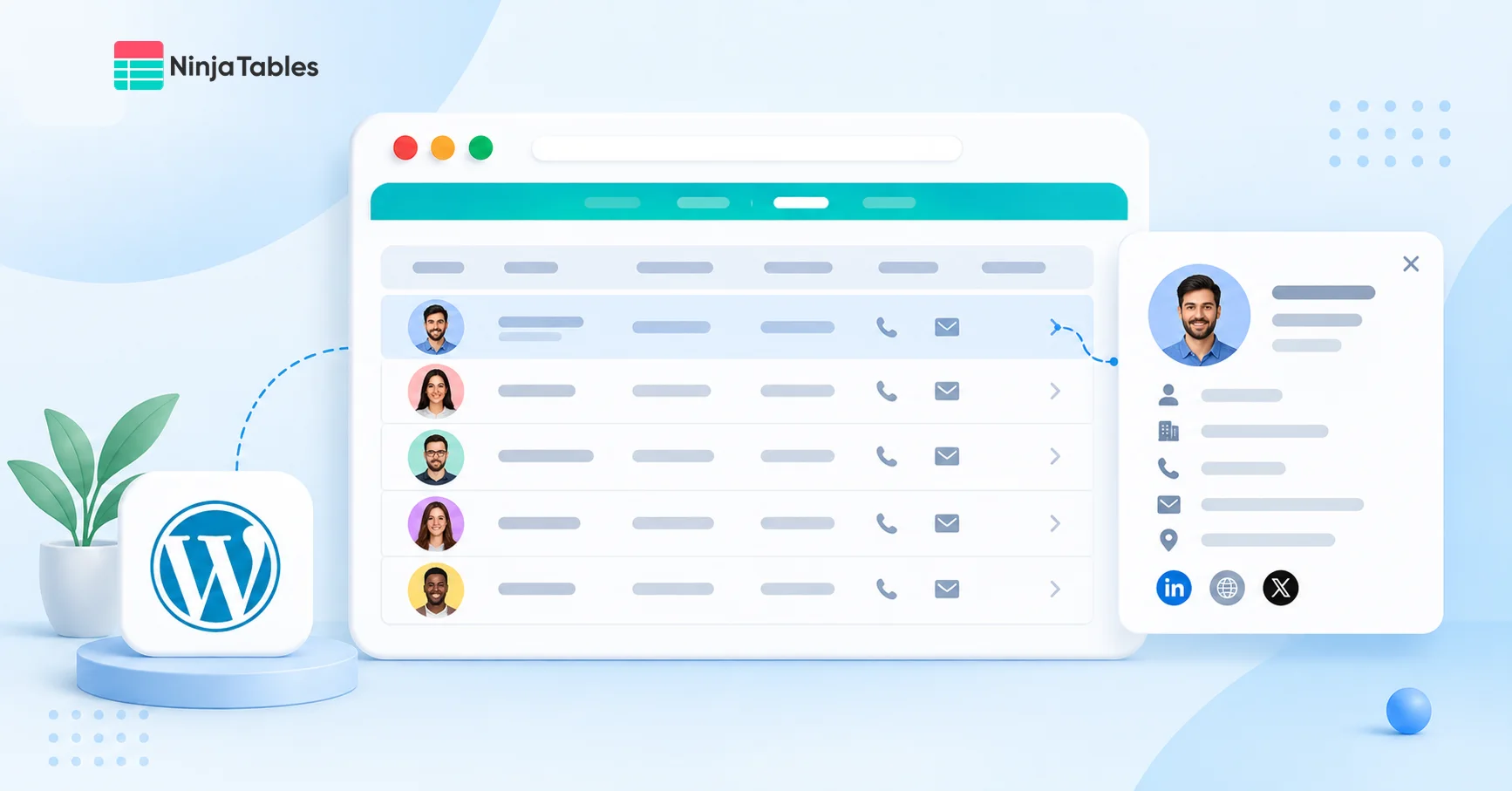
Click on an employee’s profile, and a pop-up shows up with all the details at once; no need to scroll across the table hunting for one field. They’re especially useful in larger companies where you might not know everyone personally.
A staff directory template in Excel or Google Sheets can cover this for a small team, but it needs manual updates every time someone joins, leaves, or switches roles. Built on WordPress instead, the directory lives on your site, updates in real time, and stays searchable for the whole team.
Essential Information to Include in a Staff Directory Template
Before building anything, decide what fields your directory actually needs. Most staff directories, regardless of industry, rely on the same core set of fields.
- Employee ID: It gives each person a unique reference, useful for HR records.
- Name: It’s the basic identifier, but keep first and last name in separate columns if you want to sort alphabetically.
- Job title: It helps people find the right person by role, not just by name.
- Department: It’s useful for filtering, especially once your team grows past 15 to 20 people.
- Photo: It makes a staff photo directory template feel more personal and helps people recognize colleagues in person.
- Email: Email is the main point of contact.
- Phone: It’s optional but helpful for internal directories or customer-facing teams.
- Location: It matters for hybrid teams or multi-branch organizations.
You don’t need every field for every use case. HR might want all eight fields plus a manager or start date column for internal use.
A small agency’s public team page might only need name, title, and photo. A volunteer directory table might swap “department” for “role” or “shift,” and a company directory template used for clients might drop phone numbers entirely and keep just email and department.
The point is to plan your columns before you build the table. Adding or removing fields later is easy, but starting with a clear structure saves you from rebuilding the whole thing halfway through.

Get Exclusive Tips, Updates, and Inspirations in Your Inbox!
Why Use a Table Instead of a Dedicated Directory Plugin?
Most WordPress tutorials on this topic point you toward a full staff directory plugin, something with its own user roles, registration forms, and profile pages. That’s useful if you’re building a large intranet where employees log in and manage their own listings.
But for most HR teams or team directors, that’s more setup than the job needs. If you just want a clean, searchable staff list that HR can update and employees can browse, a WordPress employee directory table gets you there with a fraction of the work.
Here’s the practical difference:
- Setup time: A dedicated directory plugin usually means configuring custom post types, permissions, and separate profile page templates. A table plugin means filling in a spreadsheet-style grid.
- No login system to manage: You’re not creating employee accounts or managing registration; you’re just publishing data.
- Flexibility: The same table format works for an employee directory, a volunteer directory, or a company directory template. You’re not locked into one plugin’s idea of what a “staff profile” should look like.
- Lighter on your site: Fewer database tables and custom post types running in the background.
If employees need to log in and edit their own profiles, a full WordPress staff directory plugin still makes sense. If HR just needs to publish and maintain a list that everyone else can search, a table is the faster route.
How to Create an Employee Directory in WordPress
Let’s get to the point now. Here is the step-by-step process of how you can create a WordPress employee directory template or table using Ninja Tables.
Install Ninja Tables
From your WordPress dashboard,
- Go to Plugins > Add New.
- Search for Ninja Tables, then install and activate it.
Once it’s active, you’ll see a new Ninja Tables menu item in your dashboard sidebar.
Pick or import the employee directory template
- Go to the Ninja Tables free templates library.
This gives you a pre-structured table with the standard fields already set up, so you’re customizing instead of starting from a blank grid.
- Download the Employee Directory Template.
- Extract the ZIP file.
From the Ninja Tables dashboard
- Click on Import.
- Drop the JSON file you’ve just extracted.
- Select the Import Format as JSON – Exported From Ninja Tables.
- Hit Import.
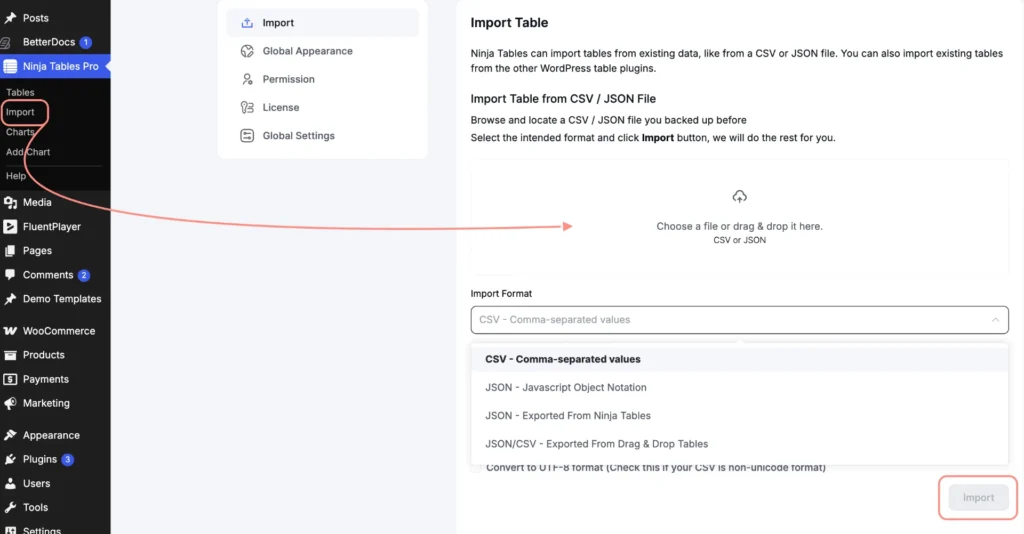
Now, you’ve just imported the employee directory table to Ninja Tables. You can also import a CSV file following the same process.
Add and customize your fields (columns and rows)
Once your template loads, review the default columns against the field list you planned earlier.
- To add more columns, simply click on + Add Column.
- To add more rows or data to the table, click on Add Data.
- To edit any of the existing data, click on the Pen icon.
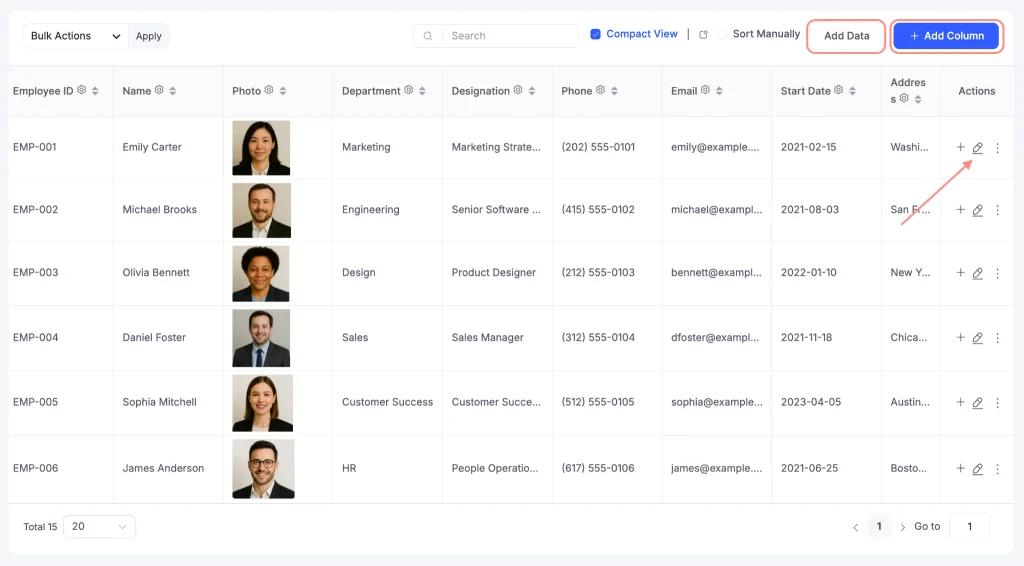
You can also modify or remove a column as needed.
- Click on the settings icon of the column you want to modify.
- You can rename it, select the data type, and also delete it.
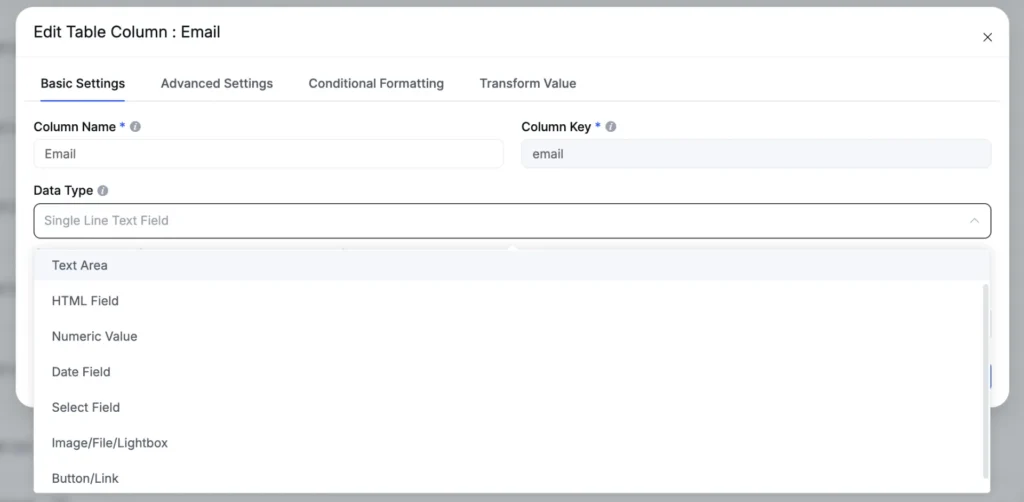
- Each column can also be set to a specific type (Text, Image, HTML, Button/Link) so the data displays correctly on the front end.
This is how you can manually populate your table.
But what if you’ve a big team of hundreds or thousands of people? Manually updating the employee directory isn’t the ideal way.
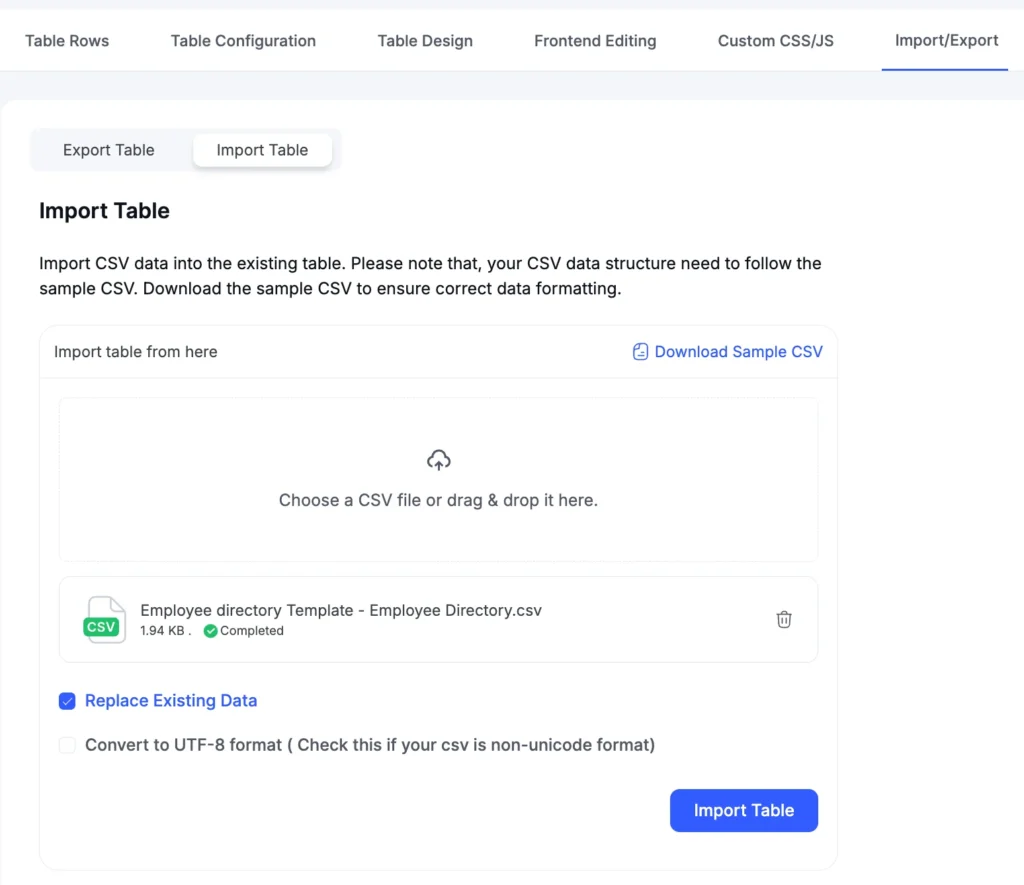
If you already have a staff list in Excel or Google Sheets, you can directly import all the information into Ninja Tables.
- Download your Google Sheet as a CSV file.
- Click on Import/Export in the table settings.
- Drop that CSV file, click on Replace Existing Data, and Import Table.
It’ll automatically fetch all the data from the Google Sheet.
This is the fastest option if you’re migrating from an existing staff directory template in Excel or Google Sheets, since you can just export that file and upload it straight in.
Enable search, sort, and filtering
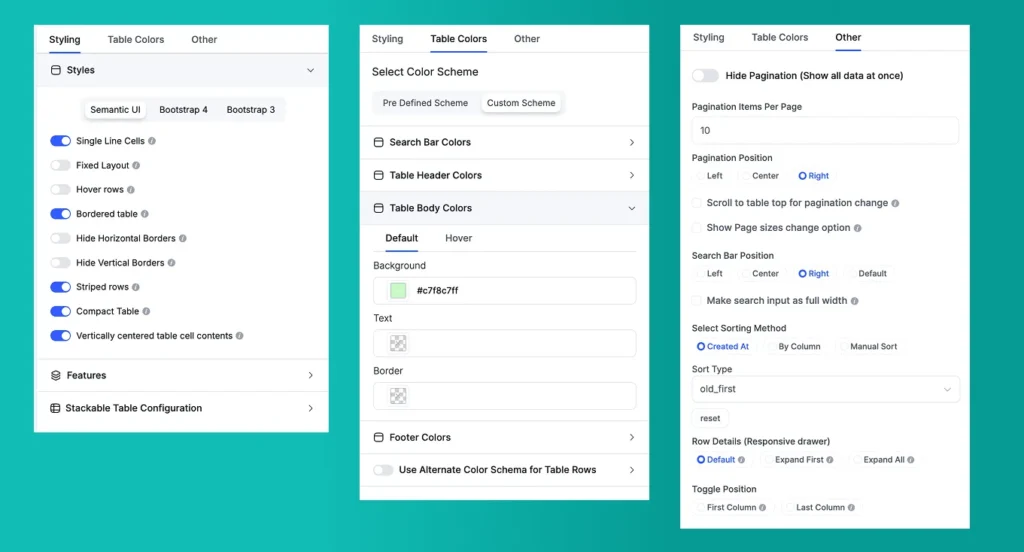
In the Table Design,
- You can turn on the search box with the positioning so employees can look up a name or department instantly.
- Enable column sorting and select the type of sorting you want.
- If your directory is large, turn on pagination too.
Style it to match your site
Ninja Tables is a highly customizable table builder for WordPress.
From the Table Design, you can adjust colors, fonts, borders, and row spacing from the styling panel, so the table matches your site’s design rather than looking like a plain spreadsheet dropped into a page.
If you’re using photos, make sure the image column is sized consistently so the layout stays clean across all rows.
Embed the table on a page
Once you’re done editing the template, you need to embed the table using a shortcode.
Every table in Ninja Tables comes with a shortcode, and you can find it at the top of the bar. Copy the code and paste it to the page where your directory should live, then publish.
That’s it! Your company directory template is now live and searchable.
Employee Directory Templates in Ninja Tables
Here are some of the ready-to-use employee directories built with Ninja Tables that you can just import and start using.
Employee directory template
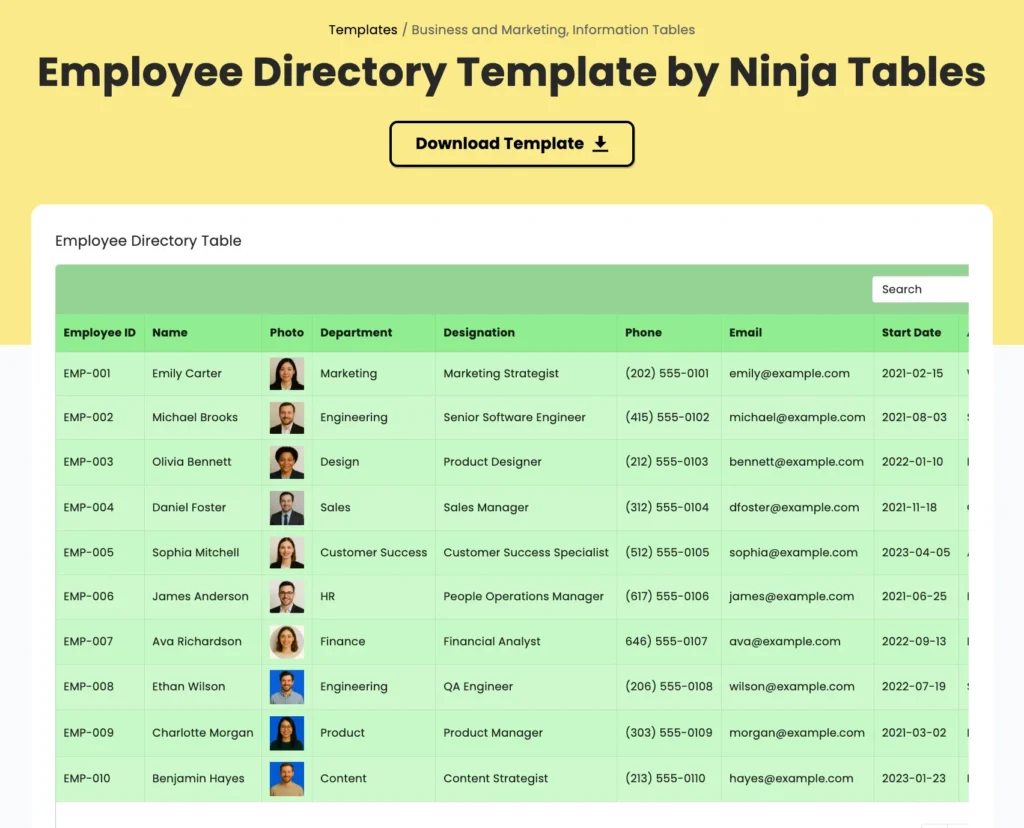
Includes employee ID, name, photo, department, designation, phone, email, start date, and location, with the click-to-open profile popup already built in. Good fit if you want the full HR-style employee directory covered in this guide.
| Employee ID | Name | Photo | Department | Designation | Phone | Start Date | Address | |
|---|---|---|---|---|---|---|---|---|
| EMP-001 | Emily Carter |  | Marketing | Marketing Strategist | (202) 555-0101 | [email protected] | 2021-02-15 | Washington, DC |
| EMP-002 | Michael Brooks |  | Engineering | Senior Software Engineer | (415) 555-0102 | [email protected] | 2021-08-03 | San Francisco, CA |
| EMP-003 | Olivia Bennett |  | Design | Product Designer | (212) 555-0103 | [email protected] | 2022-01-10 | New York, NY |
| EMP-004 | Daniel Foster |  | Sales | Sales Manager | (312) 555-0104 | [email protected] | 2021-11-18 | Chicago, IL |
| EMP-005 | Sophia Mitchell |  | Customer Success | Customer Success Specialist | (512) 555-0105 | [email protected] | 2023-04-05 | Austin, TX |
| EMP-006 | James Anderson |  | HR | People Operations Manager | (617) 555-0106 | [email protected] | 2021-06-25 | Boston, MA |
| EMP-007 | Ava Richardson |  | Finance | Financial Analyst | 646) 555-0107 | [email protected] | 2022-09-13 | New York, NY |
| EMP-008 | Ethan Wilson |  | Engineering | QA Engineer | (206) 555-0108 | [email protected] | 2022-07-19 | Seattle, WA |
| EMP-009 | Charlotte Morgan |  | Product | Product Manager | (303) 555-0109 | [email protected] | 2021-03-02 | Denver, CO |
| EMP-010 | Benjamin Hayes |  | Content | Content Strategist | (213) 555-0110 | [email protected] | 2023-01-23 | Los Angeles, CA |
| EMP-011 | Amelia Cooper |  | Engineering | Frontend Developer | (408) 555-0111 | [email protected] | 2024-02-12 | San Jose, CA |
| EMP-012 | Henry Parker |  | Operations | Operations Coordinator | (404) 555-0112 | [email protected] | 2021-12-06 | Atlanta, GA |
| EMP-013 | Grace Thompson | | Sales | Account Executive | (305) 555-0113 | [email protected] | 2022-10-17 | Miami, FL |
| EMP-014 | Lucas Walker | | Design | UX Researcher | (503) 555-0114 | [email protected] | 2024-05-20 | Portland, OR |
| EMP-015 | Harper Collins |  | IT | IT Support Specialist | (602) 555-0115 | [email protected] | 2023-08-28 | Phoenix, AZ |
Staff directory template
A card-based layout that showcases each staff member with a photo, title, and contact details. Works well for an “About Us” page or a company directory template where you want the team to look more visual than a plain data table.
Jackson Wilde jackson_wilde | Aria Solace solace_aria | Theo Riverstone theo_river |
Jamie Quinn jamie_quinn | Deborah Hill hill_deborah | Nyla Morgan morgan_nyla |


Office employee table
A denser, spreadsheet-style layout with name, position, office, age, start date, and salary. Useful for internal HR tracking rather than a public-facing staff directory.
| Name | Position | Office | Age | Start date | Salary |
|---|---|---|---|---|---|
| Zorita Serrano | Software Engineer | San Francisco | 56 | 2012/06/01 | $115,000 |
| Zenaida Frank | Software Engineer | New York | 63 | 2010/01/04 | $125,250 |
| Yuri Berry | Chief Marketing Officer (CMO) | New York | 40 | 2009/06/25 | $675,000 |
| Vivian Harrell | Financial Controller | San Francisco | 62 | 2009/02/14 | $452,500 |
| Unity Butler | Marketing Designer | San Francisco | 47 | 2009/12/09 | $85,675 |
| Timothy Mooney | Office Manager | London | 37 | 2008/12/11 | $136,200 |
| Tiger Nixon | System Architect | Edinburgh | 61 | 2011/04/25 | $320,800 |
| Thor Walton | Developer | New York | 61 | 2013/08/11 | $98,540 |
| Tatyana Fitzpatrick | Regional Director | London | 19 | 2010/03/17 | $385,750 |
| Suki Burks | Developer | London | 53 | 2009/10/22 | $114,500 |
| Sonya Frost | Software Engineer | Edinburgh | 23 | 2008/12/13 | $103,600 |
| Shou Itou | Regional Marketing | Tokyo | 20 | 2011/08/14 | $163,000 |
| Shad Decker | Regional Director | Edinburgh | 51 | 2008/11/13 | $183,000 |
| Serge Baldwin | Data Coordinator | Singapore | 64 | 2012/04/09 | $138,575 |
| Sakura Yamamoto | Support Engineer | Tokyo | 37 | 2009/08/19 | $139,575 |
| Rhona Davidson | Integration Specialist | Tokyo | 55 | 2010/10/14 | $327,900 |
| Quinn Flynn | Support Lead | Edinburgh | 22 | 2013/03/03 | $342,000 |
| Prescott Bartlett | Technical Author | London | 27 | 2011/05/07 | $145,000 |
| Paul Byrd | Chief Financial Officer (CFO) | New York | 64 | 2010/06/09 | $725,000 |
| Olivia Liang | Support Engineer | Singapore | 64 | 2011/02/03 | $234,500 |
| Michelle House | Integration Specialist | Sidney | 37 | 2011/06/02 | $95,400 |
| Michael Silva | Marketing Designer | London | 66 | 2012/11/27 | $198,500 |
| Michael Bruce | Javascript Developer | Singapore | 29 | 2011/06/27 | $183,000 |
| Martena Mccray | Post-Sales support | Edinburgh | 46 | 2011/03/09 | $324,050 |
| Lael Greer | Systems Administrator | London | 21 | 2009/02/27 | $103,500 |
| Jonas Alexander | Developer | San Francisco | 30 | 2010/07/14 | $86,500 |
| Jennifer Chang | Regional Director | Singapore | 28 | 2010/11/14 | $357,650 |
| Jennifer Acosta | Junior Javascript Developer | Edinburgh | 43 | 2013/02/01 | $75,650 |
| Jenette Caldwell | Development Lead | New York | 30 | 2011/09/03 | $345,000 |
| Jena Gaines | Office Manager | London | 30 | 2008/12/19 | $90,560 |
Volunteer directory table
Built around name, role, department, contact and social links, and availability, making it a ready fit for a volunteer directory at a nonprofit, school, or community organization.
Rank | Image | Name | Role | Department | Contact | Availability |
01 |  | William S. Manning | Event Coordinator | Events | Weekends | |
02 |  | Mark Hall | Fundraising Volunteer | Fundraising | Evenings | |
03 |  | Angela Beyers | Registration Assistant | Events | Flexible | |
04 |  | Antonio M. Vegas | Community Outreach | Outreach | Weekdays | |
05 |  | Kristin J. Lee | Social Media Volunteer | Marketing | Mornings | |
06 | | Ava Davis | Food Distribution | Community | Flexible | |
07 | | William Miller | Volunteer Coordinator | Administration | Flexible | |
08 | | Henry Thomas | IT Support Volunteer | Technology | Weekends |
Create a WordPress employee directory table without any coding
Setting this up doesn’t take much once you know which fields matter. Whether you’re managing a full team roster or a smaller volunteer list, the table-based approach in Ninja Tables gets you a working, searchable setup without touching a line of code.
And once it’s live, employees get a quick way to find a colleague’s details without having to ask around. You don’t even need to manage a WordPress staff directory plugin to do this.
Start with a template, adjust the columns to fit your organization, and you’ll end up with something people actually use instead of a spreadsheet nobody opens twice.
FAQs
Do I need a plugin to create an employee directory in WordPress?
You need some kind of plugin to display structured, searchable data cleanly, but it doesn’t have to be a dedicated directory plugin. Ninja Tables works well for most use cases and is far quicker to set up.
Can I make an employee directory without coding?
Yes. Using a Ninja Tables pre-built employee directory template means you’re filling in fields and importing data, not writing any code.
What’s the difference between a staff directory and an employee directory?
In practice, the terms are used interchangeably. “Staff directory” is common in schools, nonprofits, and public-facing organizations, while “employee directory” is more common in corporate or HR contexts. The structure behind both is the same.
Can I import my existing staff list into a WordPress directory?
Yes. If HR already has a staff list as a staff directory template in Excel or Google Sheets, you can export it as a CSV and import it directly into your Ninja Tables directory instead of re-entering data manually.
Is a table format good enough for a large team?
Yes, as long as you turn on search, sorting, and pagination. These features let employees find who they need without scrolling through hundreds of rows.

Ninja Tables– Easiest Table Plugin in WordPress




Add your first comment to this post