
Table of Contents
You can add extra columns to show more information, such as the product’s overall average rating.
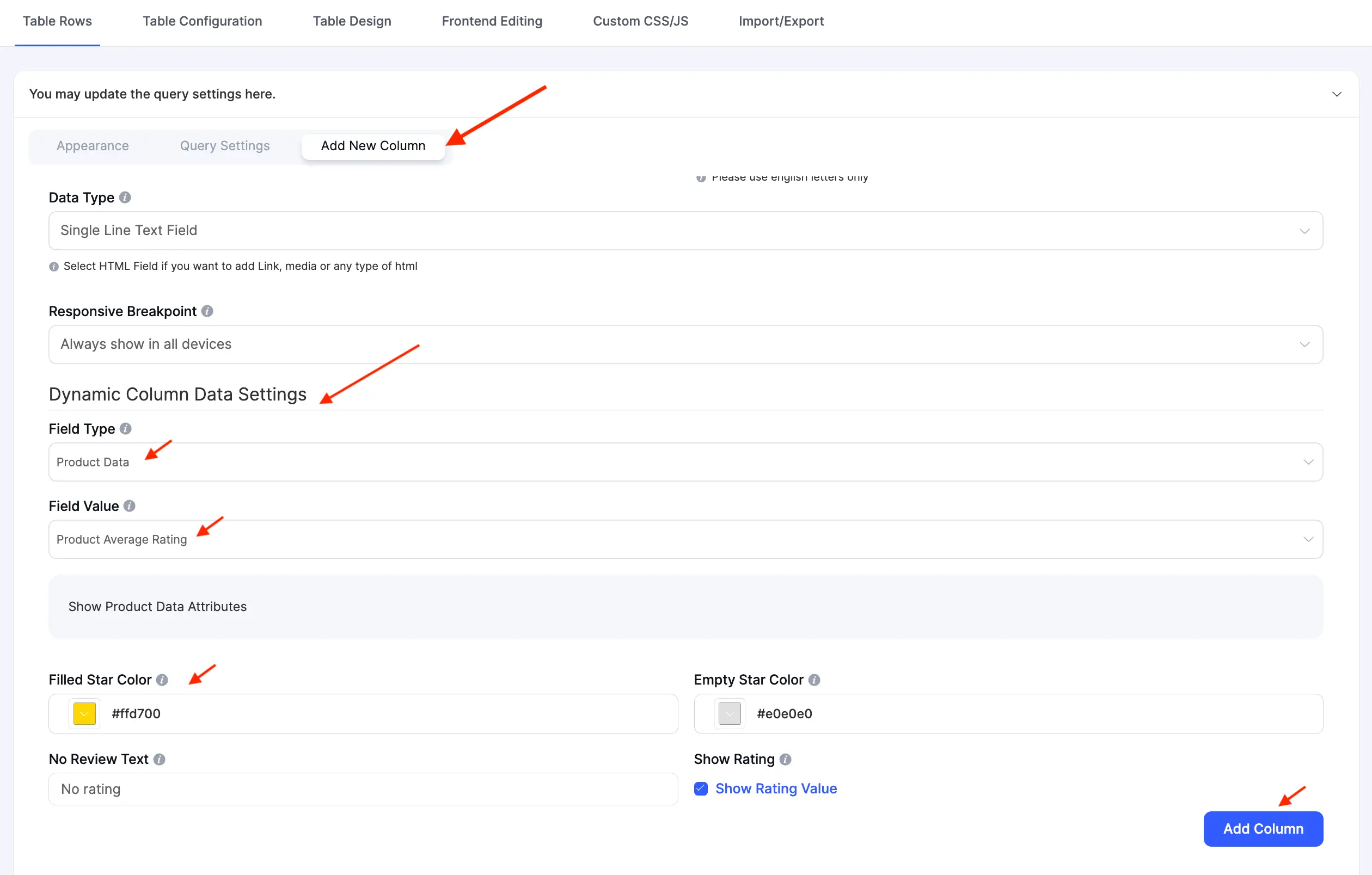
- From the Table Rows section, click the Add New Column sub-tab.
- Configure the basic settings, such as Column Name (e.g., “AVG. Rating”) and Data Type.
- Scroll down to the Dynamic Column Data Settings section. This powerful feature lets you pull specific data directly from your products.
Product Average Rating #
You can now display the product’s overall average rating in its own column. This allows customers to see both the individual review (e.g., 5 stars) and the product’s average score (e.g., 4.5/5) at the same time.
Click Add Column to save the column. Your table will now show this data.
Accessing Standard Table Settings #
The settings specific to your WooCommerce review data are located under the Table Rows tab. However, your table also has access to all the standard Ninja Tables settings, which you can see in the other tabs at the top of the editor:
- Table Configuration: Control core rendering settings, such as pagination, sorting, and search options.
- Table Design: Change your table’s appearance, including colors, borders, and layout, to perfectly match your site’s branding.
- Frontend Editing: Allow specified users to edit table data.
- Custom CSS/JS: For advanced users, this tab allows you to add your own custom CSS code or JavaScript.
- Import/Export: Manage your table’s data by importing from or exporting to a CSV/JSON file.


